
Datastore
The Datastore brings together two often separate needs: storing your app’s local data (variables, progress, preferences) and managing content collections like a lightweight CMS.
How it works
Role 1 — Local variable manager
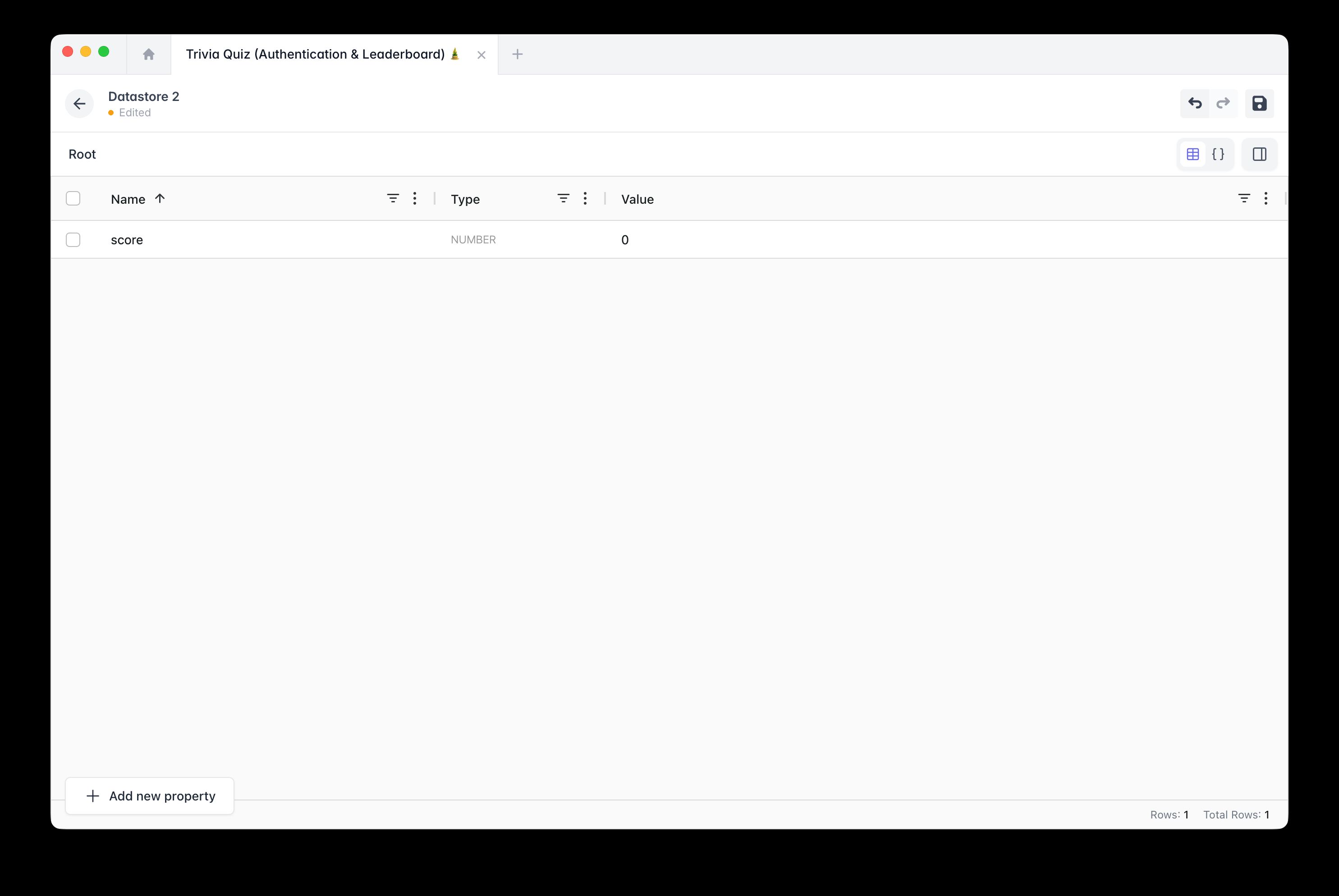
The Datastore stores data specific to each user, directly on their device:
- Scores & progress: level reached, points accumulated, unlocked steps
- Preferences: chosen language, dark mode, text size
- App state: tutorial already seen, bookmarked items, pre-filled forms
This data survives app closure but stays local — each user has their own independent copy.
Role 2 — Lightweight CMS for your collections
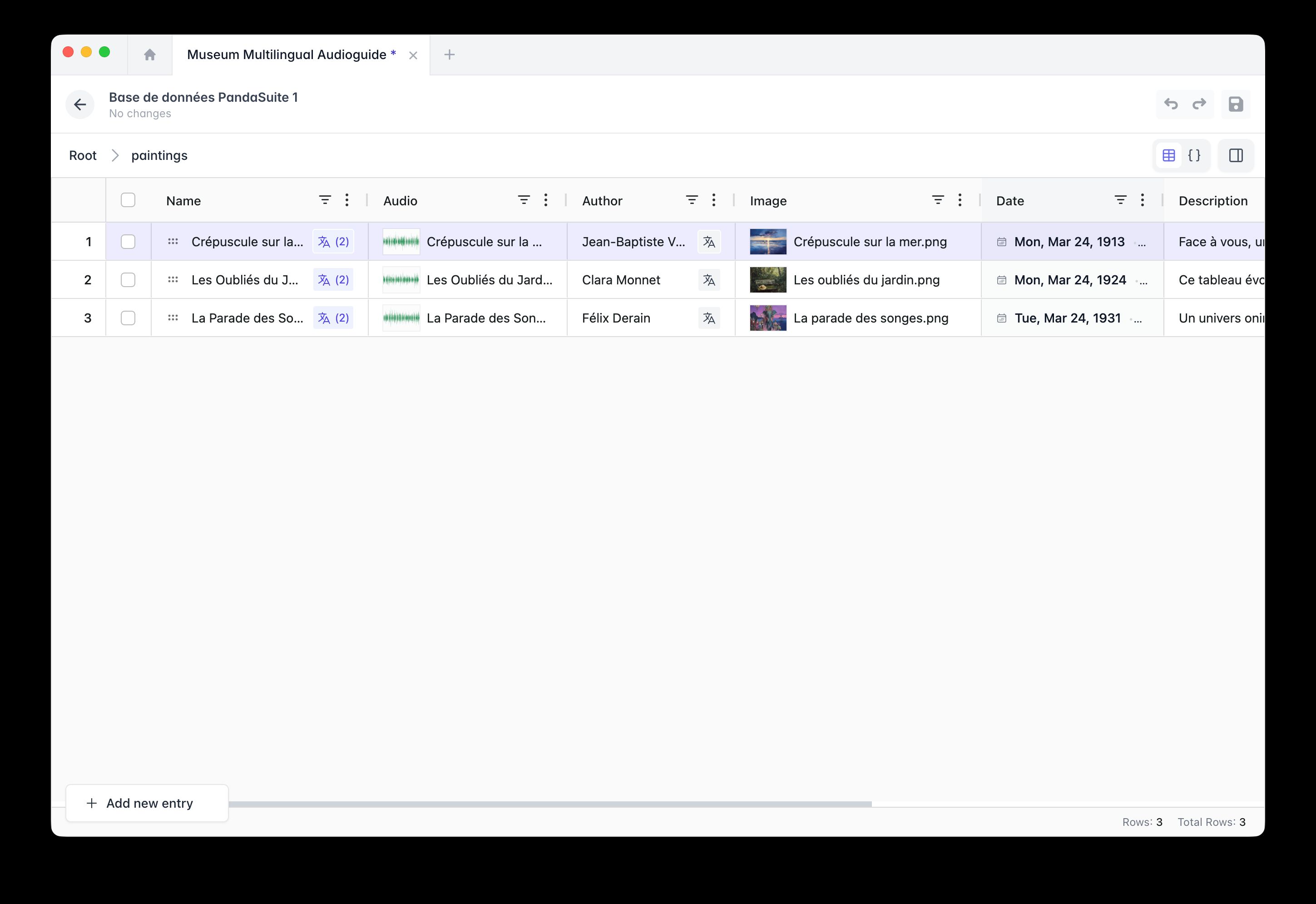
The Datastore can also hold structured content that you manage from Studio and push to your users:
- Product catalog: regularly updated list of items
- Dynamic pages: editorial content without rebuilding the app
- Configuration: settings editable remotely
In this case, you edit the content in the Data Editor, then users retrieve updates via the Fetch remote data action.
Everything works locally, even offline. One user’s changes never affect others.
Create your datastore
Add the component
In the Data source panel, choose Datastore. The component is added at the Project level so it’s accessible everywhere.
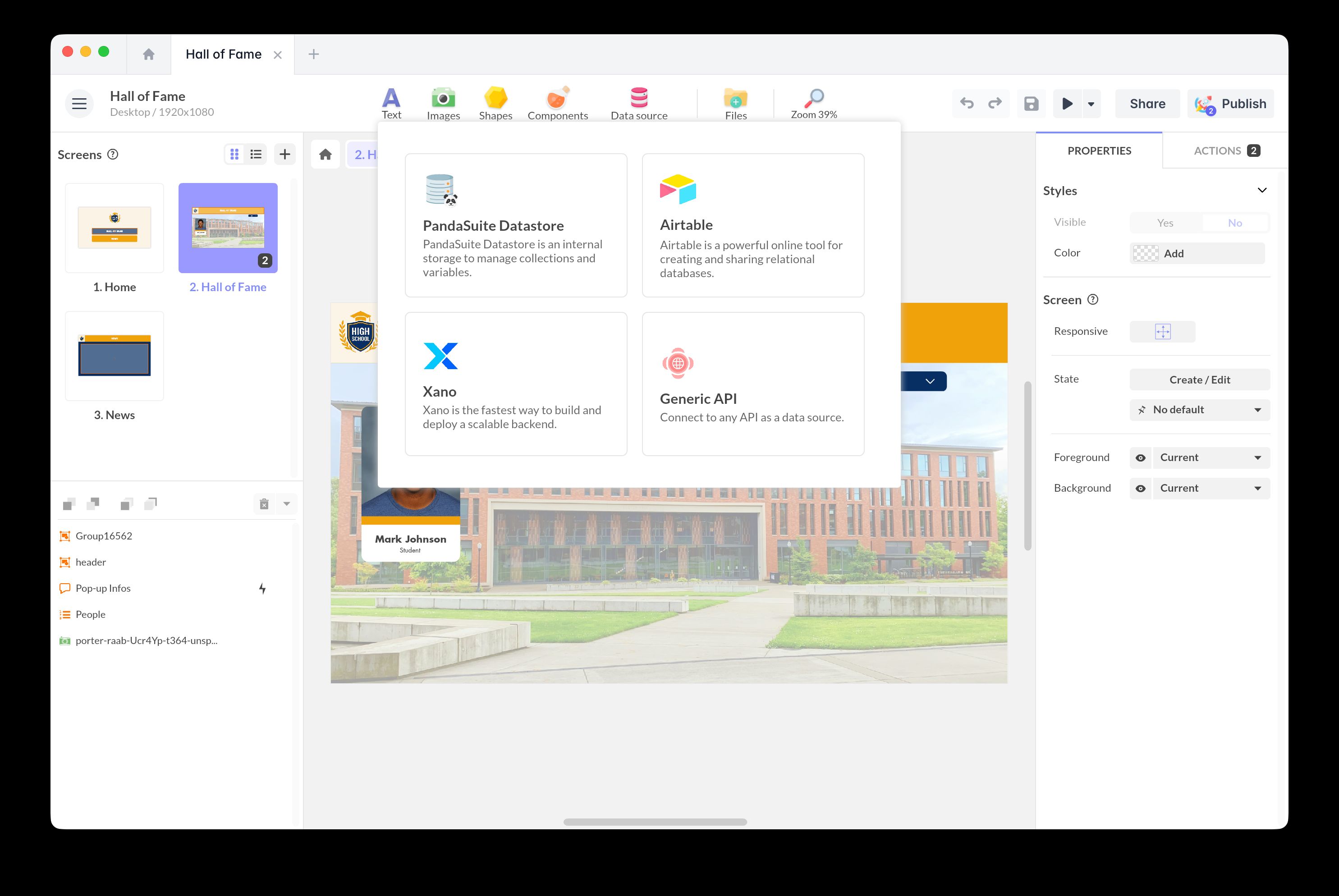
Click the arrow to open the Data Editor — a spreadsheet-style web editor that opens in an integrated browser.
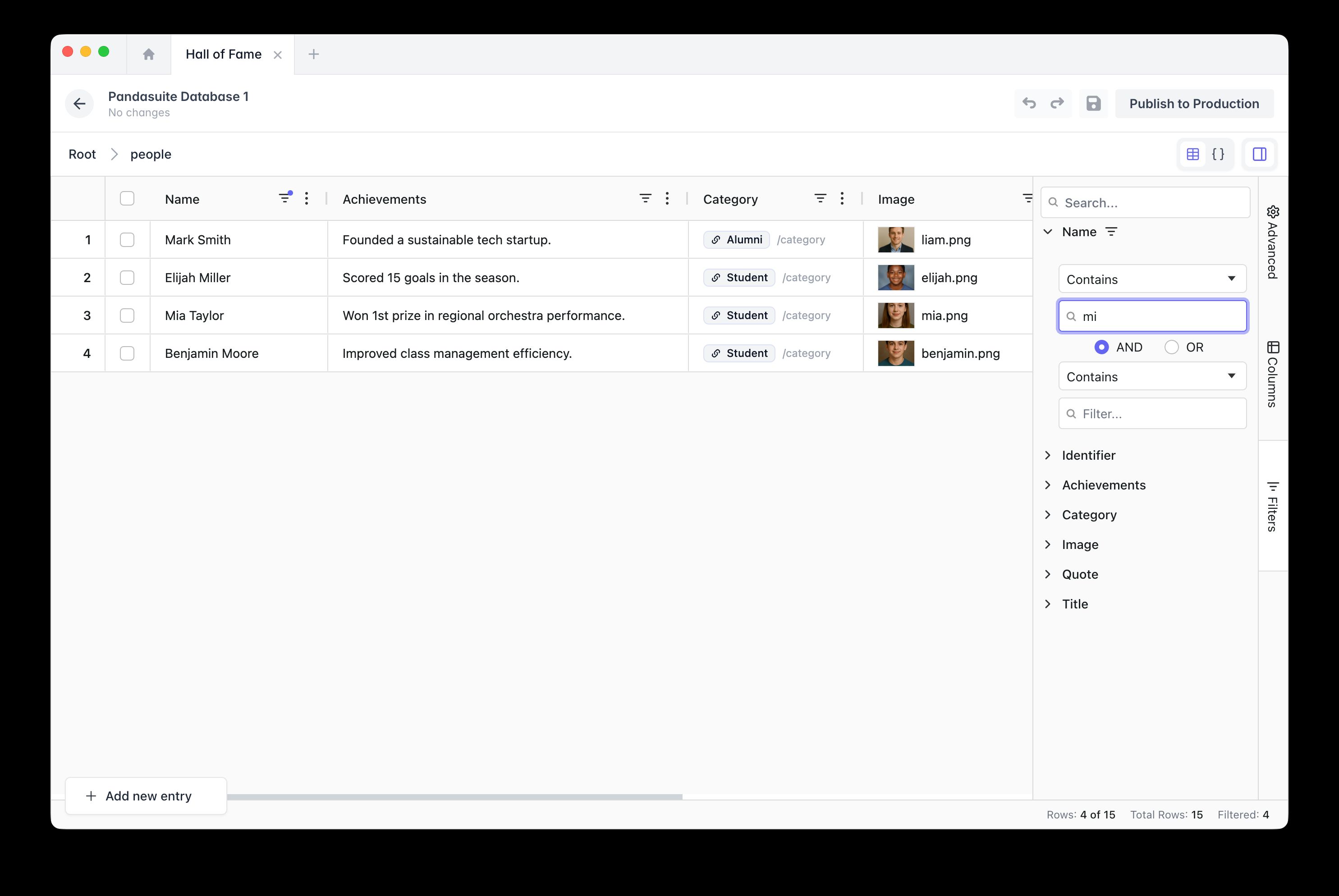
Data Editor features
- Grid view: each column is a property, each row is an item — you see everything at once.
- JSON view: switch to a raw JSON view via the button (top-right), with Import and Export options.
- Filtering & sorting: filter by content, type, or value using column headers or the Advanced filters side panel.
- Multi-select: check multiple rows to duplicate or delete them in bulk via right-click.
- Column management: reorder, pin, or hide columns using the contextual menu (…) in each column header.
- Undo / Redo: undo or redo recent changes using the arrows in the top-right toolbar.
Define the structure
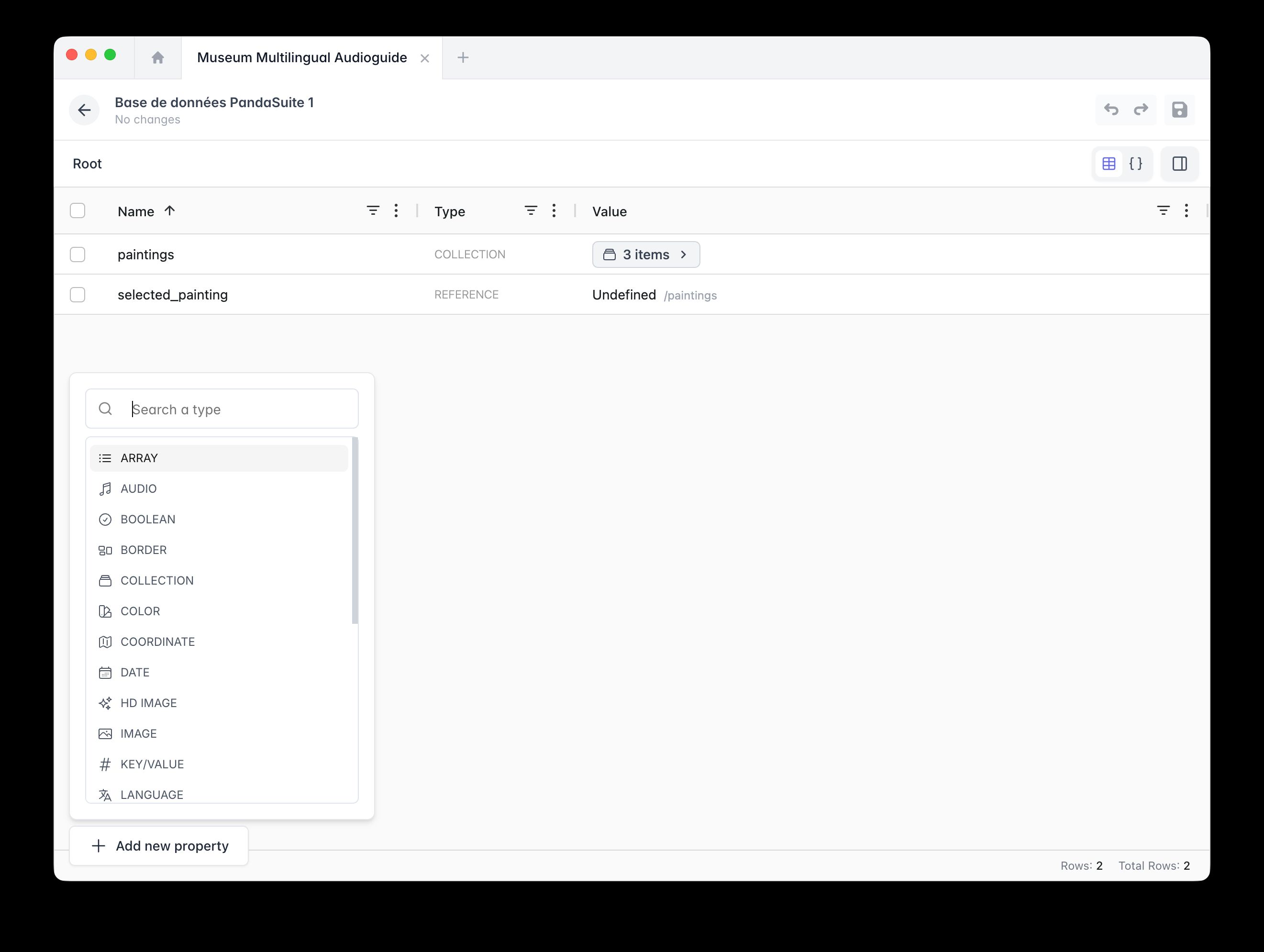
- Click + New property (bottom-left of the grid).
- Choose the data type from the searchable menu: Text, Number, Boolean, Collection, Image, Reference, Audio, Video, Date, Color, and more.
- Rename and set the default value directly in the grid cell.
Each change requires you to click Save (disk icon, top-right of the Data Editor) and then Deploy to include it in your builds or remote preview.
Manipulate data
All operations are triggered from the Actions panel — no code required.
Create / Edit data (local)
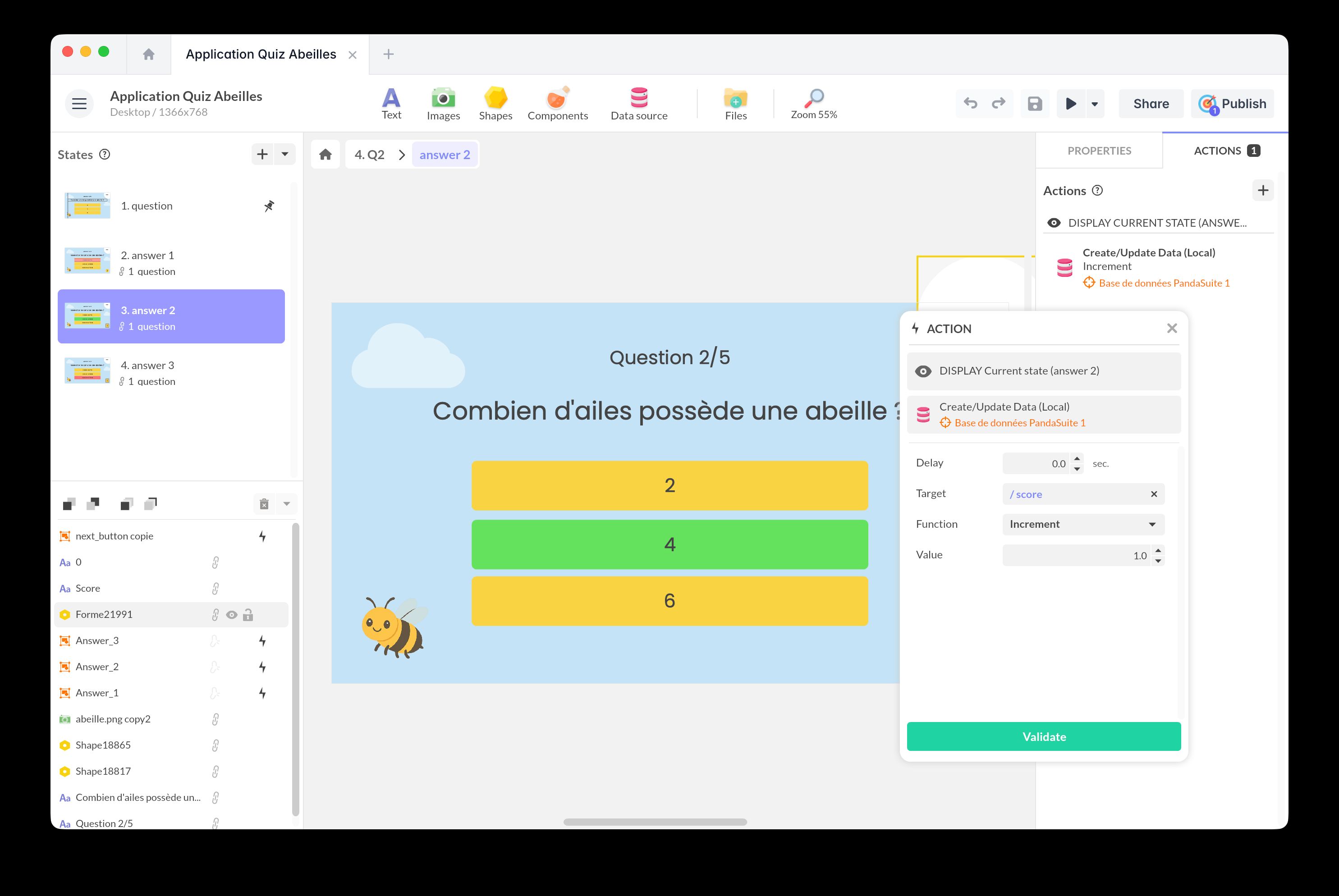
This action edits data only on the user’s device. It’s the most common action for handling scores, preferences, or app state.
These edits stay on the device. They’re not sent to PandaSuite servers or shared with other users.
In the Actions panel, select any trigger, then: Interact with a data source → Datastore → Create/Update Data (Local). Select the target property and choose the function to apply:
| Function | Data type | Effect |
|---|---|---|
| Set | All | Fully replaces the value |
| Increment / Decrement | Number | Adds or subtracts a numeric value |
| Add | Array | Appends an item to the end of the list |
| Remove by value | Array | Removes a specific item from the list |
| Remove by id | Array | Removes an item by its unique identifier |
| Delete | All | Completely deletes the data |
Fetch remote data
This action retrieves updates to the model from Studio — especially useful for dynamic content.
Merge remote data with local data: yes or no
-
No (without merge): completely replaces local data with data from PandaSuite Studio
- ✅ Ideal for: product catalog, editorial content
- ❌ Beware: overwrites local changes (scores, preferences)
-
Yes (merge): intelligently combines local and remote data
- ✅ Keeps user changes
- ✅ Adds new items from Studio
- ✅ Updates default values not modified locally
You have a collection of game levels. The user unlocked levels 1 to 5. You add 3 new levels in Studio.
When to sync?
| Moment | Why |
|---|---|
| On app launch | Retrieve the latest updates |
| ”Refresh” button | Let the user trigger it manually |
| After regaining internet | If the app was used offline |
Export data (local)
This action creates a CSV file containing all the user’s local data. Useful for analytics, support, or letting users back up their progress.
The CSV is created and stored on the device. To send it to a server, you’ll need to use an external API.
Delete your datastore
Go to the Project tab, select your datastore, and click the delete icon.
When to use what?
The Datastore covers most app needs. For cases that go beyond local storage, combine it with an external service rather than replacing it entirely.
| Need | Solution |
|---|---|
| Per-user local data (scores, preferences) | Datastore only |
| Share or centralize data across users | Datastore + Firebase or HTTP |
| Cloud backup of user progress | CSV export → cloud service |
| Advanced queries or filtering on large datasets | External API |