
Import an SVG
Paste your SVGs into PandaSuite and fully exploit the benefits of vector files.
The SVG format (Scalable Vector Graphics) has become a staple in interface design for a good reason: it allows you to create scalable graphic elements without any loss of quality, no matter their size.
In PandaSuite, an SVG becomes either a shape whose color you can change directly in Studio, or a vector image that stays sharp but whose color cannot be changed. It all depends on how the SVG is built.
How PandaSuite interprets SVGs
When you paste SVG code into PandaSuite, Studio analyzes it to decide whether it can become an editable path or whether it must be kept as a complete SVG file.
Single-path SVG = editable path
If the SVG contains a single <path> element, PandaSuite converts it into a path object placed on your screen. This allows you to:
- Change its color and other graphic properties directly in Studio.
- Resize it without losing quality.
- Animate it with the animation features available in PandaSuite.
PandaSuite keeps the fill color defined on the path (or on the <svg> tag). If no fill color is defined, a random color is applied: simply pick the color you want afterwards. An outline icon that uses a stroke keeps its outline and thickness, with a transparent fill.
Other SVGs = complete SVG file
If the SVG contains several paths or other elements (circles, rectangles, polygons, gradients, filters…), PandaSuite keeps it as a complete SVG file and adds it to your Files. Drag and drop it onto your screen to use it.
A complete SVG remains resizable and sharp at any size, but you cannot change its color or edit its shapes in Studio.
To recolor an icon in Studio, choose icons drawn as a single path. If your icon is made of several shapes, merge them into a single path in your design tool (for example, Pathfinder in Illustrator or Union in Figma) before copying it.
How to import an SVG into PandaSuite
Paste the SVG code
This is the method to use when you want an editable path:
- Find an SVG icon, on an icon site or in your design tool.
- Copy the SVG code of the icon.
- Open your project in PandaSuite Studio and select the screen.
- Paste with Ctrl+V (Windows) or Cmd+V (macOS).
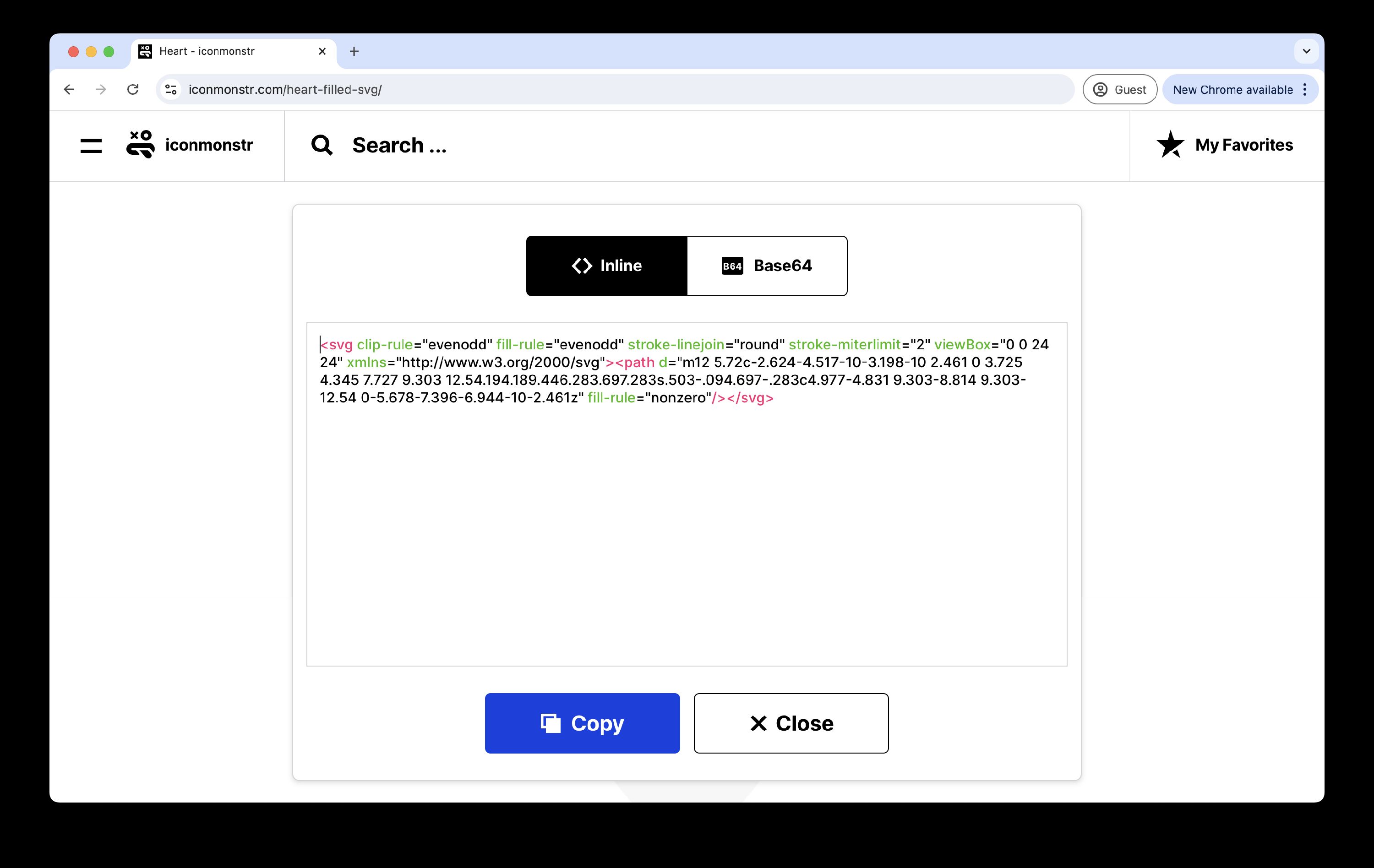
You should now see the icon on your screen, selected and ready to be customized. If it does not appear on the screen, it was imported as a complete SVG: you will find it in your Files.
Import the SVG file
Copying an .svg file from your computer’s file explorer does not paste its content. To use an SVG file, import it instead: click Files in the top bar, then Import your files. Then drag the SVG from your Files onto your screen. See Upload assets.
An imported SVG file is kept as a complete SVG. To get an editable path, open the file in a text editor or your design tool, copy its code and paste it into Studio.
Free SVG icons for your projects
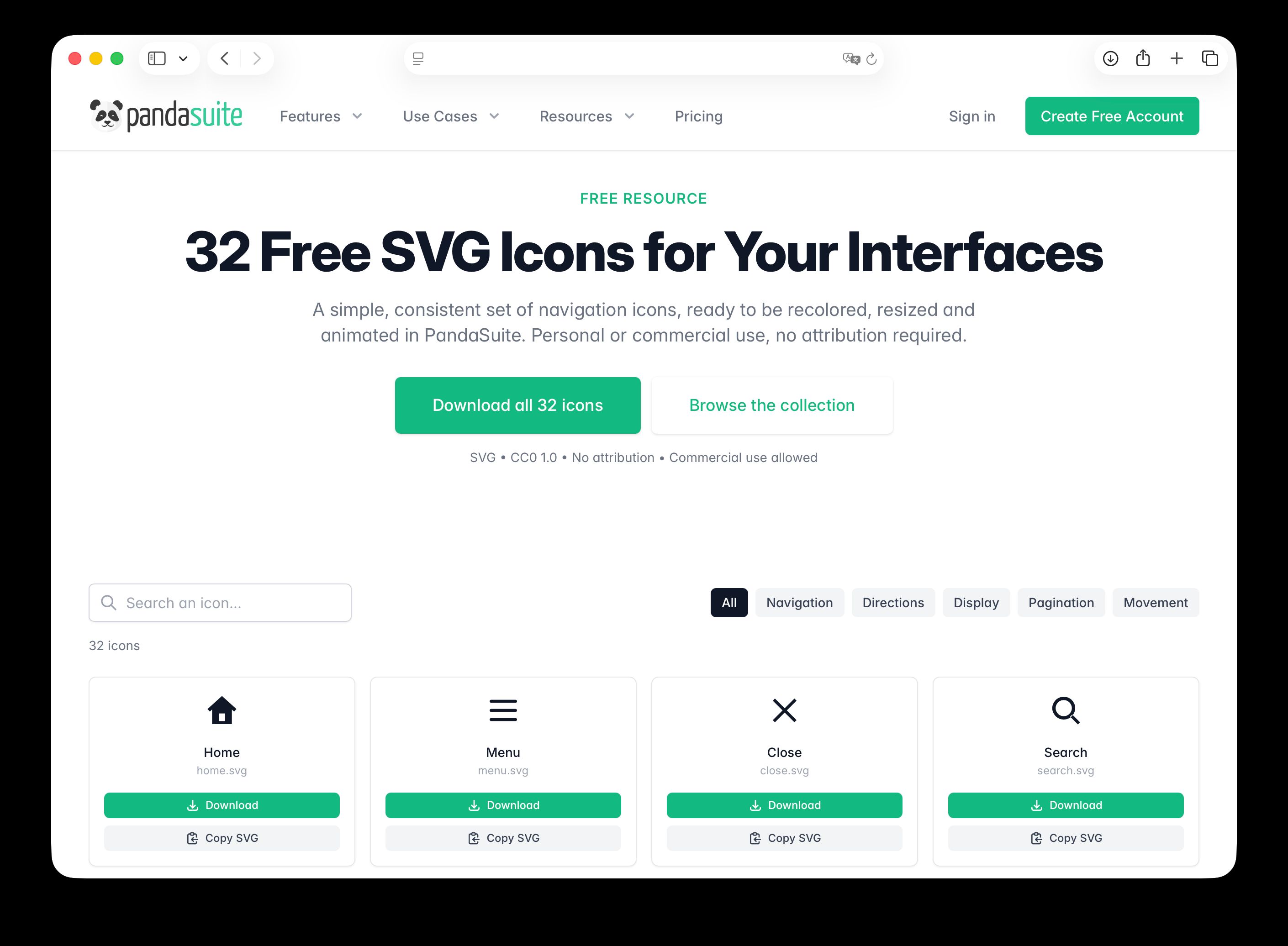
Need navigation icons? PandaSuite offers a collection of free SVG navigation icons: arrows, chevrons, menu, close, home, fullscreen and more.
Each icon is drawn as a single path, so it becomes editable as soon as you paste it: click Copy SVG on the page, paste it into Studio, then recolor, resize and animate it. The icons are released under the CC0 license, free for personal and commercial use, with no attribution required.
For other sources of icons, see Icons.
Troubleshooting (Adobe Illustrator)
If pasting directly from Adobe Illustrator does not work, Illustrator may not be including SVG data in the clipboard by default.
Try enabling this preference in Illustrator, then copy again:
- Windows: go to Edit > Preferences > Clipboard Handling, then check Include SVG Code.
- macOS: go to Illustrator > Preferences > Clipboard Handling, then check Include SVG Code.
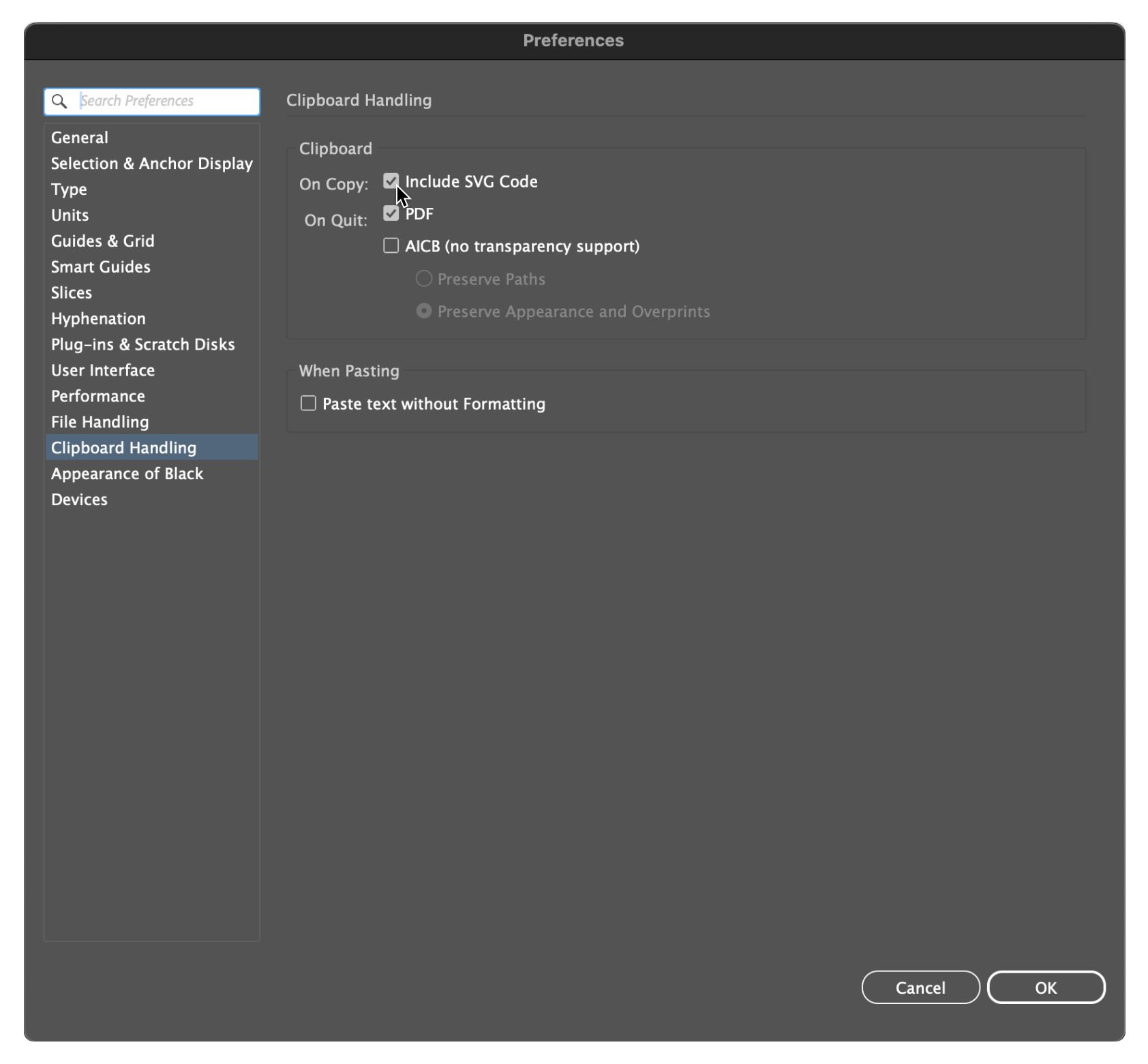
If it still does not work, export your design as an SVG file and import it into PandaSuite:
- In Illustrator: File > Export > Export As…, choose SVG, and save.
- In PandaSuite Studio: click Files in the top bar, then Import your files. Then drag the SVG from your Files onto your screen. See Upload assets.
Paste behavior can differ across Illustrator versions. Using Include SVG Code or exporting a clean SVG reliably preserves vector data for PandaSuite.