

Add your PWA to home screen
One of the advantages of the Progressive Web App is the possibility to add a shortcut from the home screen.
Here is how to add the PWA shortcut on the home screen of a mobile device (for Android and iOS Chrome):
To learn more about PWA, we recommend this article from our blog What is a Progressive Web App ?
Add to home screen
Click on the URL and open the PWA from a mobile device.
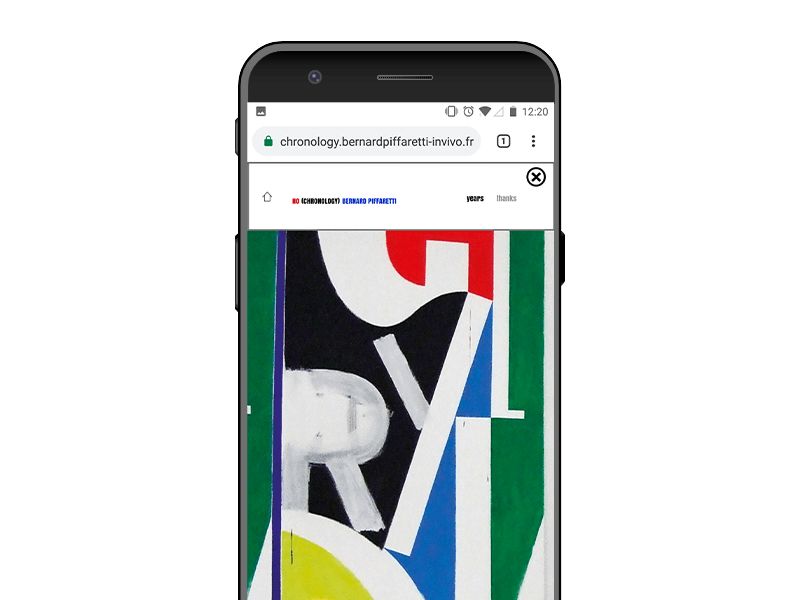
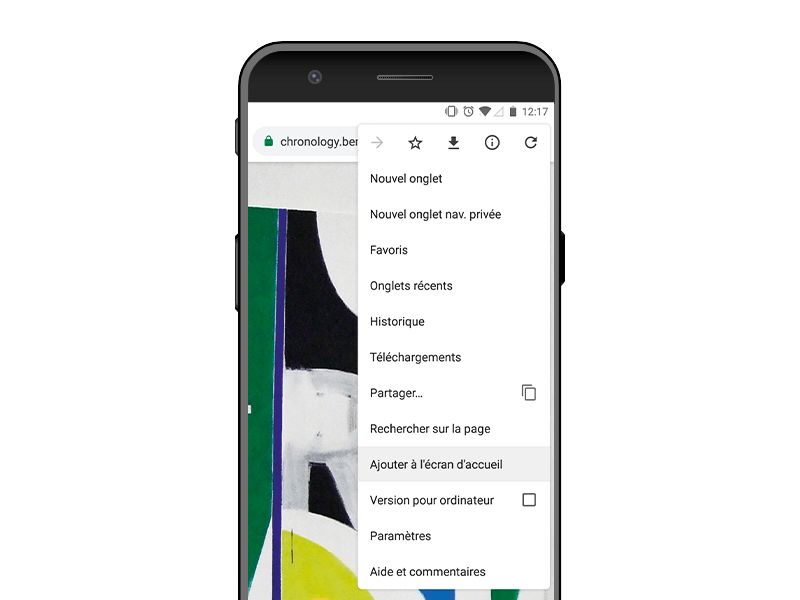
Go to Chrome menu and choose Add to home screen
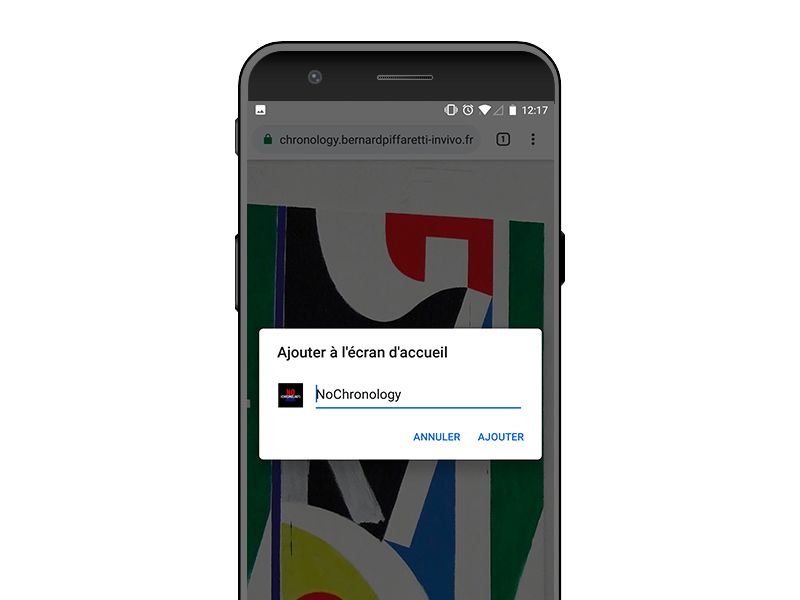
Choose a name.
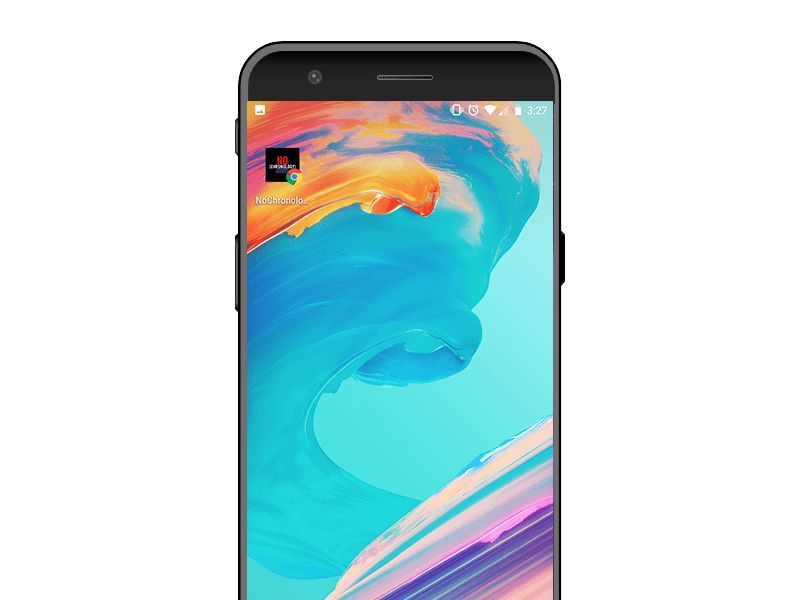
The icon appears on the home screen. The PWA is available offline.
Browser compatibility
Adding the PWA to the home screen depends on the device and the browser:
| Device | How to add the PWA |
|---|---|
| Android | Chrome and Samsung Internet install it as an app. Firefox, Edge, and Opera add a shortcut that opens it in the browser. |
| iPhone and iPad | Share > Add to Home Screen: in Safari, and also in Chrome, Edge, and Firefox from iOS 16.4. |
| Mac | Safari 17 and later (macOS Sonoma): File > Add to Dock. Chrome and Edge can also install it. |
| Windows and Linux | Chrome and Edge can install it. Firefox cannot install a PWA. |
To work offline, the PWA relies on service workers. Every browser that can run a PandaSuite web app supports them:
| Browser | Compatible version |
|---|---|
| Chrome (desktop and Android) | 87 and later |
| Edge | 88 and later |
| Firefox (desktop and Android) | 78 and later |
| Safari (macOS, iOS, and iPadOS) | 14 and later |
| Browser built into another app, on Android (WebView) | Android System WebView 87 and later |
| Browser built into another app, on iPhone or iPad | Usually not supported |
| Internet Explorer | Not supported |
These are the minimum versions of the web app itself: see HTML5 compatibility. On iPhone and iPad, a web app opened from a link in another app (messaging, social network…) often opens in that app’s built-in browser, which does not run service workers: open it in the device’s browser instead.