

Change the name and card of your project
Change the name of the project and the card that represents it, from the dashboard.
Open your dashboard and hover over the project. Click ···, then Settings… The project settings open on the Information tab.
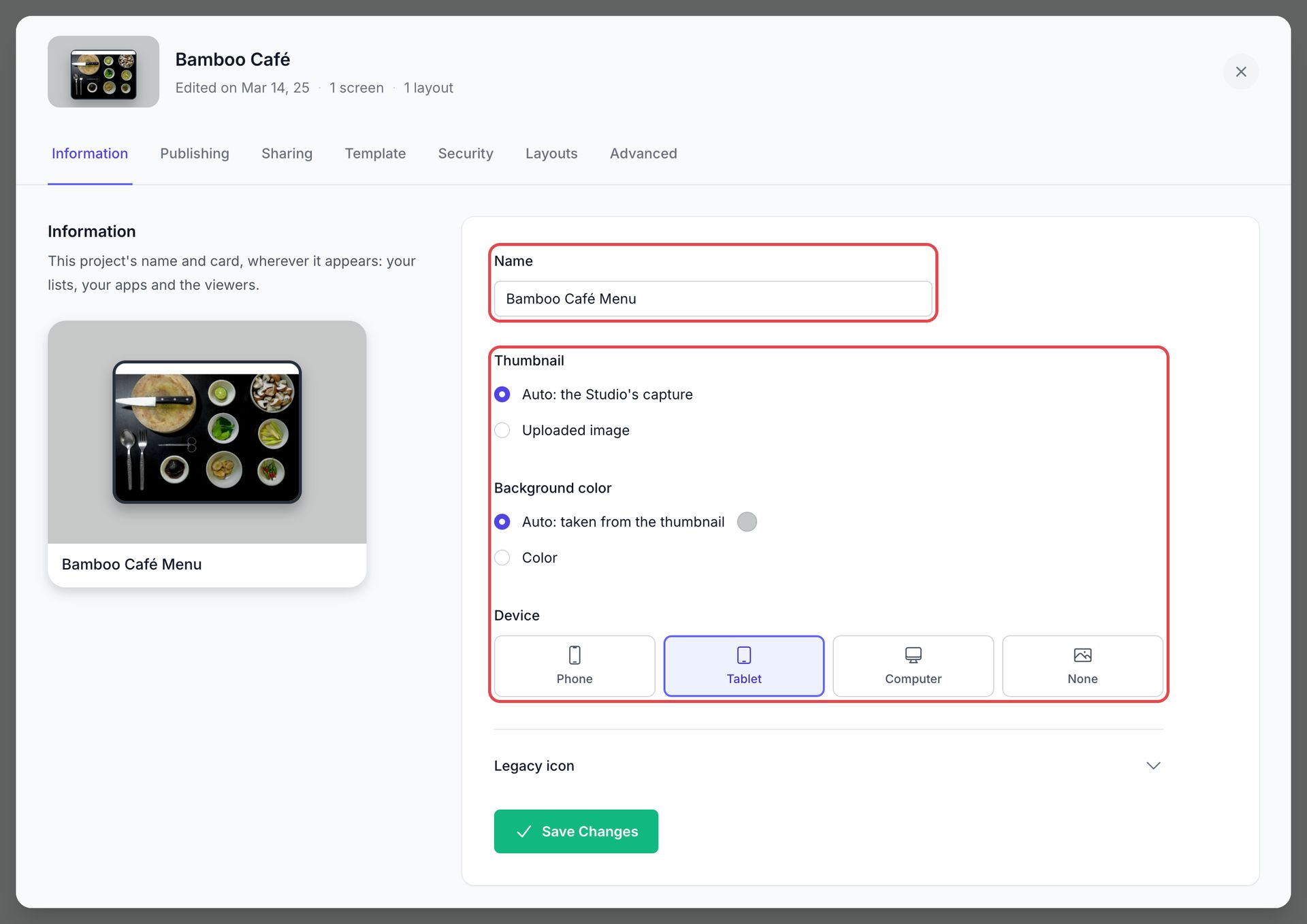
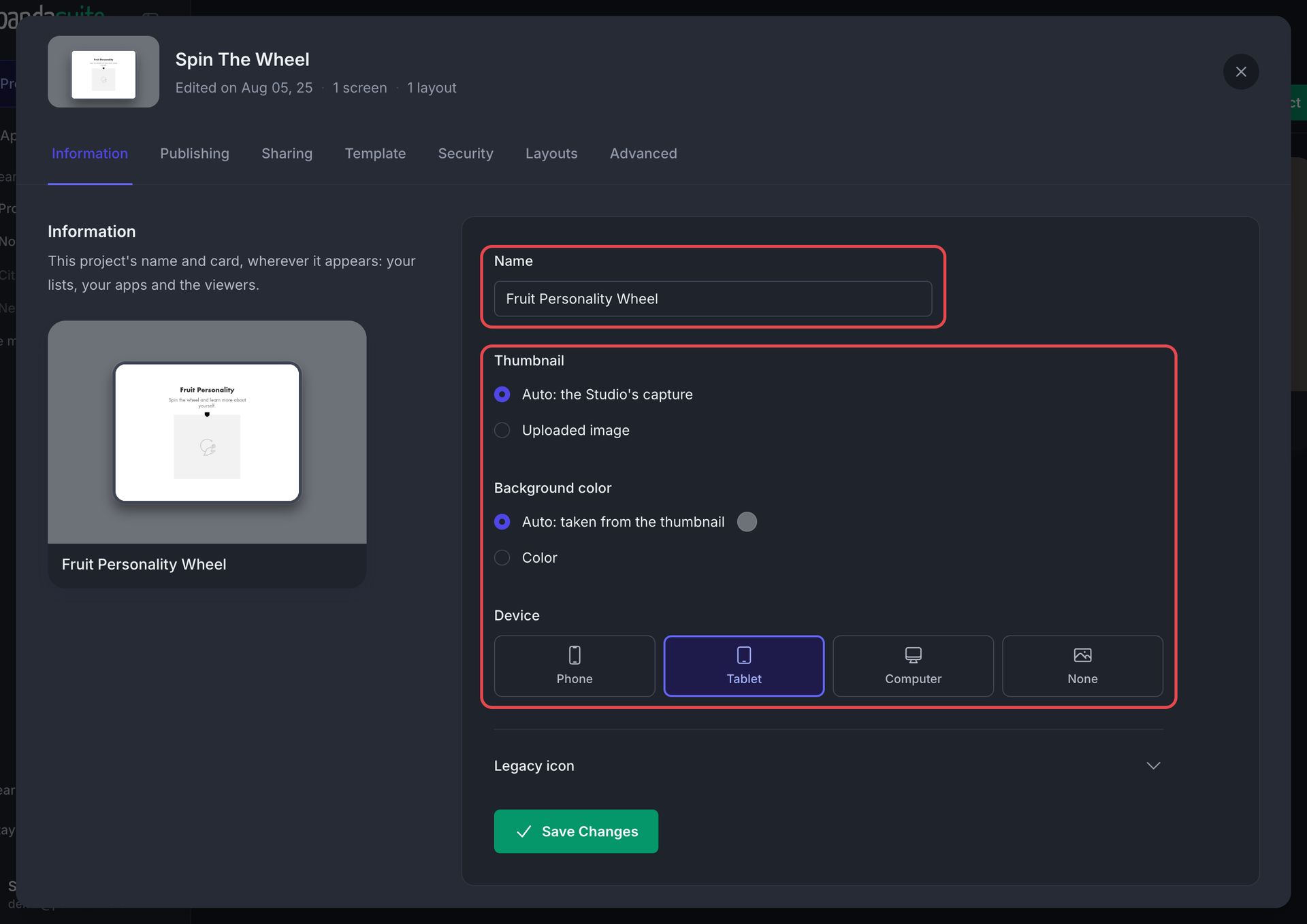
Change the name
Edit the Name of the project, then click Save Changes.
The new name is visible to anyone who views the project.
Customize the card
The card is the picture that represents the project wherever it appears: your project lists, the pages of your apps, the viewers, and the emails sent when you share or transfer the project. The preview next to the form shows the card as you change it.
Each setting stays automatic until you choose otherwise:
- Thumbnail: Auto: the Studio’s capture uses the capture of the project taken by PandaSuite Studio. Select Uploaded image, then click Choose an image to use your own picture. Replace changes it later.
- Background color: Auto: taken from the thumbnail picks a color from the thumbnail. Select Color to choose your own in the color picker.
- Device: the device drawn around the thumbnail: Phone, Tablet, Computer, or None. By default, the card draws the device of the project’s format.
Click Save Changes: the name and the card are saved together.
Legacy icon
The icon that used to represent the project is folded at the bottom of the tab, under Legacy icon, because some screens still use it. Expand it to change or remove the icon, then click Save Changes.