
Content sharing
The Share action sends a URL, text, image, video, PDF, or any media file to the device’s native share sheet. Use it to let readers forward content to social networks, messaging apps, email, or system features such as AirDrop or Print.
This pattern fits mobile applications, editorial platforms, digital publications, and product catalogs.
Share via the device’s native share sheet
The Share action relies on the iOS and Android share sheet, also available in Safari on macOS. It works whether your application is delivered as a native build or through the web.
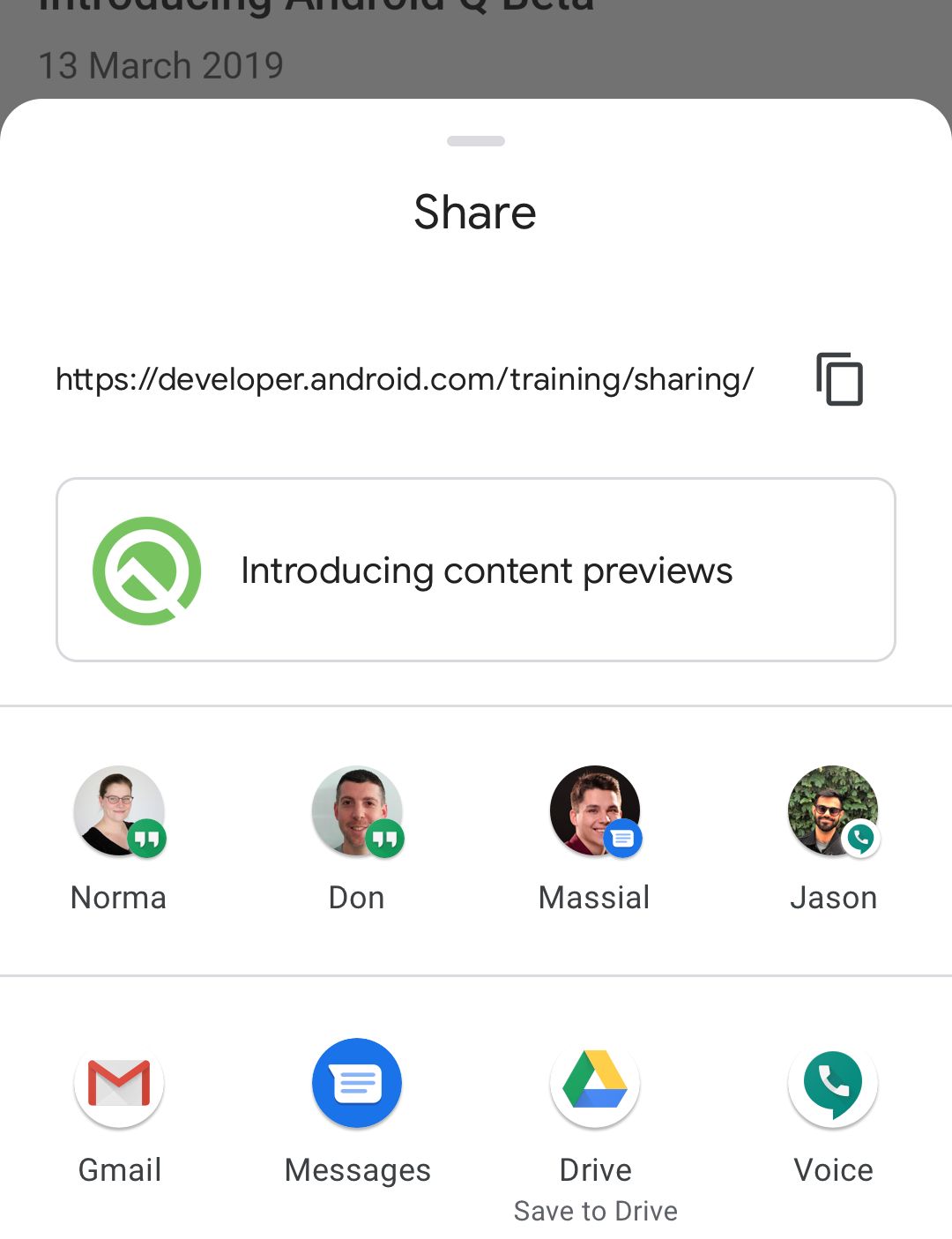 | 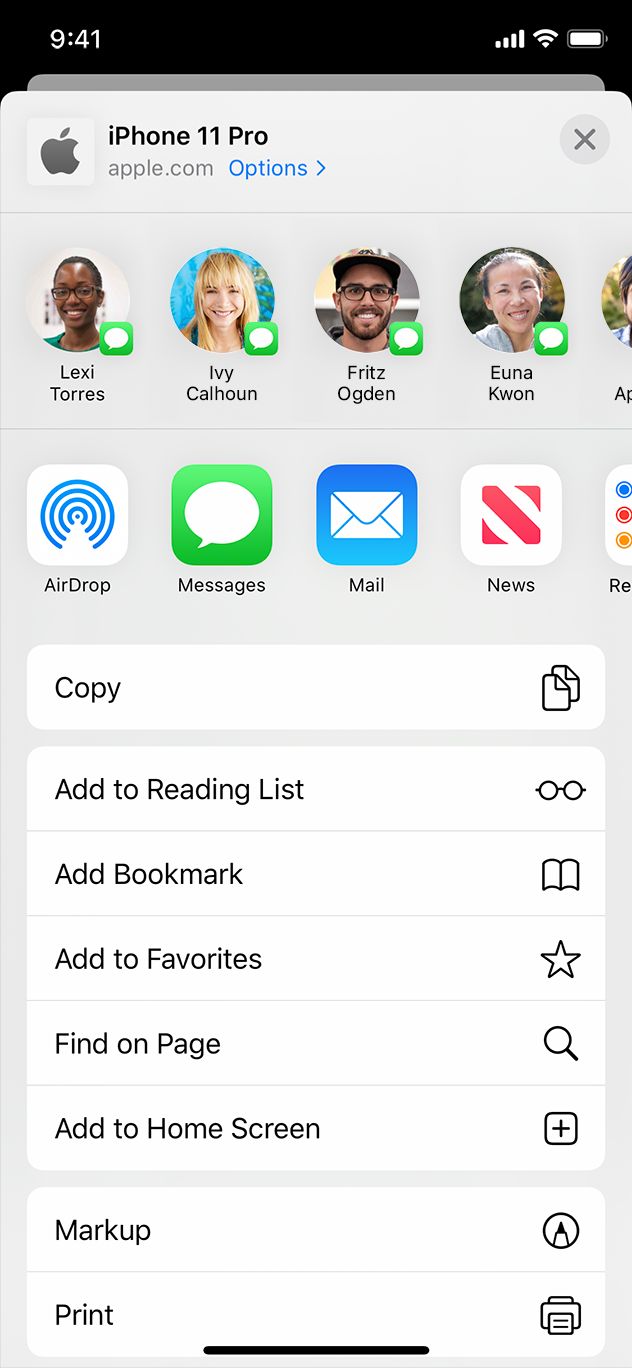 |
The list of destinations reflects the apps installed on the device: social networks (Facebook, X, WhatsApp), messaging apps (Messages, Gmail), or system features (AirDrop, Print).
Create a Share action
- Select the component that triggers the share, then open the Actions panel.
- Add a Share action.
- Use the Type toggle to choose what you want to share: URL or Media.
Share a URL or text
With Type set to URL, fill in the URL and Text fields. Both accept dynamic values through the data binding icon, so the share content can follow the active record in a Collection or any other component property.
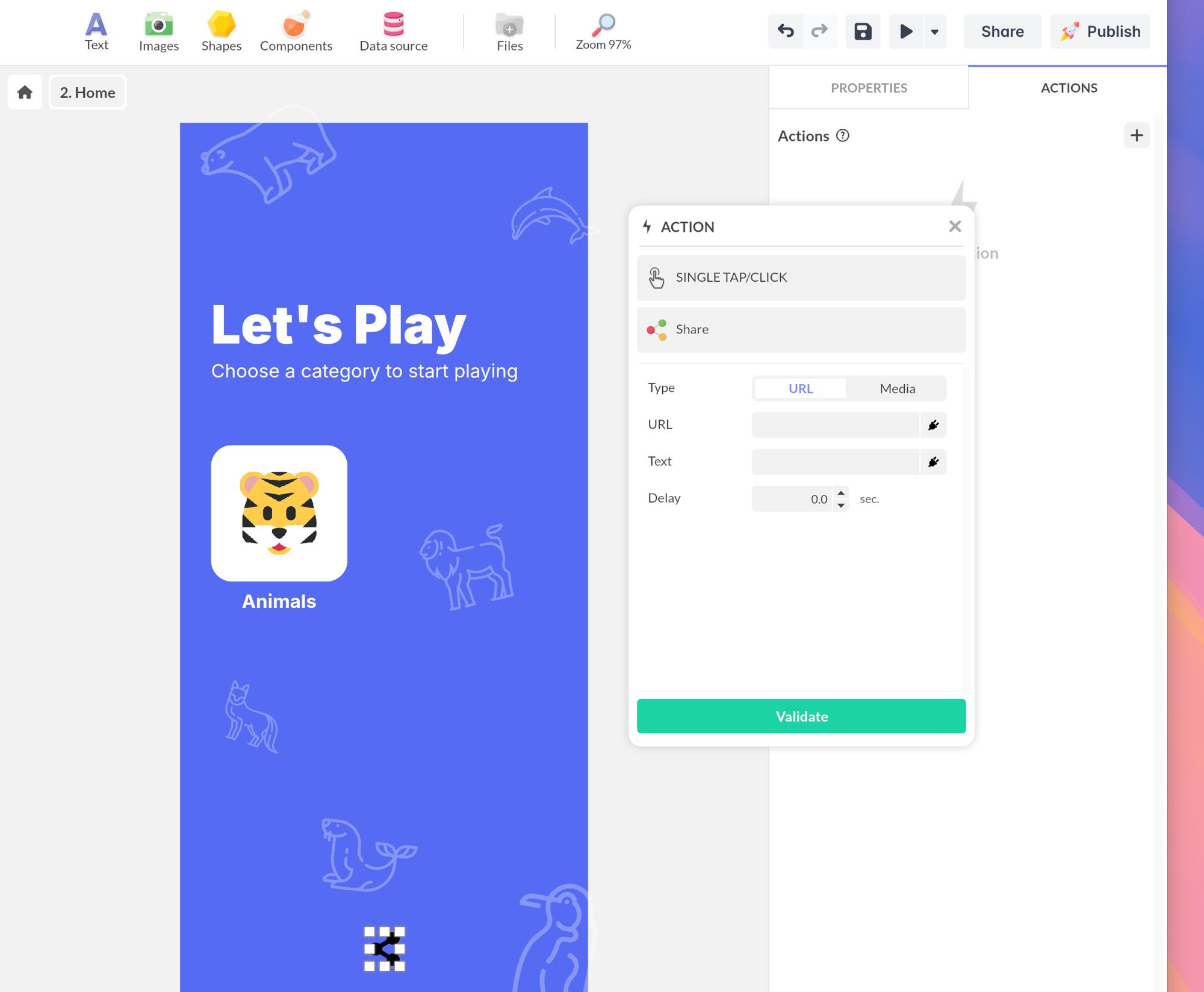
Some target apps display only the URL and ignore the accompanying text. Test on each platform you support.
Share a media file
With Type set to Media, click Select to pick the file directly from the project’s media library. Use this option for images, videos, PDFs, or any asset already imported into the project.
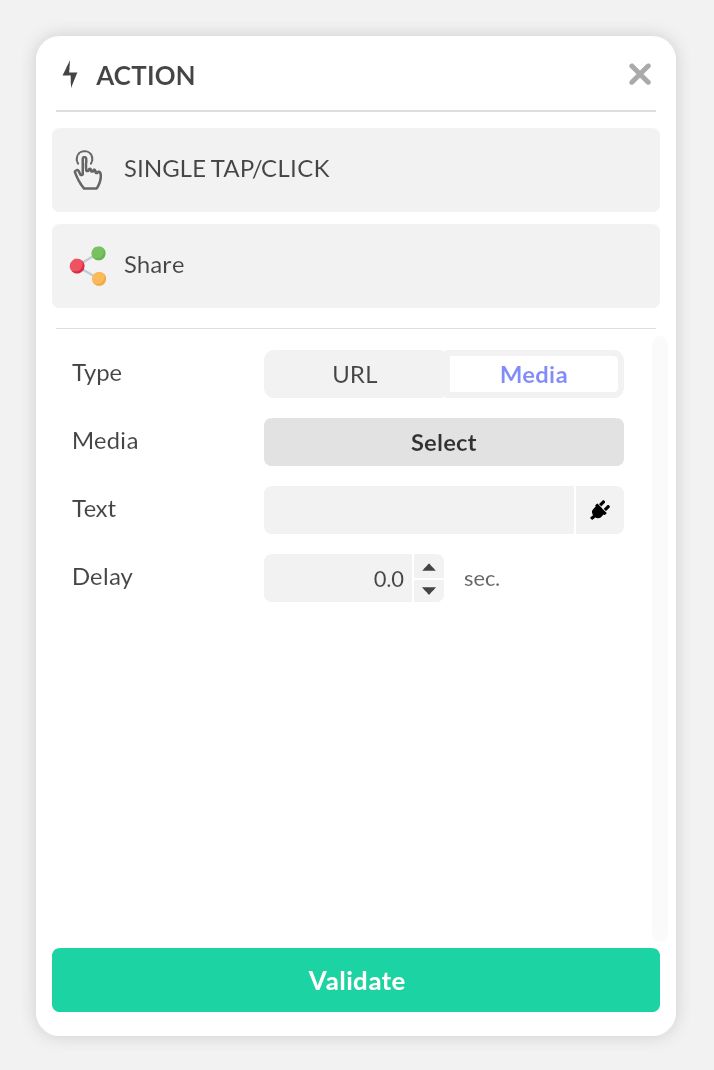
Add a caption in the Text field if you want to prefill the message that accompanies the file.
Defer execution
Use the Delay field to postpone the share by a number of seconds. This is useful when the share sheet should appear after an animation or another action has played.
Share through a social network web link
When the action runs in a desktop browser, where the native share sheet is not available, build a custom URL with the Open URL action (see Interactive actions). Each social network exposes a sharing endpoint that pre-fills a post on its platform.
Bind the project’s current URL
Replace the example URL in the snippets below with the project’s current address by clicking the data binding icon next to the URL field and selecting Project > Context > Launch > Url. The full data tree is documented in Project information.
https://www.facebook.com/sharer/sharer.php?u=https://pandasuite.comX (Twitter)
https://twitter.com/intent/tweet?url=https://pandasuite.com&text=Discover+PandaSuite+The+Awesome+No+Code+Platform&hashtags=nocode,appmakerhttps://www.linkedin.com/sharing/share-offsite/?url=https://pandasuite.comhttps://api.whatsapp.com/send?text=https://pandasuite.commailto:?subject=PandaSuite&body=https://pandasuite.com