
Icons
Icons help users understand your interface at a glance: a house to go home, a cross to close, arrows to move forward. In PandaSuite, the way you add an icon determines what you can do with it afterwards: change its color, animate it, or only display it.
Choose the right format
| How you add the icon | Change its color in Studio | Sharp at any size | Best for |
|---|---|---|---|
| Paste the SVG code of a single-path icon | Yes | Yes | Interface icons: navigation, menus, buttons |
| Import an SVG file, or paste an SVG with several shapes | No | Yes | Multicolor icons and illustrations |
| Import a PNG or JPG file | No | Up to its resolution | Icons with photos, textures or complex effects |
For interface icons, prefer SVG icons drawn as a single path. You can recolor them to match your project, give them an active color in a navigation bar and animate them, without preparing a new file for each variation.
Find icons
- PandaSuite free SVG navigation icons: Arrows, chevrons, menu, close, home, fullscreen and more, under the CC0 license (free for personal and commercial use, no attribution required). Each icon is drawn as a single path, ready to be recolored in Studio.
- SVGrepo: More than 500,000 vector files and icons.
- Flaticon: A vast collection of icons available in various formats.
- Icons8: Free and premium icons, with online editing options.
- The Noun Project: Stylized icons created by designers worldwide.
- FontAwesome: A library of icons that can be downloaded as SVG.
Check the license of each icon before publishing your project: some free icons require you to credit their author.
Add an icon to your screen
Paste the SVG code (recommended)
- On the icon site, copy the SVG code of the icon (usually with a Copy SVG button).
- Open your project in PandaSuite Studio and select the screen.
- Paste with Ctrl+V (Windows) or Cmd+V (macOS).
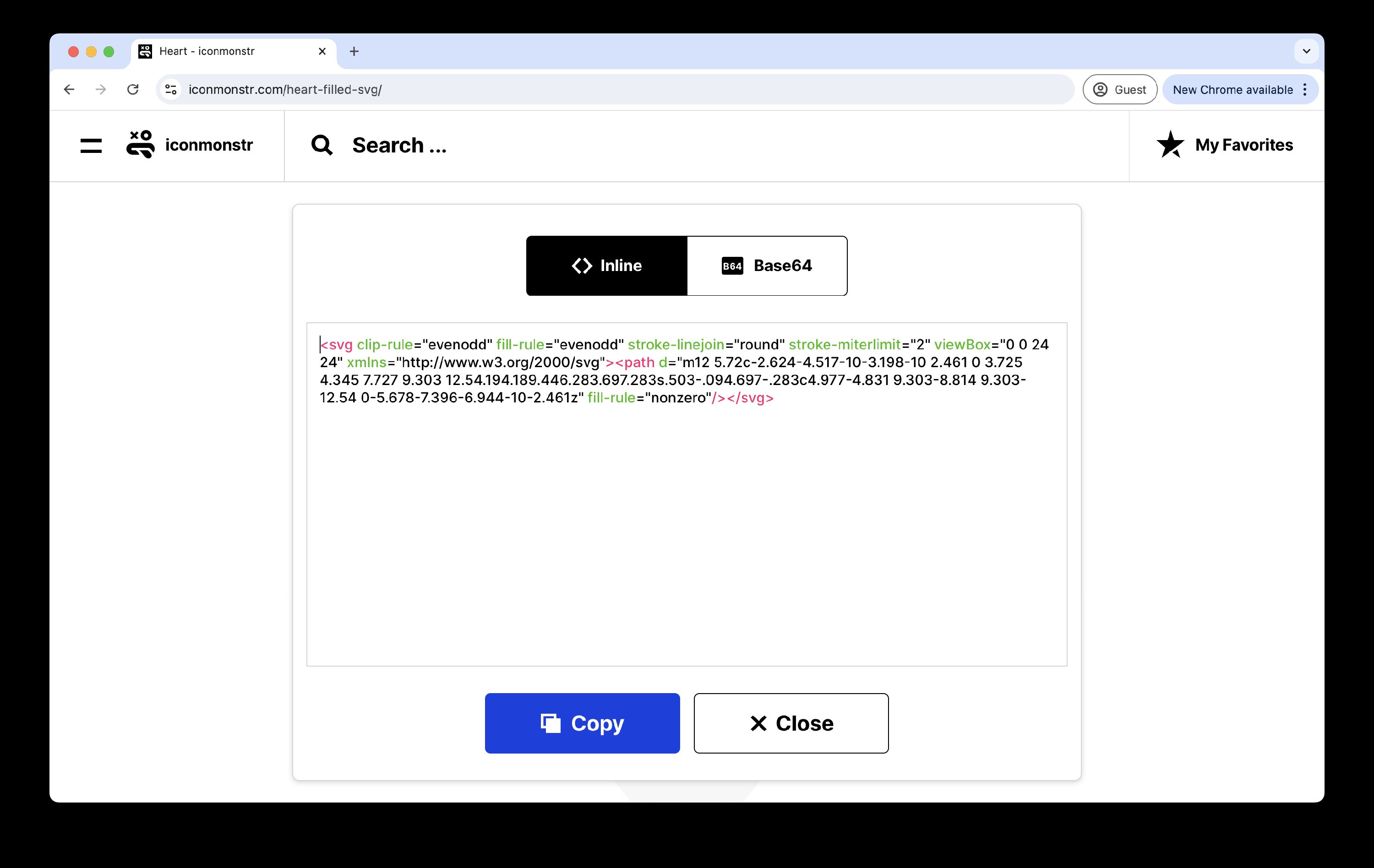
If the icon is drawn as a single path, it appears on your screen as an editable shape. Otherwise, it is added to your Files as a complete SVG: drag it onto your screen.
To understand how PandaSuite handles each type of SVG, and what to do if pasting from Illustrator does not work, see Import an SVG.
Import an icon file
- Click Files in the top bar, then Import your files, and select your SVG, PNG or JPG files.
- Drag the icon from your Files onto your screen.
- Adjust its size and position.
For a PNG or JPG icon, import a file at least twice as large as its display size so that it stays sharp on high-resolution screens.
Customize an icon
An icon pasted as a single path behaves like the other shapes in PandaSuite. Select it, then in its properties:
- Change its fill color with Background. You can also apply a gradient.
- For an outline icon, adjust the color and thickness of the Border.
- Add a shadow.
Resizing the icon does not reduce its quality.
Make an icon interactive
Trigger an action
Select the icon, open the Actions tab, choose the Single tap/click trigger, then the action to run, for example Select screen. See Triggers and Buttons.
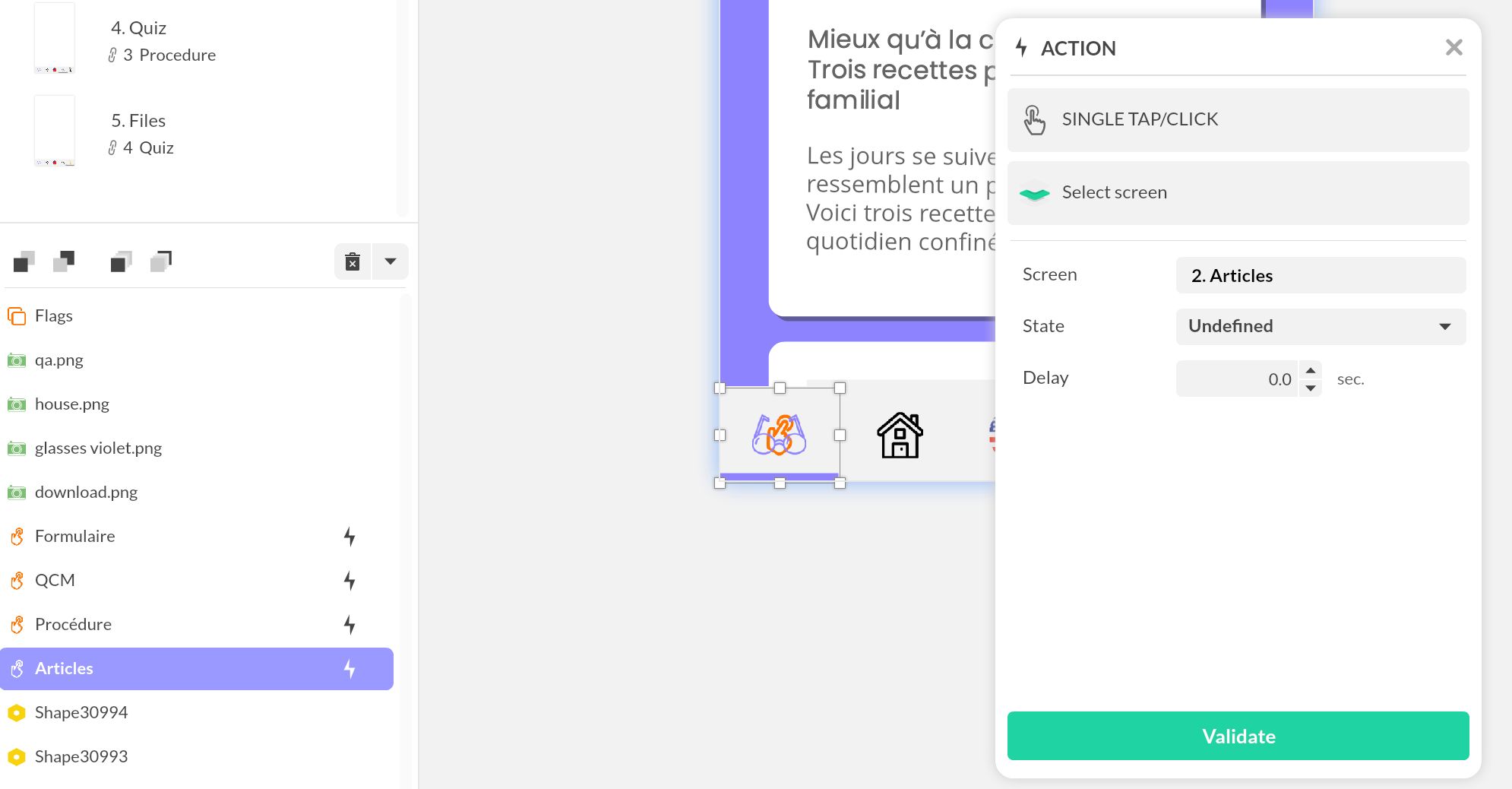
A small icon is hard to tap on a touch screen. Place an Interactive Zone larger than the icon over it, and add the action to the zone instead.
Show the active icon
In a navigation bar, users need to know which screen they are on. Use the Multi-state component to create a state per appearance, for example a gray icon by default and a colored icon when the screen is active. With single-path icons, you only need to duplicate the icon and change its color.
To animate an icon (rotation, size, color…), use states and transitions.