
Fullscreen Video
The Fullscreen Video component is useful when you want to display a video in full screen: the video completely occupies the screen, appearing above the application’s user interface. A cross icon allows you to close the video.
This component doesn’t work on Safari for mobile devices (iPhone and iPad).
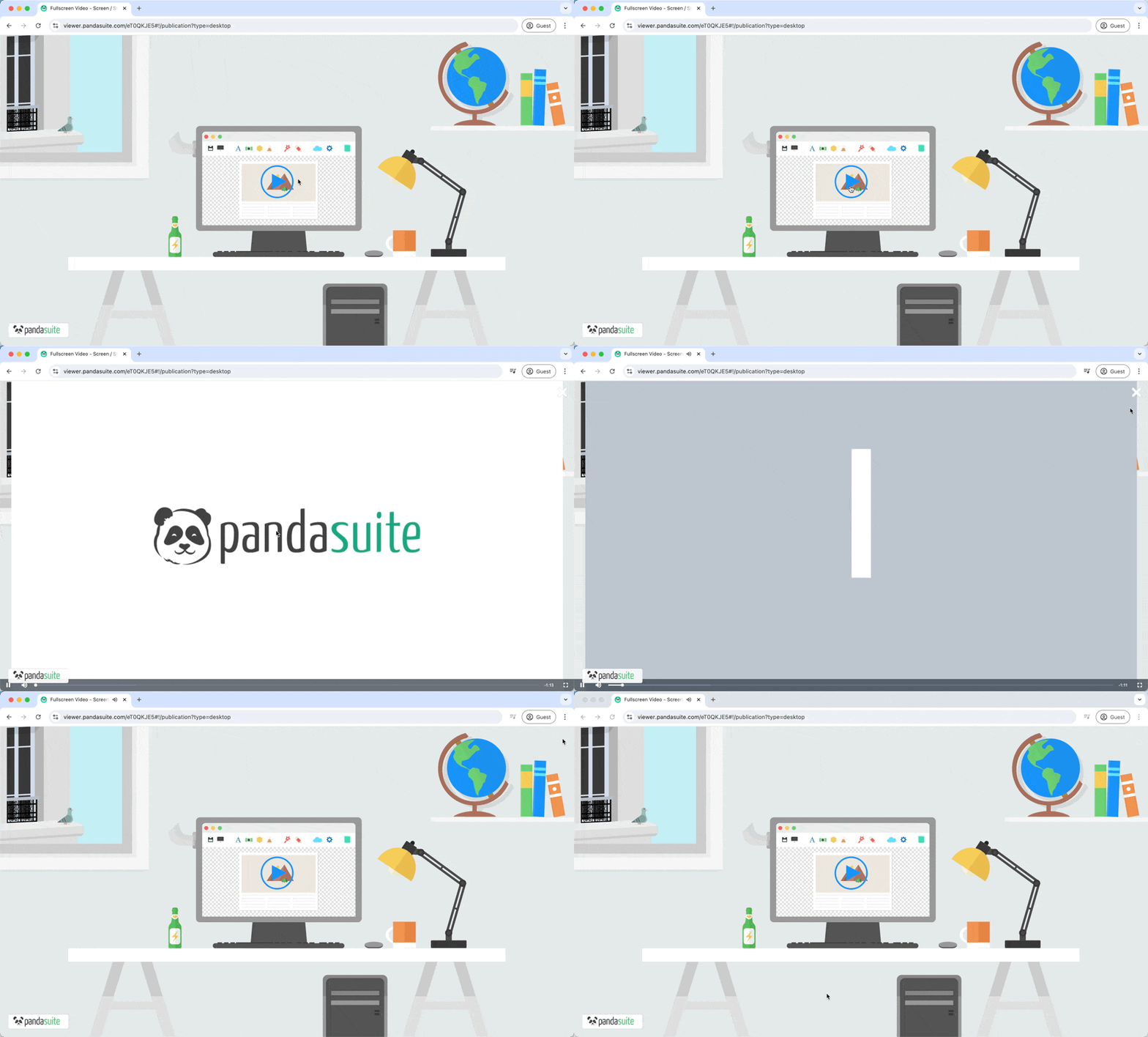
Fullscreen Video
Add this template to your account in just a few clicks. Edit and customize it freely.
→ Add this template to your accountImporting the video
Before inserting a full-screen video, you must first import the video file into the Files window. You can import various formats such as MP4, AVI, WMV, MOV, FLV, MKV, MPG, MPEG. If you want to use a video hosted on YouTube, Vimeo, or a dedicated streaming platform, opt for the URL Media Player component.
PandaSuite creates optimized versions of imported videos according to the selected quality, and caps the result according to the source video resolution so the video is not upscaled beyond its original quality. When your project is hosted by PandaSuite, these videos are delivered through a global CDN, so you do not need to compress them or provision server bandwidth yourself (see Hosting and performance).
Inserting the full-screen video
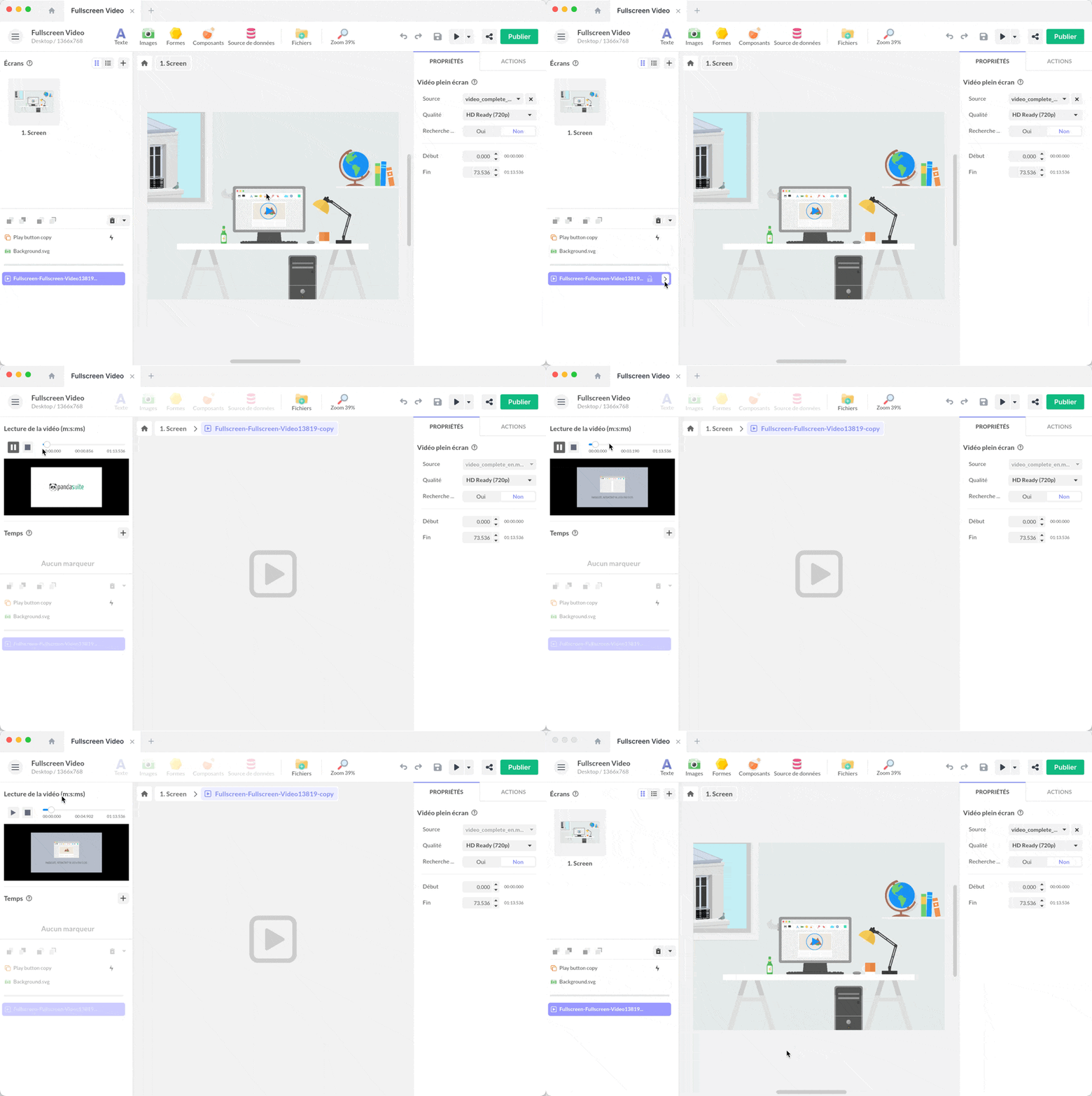
Click on Components and insert the Full-Screen Video component.
Your component will appear in the Objects window. It is a non-graphic object and cannot be visually edited.
To preview the video and add markers, click on the arrow that appears when hovering over the Objects list. Use the breadcrumb trail to exit.
Full-screen video properties
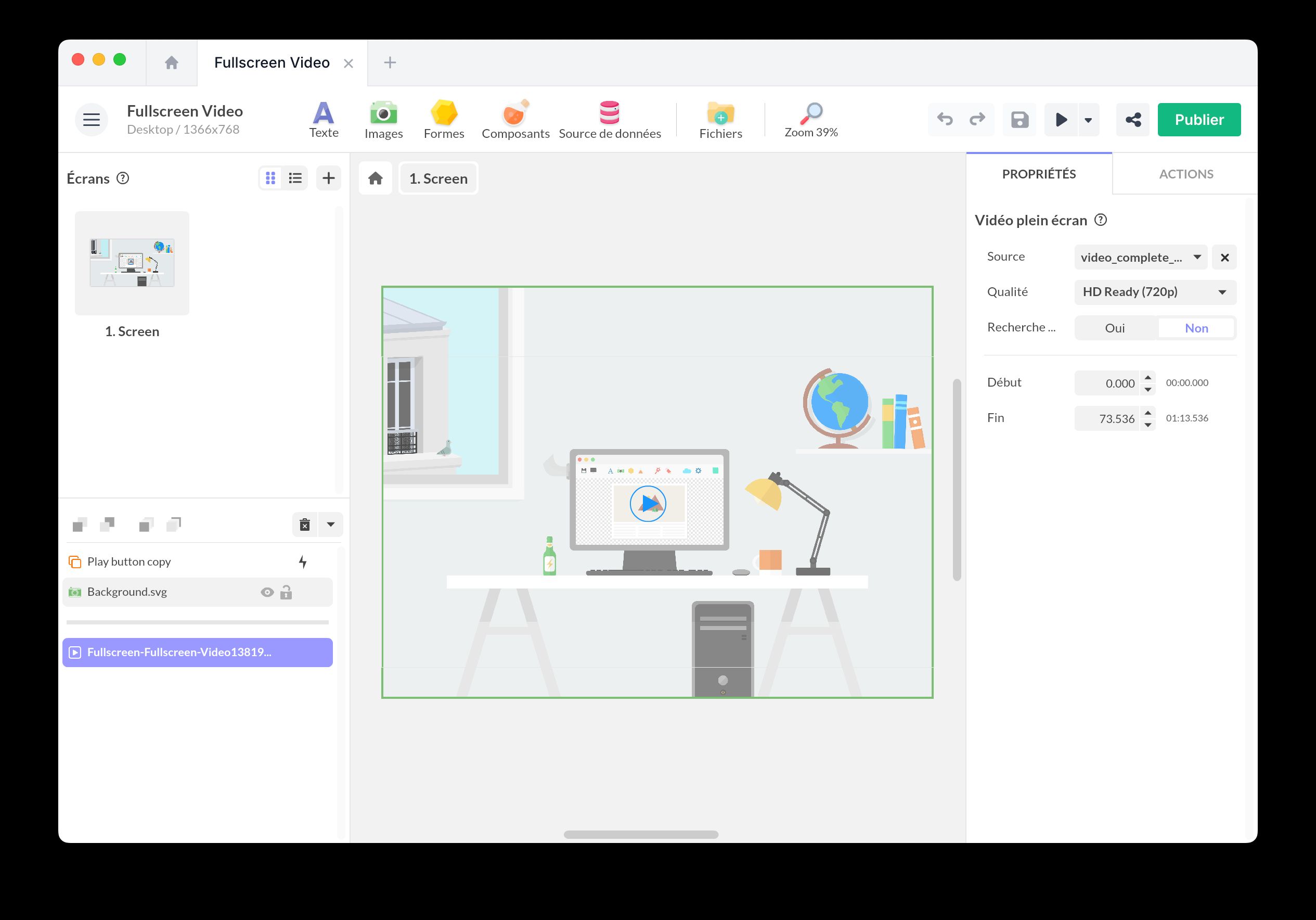
Here are the different properties you can configure:
- Source: Select the video file to play.
- Quality: Choose your video quality: SD (240p), SD (360p), MD (480p), HD Ready (720p), Full HD (1080p), or UHD 4K (2160p). The selected quality defines the maximum generated version and is capped by the source video resolution.
- High-Precision Search: Enable this option to allow precise navigation within the video, especially for creating precise markers. Note: This option affects the video size.
- Start/End: If you want to play only a specific sequence, set the start and end of your video. The unit is seconds.
Triggering an action from a full-screen video
Your full-screen video can trigger an action.
Select your component and go to the Actions tab.
Click on the + button to choose a trigger:
- Open
- Close
Adding an action to a full-screen video
You can add one or more actions to your full-screen video. For example, it is necessary to add an action to start the full-screen video. You can create a button or set up an automatic trigger.
Choose the trigger of your choice and the action Act on a component. Here is the list of available actions:
- Open the player
- Close the player
Warning: many web browsers (Firefox, Chrome) block autoplay videos when they start without user interaction. To fix this, either remove the sound from these videos or add a user action (e.g., a button).
Synchronizing a full-screen video
You can synchronize your full-screen video with another component (Timer, Audio…) and choose to synchronize:
- Time
- Volume
- Speed
These settings are accessible from the Properties window of the Synchronization component.