
Connect to Firebase Analytics
Connect your app to Firebase to collect usage data on your iOS and/or Android application.
Connecting your application to Firebase will allow you to collect precise and actionable data on the usage of your application. You can obtain information on active users, key events, user journeys, and even define conversion goals.
You need to have created a Firebase project for your application. Follow this tutorial to create a new project, then follow the instructions below.
Add a Firebase Tracker
It is necessary to add a tracker for each version of your application: iOS and Android. If your application is published on both iOS and Android, you must add a tracker for iOS and another for Android to collect data from each platform.
Go to your PandaSuite dashboard in the Apps > Settings > Firebase Configuration section.
Copy the Firebase Application ID for Android. It comes from client_info.mobilesdk_app_id in google-services.json and uses the long format 1:…:android:….
Go to the Analytics section and click on Add a tracker.
Choose Firebase for Android and paste the Firebase Application ID. Do not paste the Android Package Name such as com.company.app.
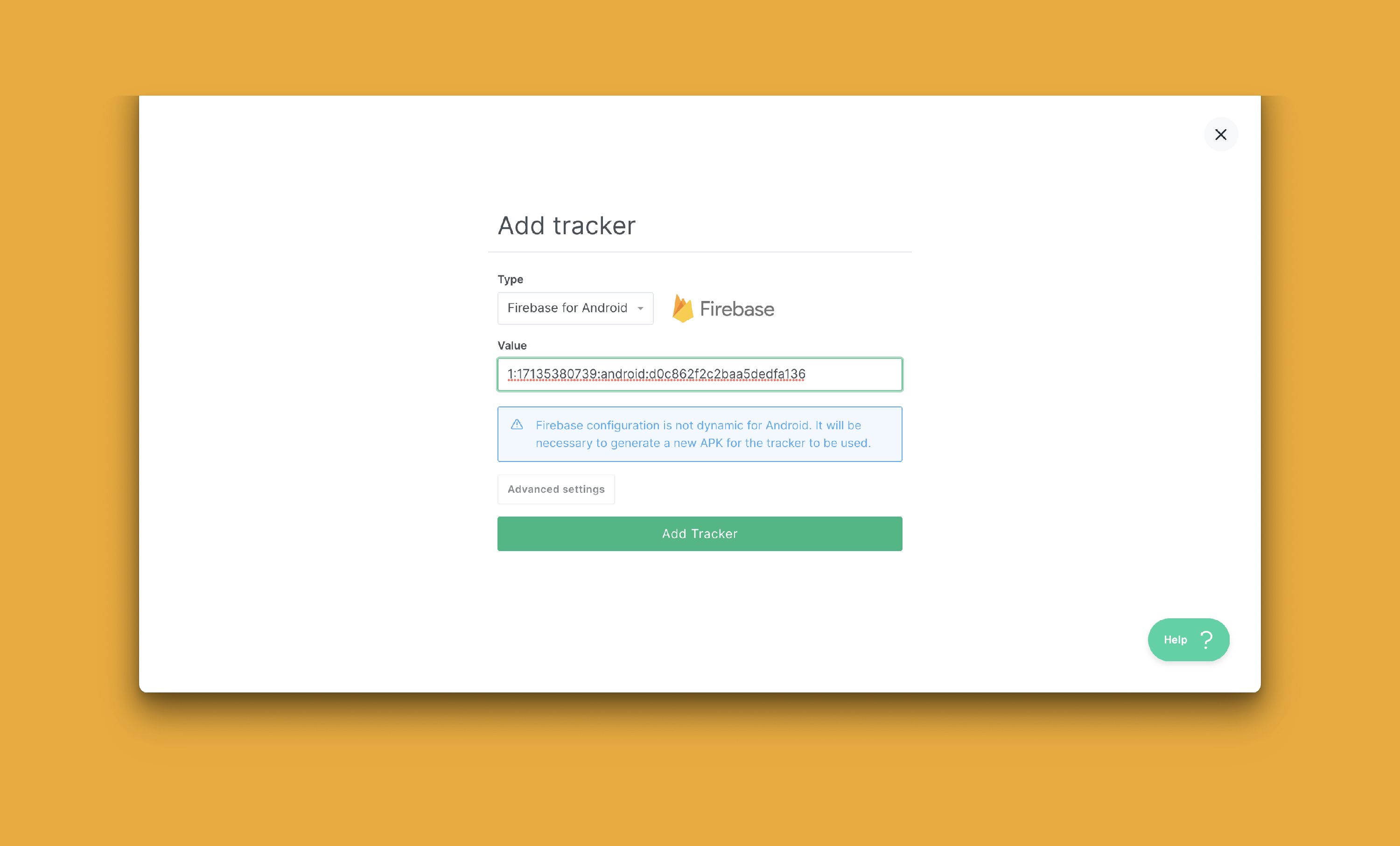
Your Android app is now connected.
The Android Package Name must match the package registered for the Android app in Firebase. The Analytics tracker must use the long Firebase Application ID. These two values identify the same app in different systems, but they are not interchangeable.
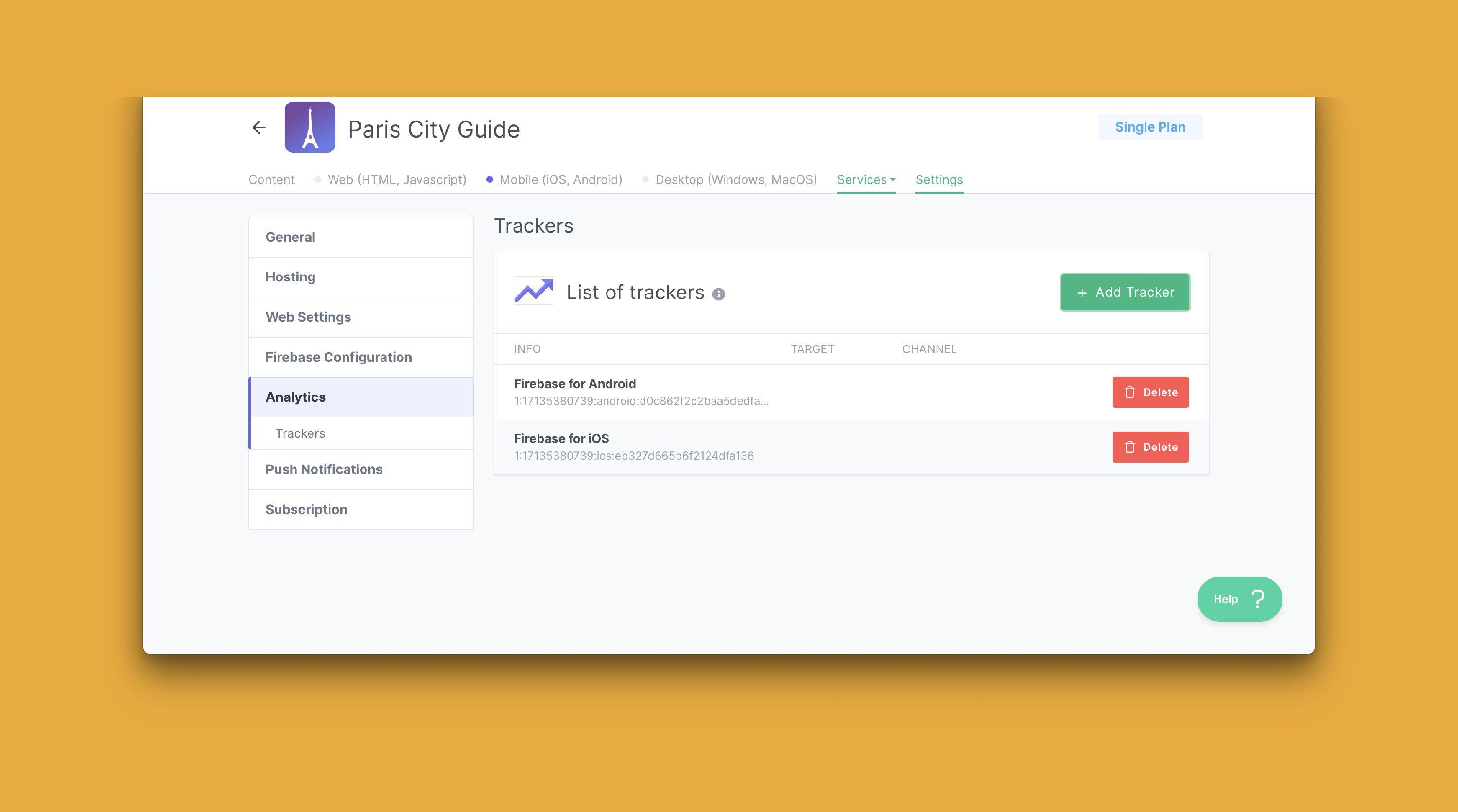
The procedure is the same for iOS.
Go to your PandaSuite dashboard in the Apps > Settings > Firebase Configuration section.
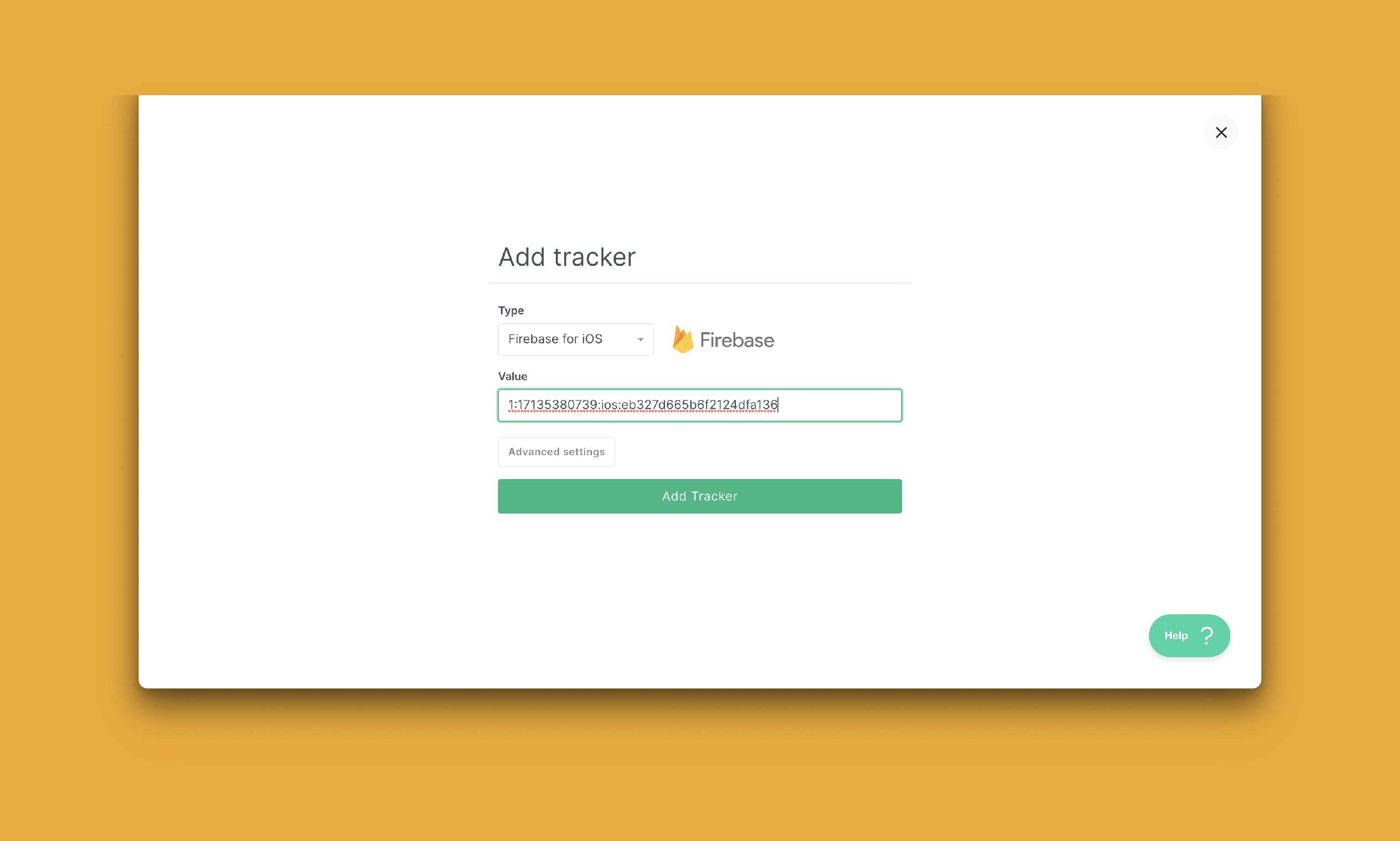
Copy the Firebase Application ID for iOS. It uses the format 1:…:ios:….
Choose Firebase for iOS and paste the Firebase Application ID.
If no Android data appears in Firebase
If your Android tracker is configured but you still do not see activity in Firebase, check both Android identifiers.
- In PandaSuite, open Apps > Settings > Firebase Configuration and note the Android Package Name and Firebase Application ID.
- In
google-services.json, confirm thatclient_info.android_client_info.package_namematches the Android Package Name. - Confirm that
client_info.mobilesdk_app_idmatches the Firebase Application ID and the value used by the Firebase for Android tracker.
If one of the values is different:
- Register or select the Firebase Android app with the correct package name.
- Download its
google-services.jsonfile and import it again in PandaSuite. - Replace the tracker value with the imported Firebase Application ID, click Edit Tracker, and generate a new Android build. Importing
google-services.jsonalready saves the Firebase configuration; only manually edited Firebase fields require Save Changes.
This message means that the Android build did not receive a valid Firebase
Application ID. PandaSuite exposes client_info.mobilesdk_app_id as the
Android google_app_id resource. Import the matching google-services.json
(the import saves automatically), confirm the 1:…:android:… value, then
generate a fresh APK or AAB. If you correct a Firebase field manually, click
Save Changes first.
After updating the configuration, install a fresh Android build and launch it again. To verify the setup faster, check Realtime or DebugView in Firebase before waiting for the standard analytics reports.
View the Data
Go to the Analytics section of your Firebase console to access the data.
Understand reporting delays
Some delay between app usage and visible reports is normal with Firebase Analytics.
- On mobile apps, Firebase Analytics batches events before uploading them. This helps reduce battery and network usage, so you should not expect every event to appear instantly in standard reports.
- In Google Analytics 4, Realtime data is typically available within a few minutes, but standard intraday reports for standard properties can take 2 to 6 hours to refresh and full processing can take 24 to 48 hours.
- The Realtime report only shows activity from the last 30 minutes and Google describes it as a best effort report. An empty or partial Realtime view does not automatically mean the integration is broken.
If you need to confirm quickly that Firebase is receiving events, use DebugView on a development device. In Firebase debug mode, events are uploaded with minimal delay, which makes it more reliable than standard reports for setup validation.