
Export a web package
Web export is the final step before self-hosting, archiving, or distributing your project outside PandaSuite hosting.
You will:
- Choose the format that matches your use case: standard ZIP, SCORM, or CMI5.
- Generate an archive ready to be hosted on your servers, used locally, or imported into an LMS.
- Download the package and use it in the target environment.
Once the package is generated, you will have a download link from your PandaSuite dashboard.
Web package export requires an active publishing plan in annual or one-time payment mode.
What is a web package?
A web package is an archive containing the files needed to run your project in a browser. Depending on the selected format, PandaSuite can generate:
- a Standard ZIP for self-hosting, archiving, or local testing;
- a SCORM package for import into a SCORM-compatible LMS;
- a CMI5 package for import into a CMI5-compatible LMS.
By default, your project is hosted on PandaSuite servers and benefits from PandaSuite services: instant updates, custom domain, and usage analytics. When exported as a web package, your project no longer has access to these PandaSuite-hosted services.
Prerequisites
- An active publishing plan in annual or one-time payment mode.
- Your project content is finalized and published.
- Your project has been added to the relevant application in the dashboard.
- A target environment depending on your use case: a web server / CMS for a Standard ZIP, or a compatible LMS for SCORM / CMI5 packages.
- If you want to report progress, time spent, completion, or score in an LMS, also configure the SCORM CMI5 component.
Formats, compatibility, and technical constraints
| Item | Details |
|---|---|
| Available formats | Standard ZIP, SCORM package, CMI5 package |
| Supported devices | Desktop, mobile, and tablet through a compatible web browser |
| Main use cases | Self-hosting, archiving, local use, or LMS distribution |
| Hosting | Standard ZIP must be hosted on your own server; LMS packages must be imported as-is into your platform |
| Connectivity | The package can be used outside PandaSuite hosting; depending on your use case, it can also be used for local testing |
| PandaSuite services not included | Instant updates, custom domain, PandaSuite-hosted analytics |
Important points before distribution:
- The exported package is designed to run in a compatible web browser. For browser support details, see HTML5 compatibility.
- If you use a Standard ZIP, a web server is recommended for more reliable behavior than simply opening
index.htmllocally. - If you export to an LMS, choose SCORM or CMI5 according to the protocol actually supported by your platform.
- The code inside the exported package is not editable: the project runs through PandaSuite’s execution engine.
Browser compatibility and runtime conditions
The exported web package runs in an HTML5-compatible web browser. Rendering and behavior can vary depending on the browser, its version, the operating system, and the hosting method you use.
Keep in mind:
- for reliable results, use a web server rather than simply opening
index.htmllocally; - some advanced web features may depend on browser support or the browser security context;
- for browser support details, see HTML5 compatibility;
- if your project relies on PWA logic or service workers, also check the dedicated compatibility guidance before release.
Choose a package format
| Format | When to use it? | Added file |
|---|---|---|
| Standard ZIP | Self-hosting, archiving, local testing | No LMS file added |
| SCORM package | SCORM-compatible LMS | imsmanifest.xml |
| CMI5 package | CMI5-compatible LMS | cmi5.xml |
In a SCORM environment, the SCORM CMI5 component can communicate with SCORM 1.2 or SCORM 2004 APIs. The exported SCORM package itself automatically generates a SCORM 1.2 manifest.
Package contents
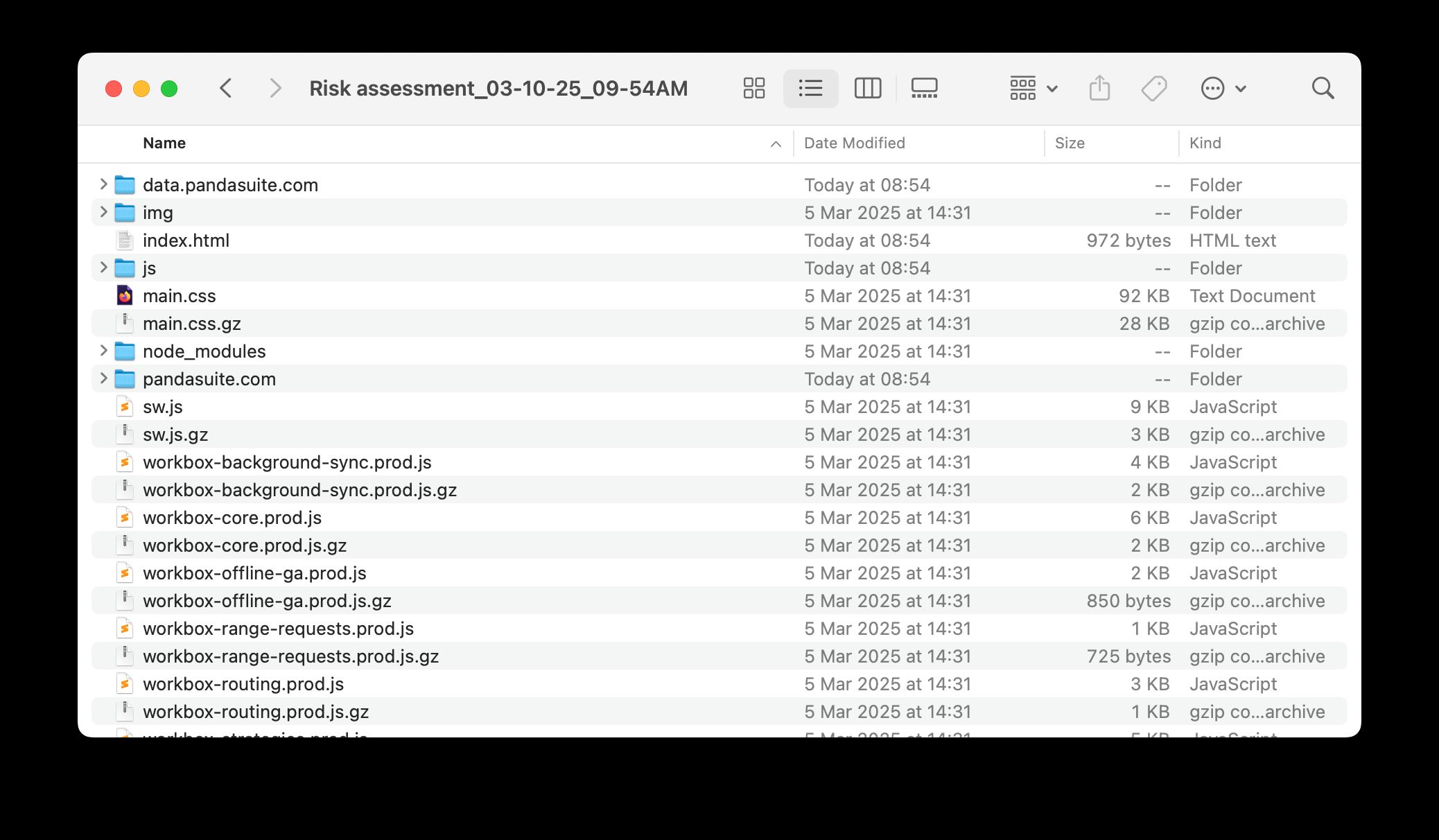
Every exported package contains:
index.html: the project entry pointdata.pandasuite.com: used resources (images, videos, fonts, etc.)js: PandaSuite’s execution engine
When you choose SCORM package, PandaSuite also adds imsmanifest.xml at the root of the archive.
When you choose CMI5 package, PandaSuite also adds cmi5.xml at the root of the archive.
Hosting video-heavy packages
This section applies only when you host the exported package yourself. If your project is hosted by PandaSuite, video delivery, bandwidth, and scaling are included and automatic: see Hosting and performance. The bandwidth math below is for sizing your own server or CDN.
If your project contains videos inserted with the Video Player or Fullscreen Video component, the exported package includes the optimized video files generated by PandaSuite. These files are served as static media files by your hosting provider.
Video quality settings such as 720p or 1080p define the maximum video resolution requested by the app, but they do not define a fixed bandwidth requirement. The final file size depends on the encoded video’s average bitrate, duration, motion, and visual complexity.
To estimate bandwidth for a self-hosted package, use the exported video files. Approximate average bitrate in Mbps = video size in MB × 8 ÷ duration in seconds. Multiply this number by the expected number of simultaneous viewers, then add headroom.
For example, a 100 MB video that lasts 3 minutes has an average bitrate of about 4.4 Mbps. If 20 people may watch it at the same time, plan for roughly 90 Mbps of sustained video delivery, plus margin.
For reliable playback, especially when users can seek inside videos, ask your hosting provider to support HTTPS, byte-range requests, correct MIME types for media files, and cache headers for static assets. For large video catalogs, high traffic, or users in several locations, use a CDN in front of your origin server.
PandaSuite video files in the package do not use adaptive streaming. If you need automatic quality switching based on each user’s connection, host the videos on a dedicated video streaming platform and use the URL Media Player component.
Export the web package
Access the dashboard
- Log in to your dashboard, under the Apps section.
- Select the relevant application.
- Make sure a project has been added to this application.
- Click Export web package.
Fill out the form
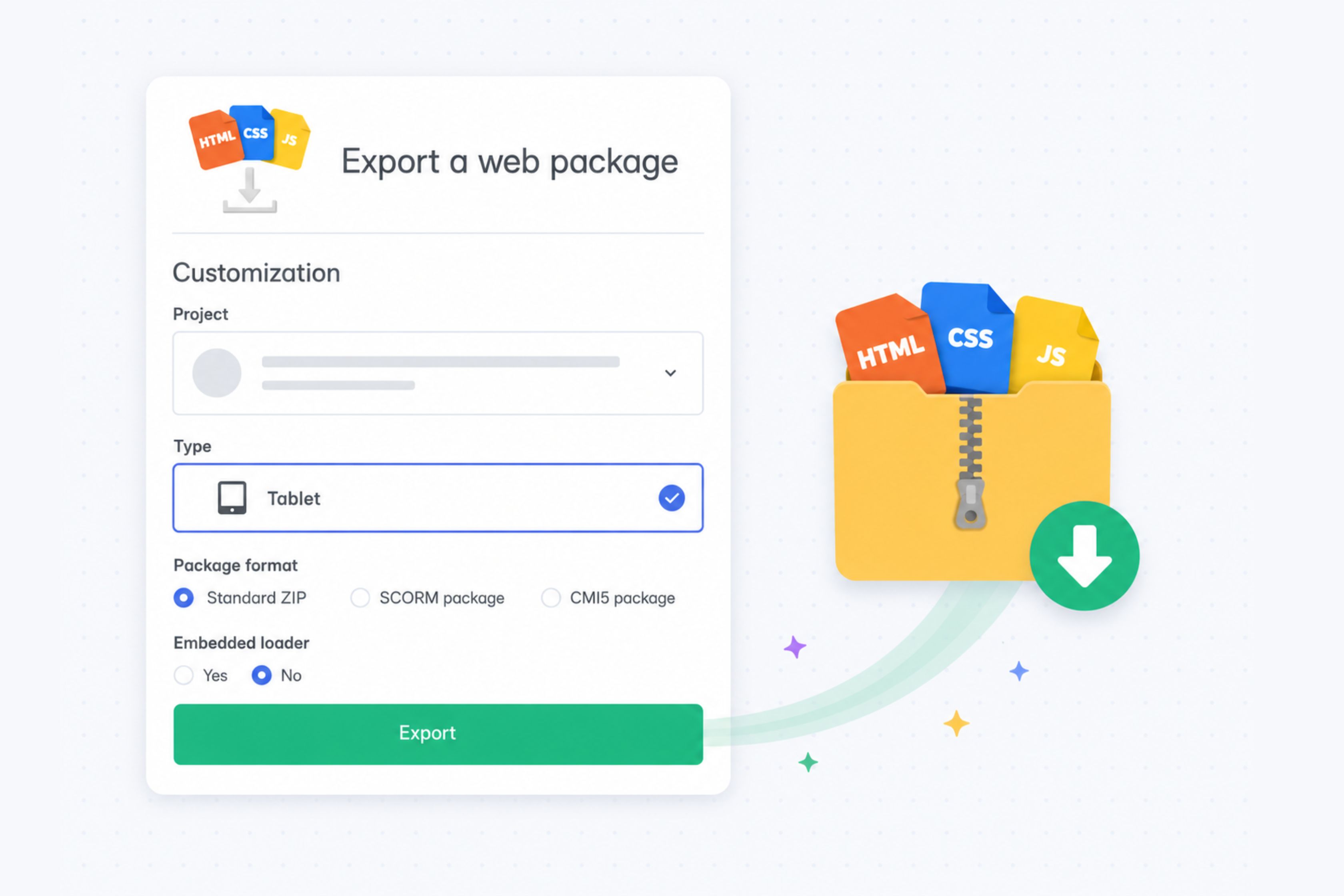
| Field | Description |
|---|---|
| Project | Project to export from the selected application. This is especially important if your app contains several projects or channels. |
| Type | Distribution type or export context depending on your setup. Review it carefully if the application is used in more than one publishing context. |
| Package format | Choose Standard ZIP, SCORM package, or CMI5 package depending on where the exported files will be hosted or imported. |
| Embedded loader | Adds a loading screen to the exported package if needed. Enable it when your project benefits from a clearer loading state before the first screen appears. |
Before exporting, verify the selected Project and Package format. These two fields determine which content is packaged and where it can be used afterwards.
Start the generation
- Select Standard ZIP for self-hosting or archiving, SCORM package for SCORM-compatible LMS distribution, or CMI5 package for CMI5-compatible LMS distribution.
- Click Export. Generation can take a few moments.
- Once the export is ready, you will receive an email and the package becomes available in the exports list of your dashboard.
- Click Download. The file is automatically downloaded to your computer’s Downloads folder.
LMS exports are identified with a SCORM or CMI5 badge in the exports list.
Use the exported package
- For a Standard ZIP, extract the archive and host the files on your server, or use them locally for testing.
- For a SCORM package, upload the archive directly to your LMS. The generated manifest already points to
index.htmlas the launch file. - For a CMI5 package, upload the archive directly to your LMS. The generated
cmi5.xmlfile already points toindex.htmlas the launch file.
To host the project yourself, continue with Embed into a website. For PandaSuite-hosted distribution, see Publish to the Web. For LMS tracking, configure SCORM CMI5.
FAQ
Can I modify my project after export?
Yes. You can export your project again whenever needed, as long as your plan is active. Any modifications must be made from PandaSuite Studio.
Which format should I choose?
Use Standard ZIP for self-hosting, local testing, or archiving. Use CMI5 package when your LMS supports or requires CMI5. Use SCORM package when your LMS requires a SCORM-compatible archive.
Do I need the SCORM CMI5 component for LMS tracking?
Yes. The package format prepares the archive for LMS import. The SCORM CMI5 component handles learner tracking such as progress, time spent, completion, and score.
Will reporting look the same in every LMS?
Not always. PandaSuite sends learner progress, completion, time spent, and score, but the way these values appear can vary depending on the LMS and the supported protocol.