
HTTP
Connect your app to an API with the HTTP component. You can use it to display an external collection, send data to a third-party service, or retrieve live information such as weather, availability, or user data.
An API makes data or functionality from an existing service available to other applications. In PandaSuite, the HTTP component lets you send requests, retrieve responses, and expose the returned data so other components can use it.
Each API has its own rules, parameters, and authentication method. The HTTP component gives you the settings you need to adapt to that documentation.
Add the HTTP component
Insert the HTTP component where it will be used in your project. If the request is reused across several screens or controls the global behavior of the app, place it at the Project level.
Configure the request
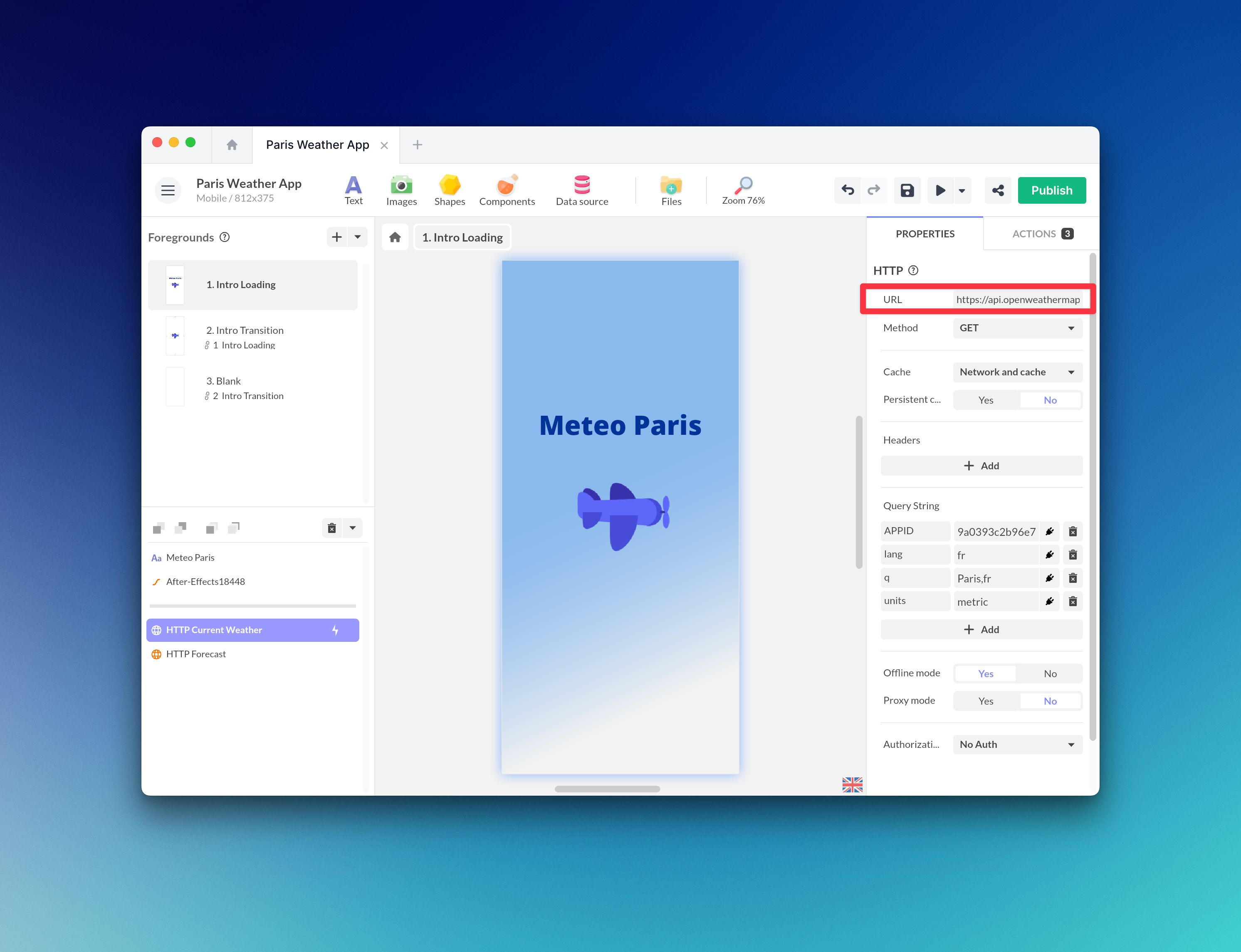
URL
You need the base endpoint provided in the API documentation.
For example, here is the URL of the OpenWeatherMap API:
https://api.openweathermap.org/data/2.5/weather?q={city name}&appid={API key}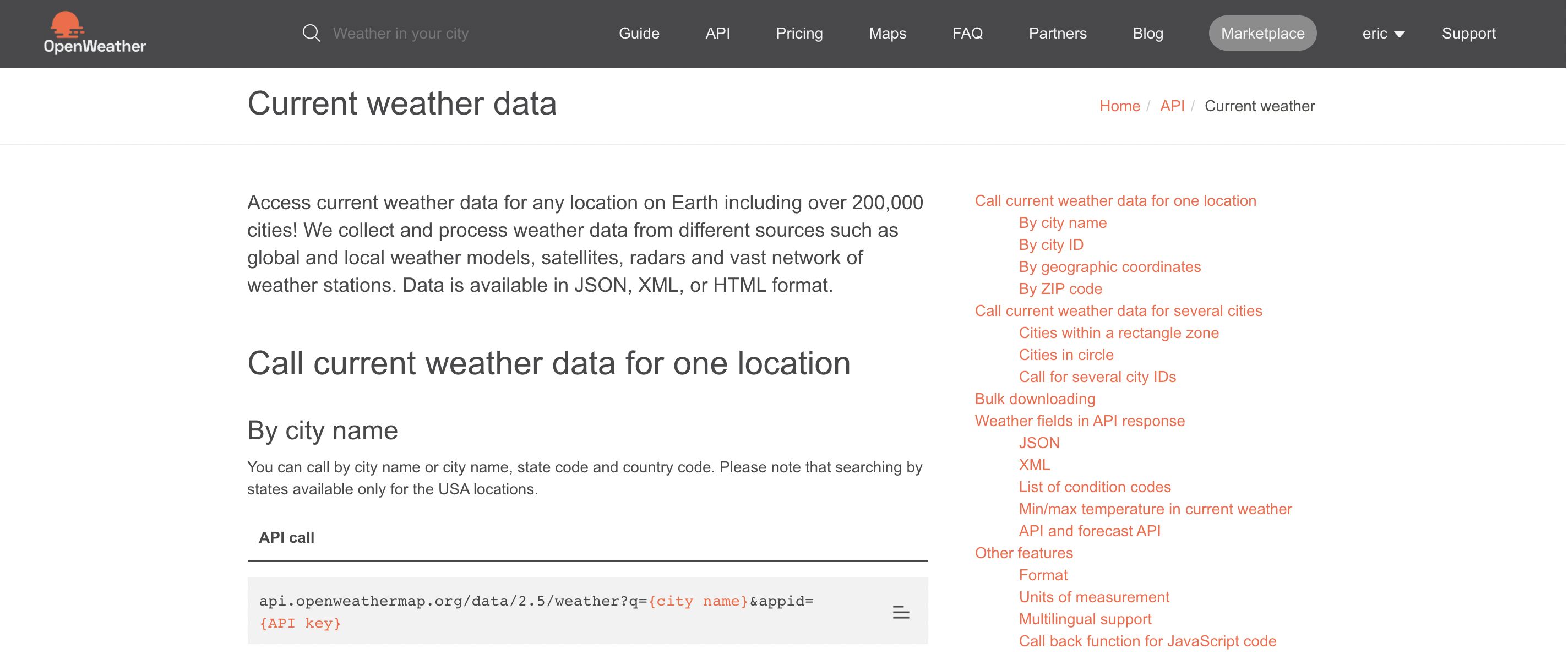
In the URL field, paste everything from https: up to ?, without including ?. Put the remaining parameters in Query String.
Headers and query parameters
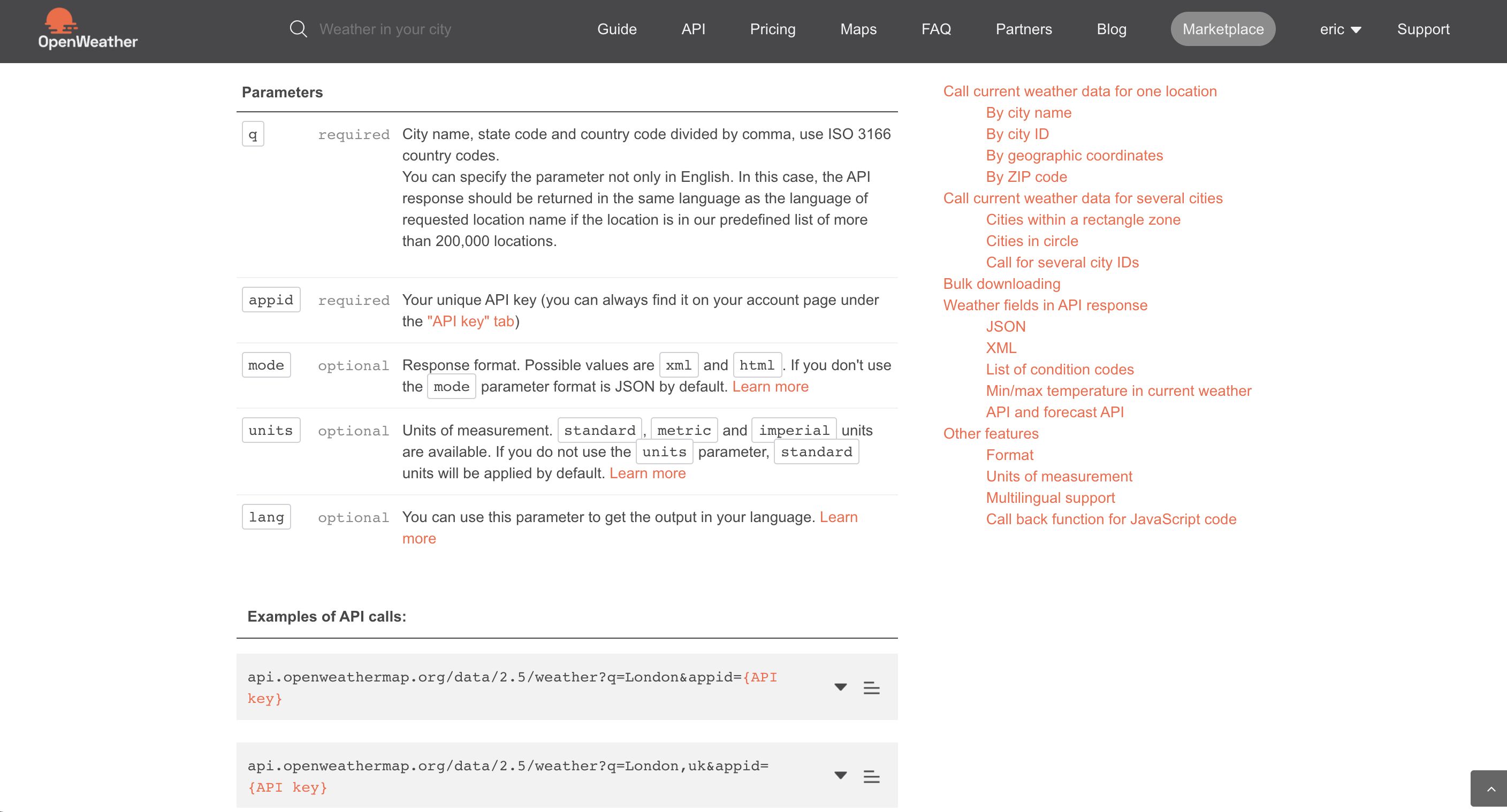
Many APIs require extra values to customize the request:
- Use Headers for values sent in the HTTP header.
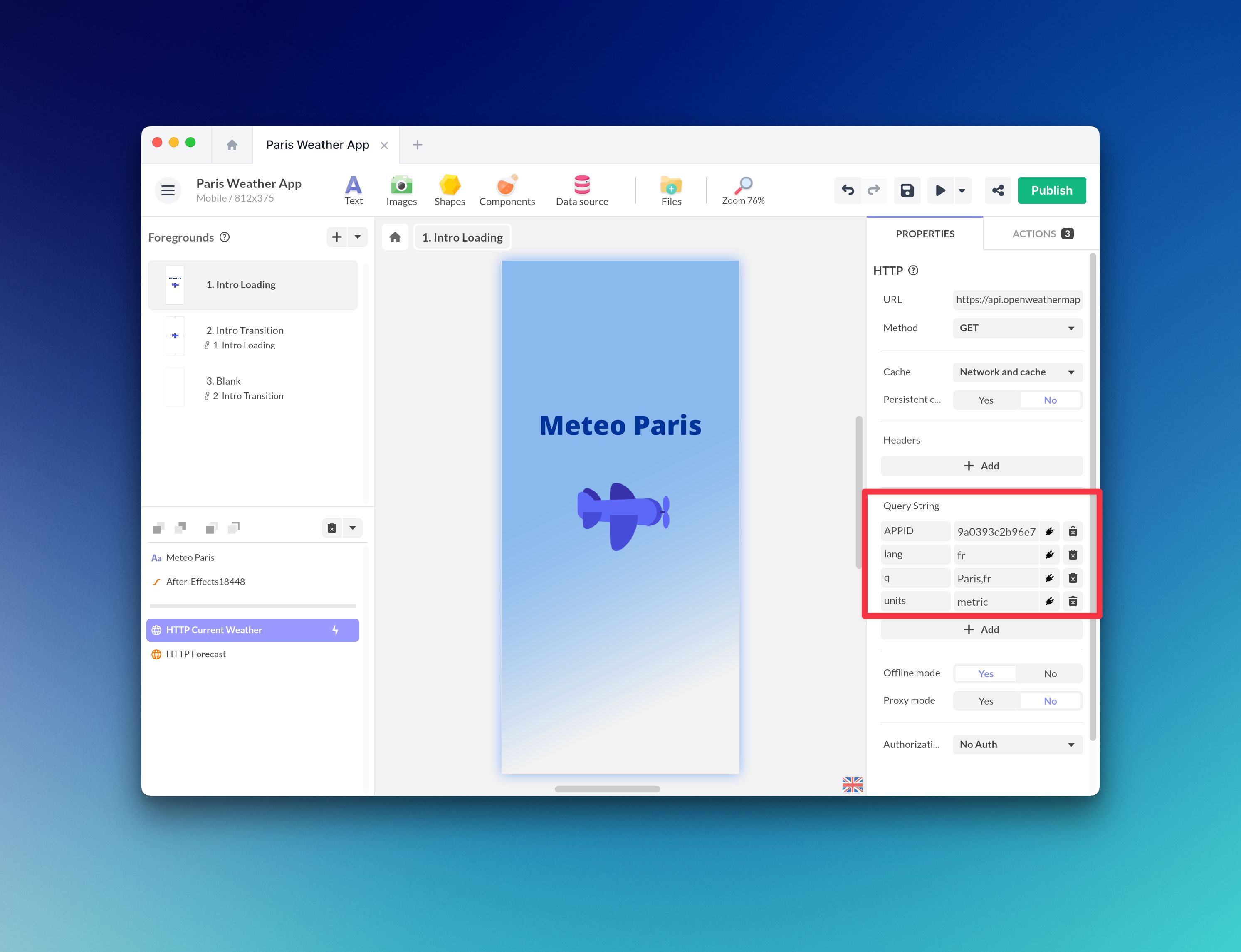
- Use Query String for values appended to the URL.
This separation makes requests easier to read and easier to maintain when you bind values dynamically.
Authorization
If the API requires authentication, set Authorization to one of these modes:
- No Auth
- HTTP Basic
- API Key
With HTTP Basic, fill in User Name and Password.
With API Key, fill in Key and Value. This is useful when the API expects a specific header name such as Authorization or x-api-key.
When authentication is enabled, Proxy mode is automatically used so sensitive values are not exposed directly in the app.
Cache
Caching lets the component reuse a previous response instead of calling the network every time.
Choose the mode that matches your use case:
- No cache: always makes a network request.
- Cache first: uses the cached response first and only calls the network if needed.
- Cache and network: returns the cached response first, then refreshes it from the network.
- Network and cache: calls the network first and falls back to the cached response if needed.
Enable Persistent cache to keep the cached response after the app closes.
Requests sent with Binary (application/octet-stream) always use the network and are not stored in the HTTP component cache.
To prepare API content for offline use, see API Offline Data.
Method and content type
The Method property defines what kind of request you send:
- GET: retrieve data from a resource.
- POST: create a resource.
- HEAD: retrieve headers without the response body.
- PUT or PATCH: update a resource.
- DELETE: delete a resource.
For methods that send a request body, choose a Content Type:
- Text (
text/plain) - JSON (
application/json) - Form (
application/x-www-form-urlencoded) - XML (
application/xmlortext/xml) - HTML (
text/html) - Binary (
application/octet-stream)
The Content field appears only when the selected method supports a request body.
If you select Binary (application/octet-stream), the Content field expects a bound Image or Video source. Use this mode when the API expects the raw media file in the request body instead of JSON or form data.
Enable Auto add content type if you want PandaSuite to automatically add the Content-Type header for the selected format. Disable it only when the API expects a custom header or no content type header at all.
If your goal is to keep API media available offline, expose the response fields as Image, Audio, or Video and follow API Offline Data. This is separate from the Binary content type, which is used to send a media file in the request body.
Other options
The component also includes these options:
- Auto start: launches the request automatically when the page or app starts.
- Offline mode: queues rejected requests when the device is offline and sends them again when the connection returns.
- Proxy mode: routes the request through PandaSuite when needed for authentication or API restrictions.
Test and expose the response
Open the component configuration and click Test Request.
If the request is valid, PandaSuite displays the raw response. You can then click directly on response values to expose them and assign a type:
- String
- Boolean
- Number
- Image
- Audio
- Video
- Offset Pagination
This step is especially useful when you need to bind returned fields to other components, configure pagination, or prepare media for offline download.
Configure pagination
If the API returns a pagination token or offset, click that value in the test result and set its type to Offset Pagination.
If the returned records are inside an array, enable Merge results and enter the array path, such as /records, so PandaSuite combines the items from multiple pages.
When you trigger Start request, you can enable Loop on all pages to load every page automatically.
For a full walkthrough, see Handle API pagination.
Trigger and handle requests
If you do not use Auto start, add an action to launch the request when needed.
For example, select a screen and go to Actions > Current Screen > Interact with a Component > HTTP Component > Start request.
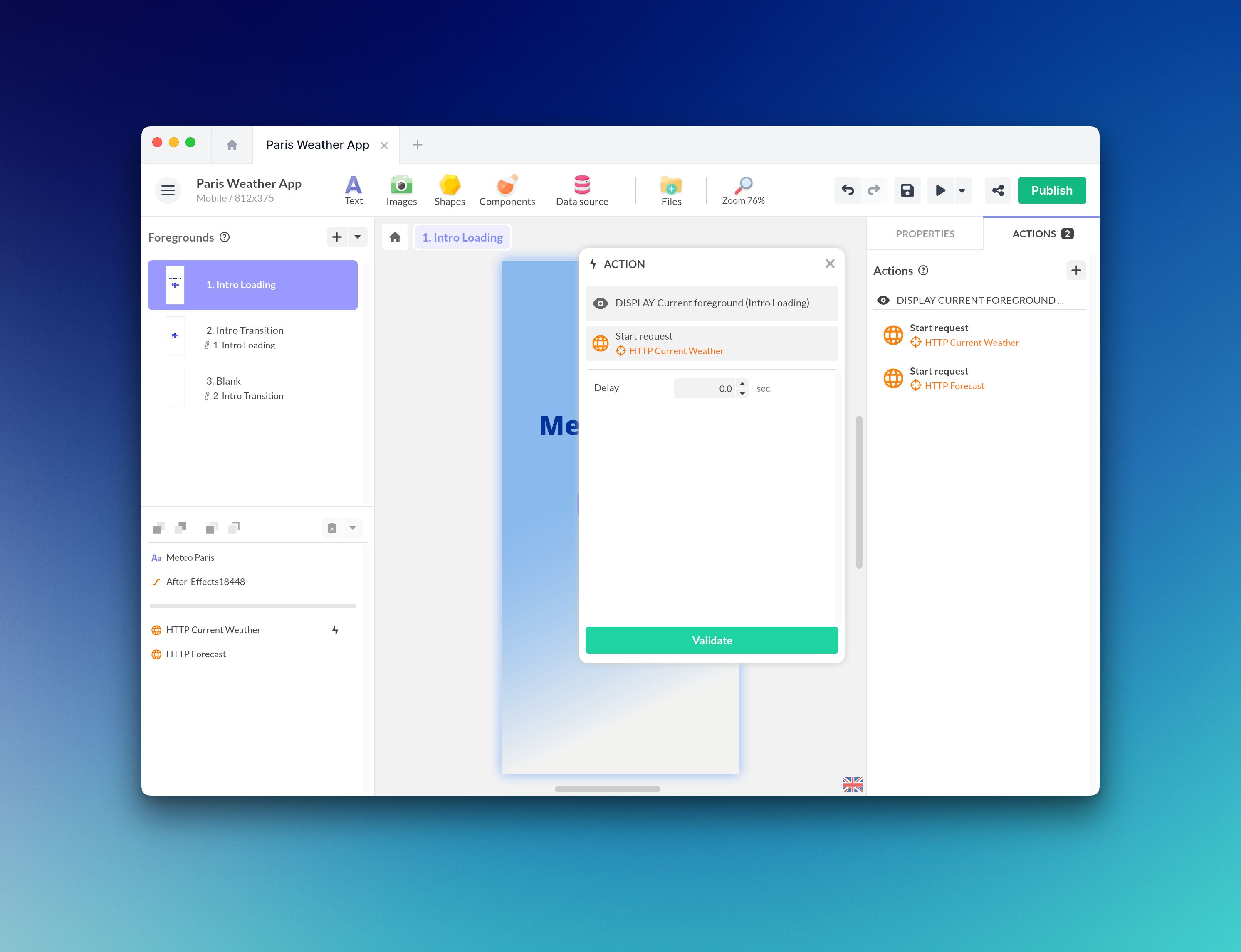
The HTTP component provides these actions:
- Start request: starts the request. For non-
GETand non-HEADmethods, you can also enable Override the request and send a different Content at runtime. The available input follows the selected Content Type, including a bound Image or Video source for Binary (application/octet-stream). - Clear cache: removes the cached response for this component.
- Redo rejected requests: retries requests that failed while offline.
- Clear rejected requests: clears the offline request queue.
- Next page and Previous page: navigate through paginated results.
It also exposes these events:
- Request completed: triggered when the request succeeds.
- Request failed: triggered when the request fails and exposes the response status and Response text body.