
Install your EXE File
Once your EXE is generated, you can install it on a connected Windows device or on a USB drive for fully offline use.
Standard Installation
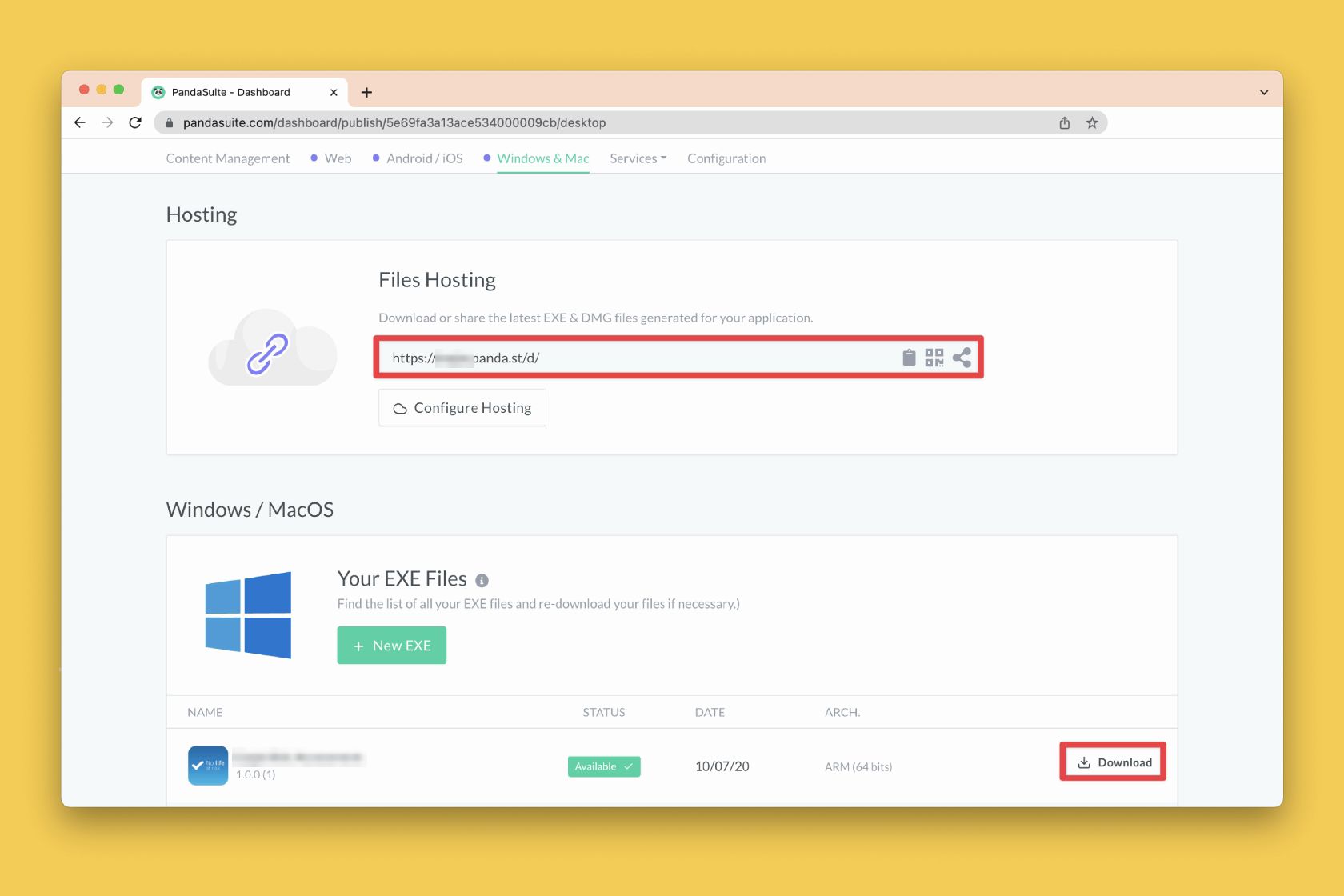
A download link is automatically created after generation. It always points to the latest available version. Open this link from the target Windows device to download and launch the installation.
If you exported a standalone EXE for offline installation, extract the downloaded archive completely before launching the installer. The installer and the .7z package must remain in the same extracted folder.
Install on a USB Drive or External Disk
For contexts without internet access (trade shows, museums, kiosks, educational kits, or isolated workstations), you can install your application directly on a USB drive or external disk. The app then runs in plug & play mode, with nothing to install on the Windows device.
To enable this, two options must be activated when generating the EXE:
- Installation directory — lets the user choose the installation path, including a USB drive
- Asset management (offline) — bundles all media inside the EXE for internet-free operation (learn more)
With the offline option enabled, updates are not automatic: you will need to regenerate the EXE and reinstall it on the drive.
Previous Versions
To download a previous version of your EXE, click Download next to the desired version in the Windows / macOS / Linux tab.
FAQ
Why do I see Unable to download application package ... .7z (404) during installation?
This message usually means the installer was launched from inside the ZIP archive, or the .7z file was moved away from it. It is usually not a connection issue. Extract the full archive first, keep all extracted files together, then run the installer again.
Does the app work on any Windows PC from the USB drive? Yes, as long as the offline option was enabled. No prior installation is required on the device.
Which USB drive should I use? There are no specific requirements. Prefer a USB 3.0 drive if your application contains large media files.
Need help with a specific deployment? Contact the PandaSuite team.