
Export an EXE File
The Windows export is the final step before distributing your desktop application on Windows devices.
You will:
- Customize the application name, icon, version, and installation behavior.
- Generate a Windows
.exeinstaller from your PandaSuite dashboard. - Share the generated file with your users, IT team, or kiosk devices.
Once the binary is generated, you can download it from your PandaSuite dashboard.
Desktop export is available on Single, Multi, or Full plans.
What is an EXE file?
The EXE file is the executable package of your application on Windows. It lets you install your app on a Windows computer, tablet, or kiosk.
EXE files generated with PandaSuite are automatically signed with an EV (Extended Validation) Code Signing certificate, which provides stronger validation and security than a standard code signing certificate.
Prerequisites
- Desktop export is available on Single, Multi, or Full plans.
- Your project content is finalized and published.
- Your target devices run Windows 7 or later.
- If you need a fully offline package, plan to enable Asset management (offline) during export. This option requires a Yearly or One-Time Payment plan.
Minimum OS Version and Device Compatibility
| Item | Details |
|---|---|
| Minimum supported version | Windows 7 |
| Supported devices | Windows computers, touch terminals, and kiosks |
| Binary type | Native Windows .exe installer |
| Installation | The generated file installs the app directly on the device |
Important points before distribution:
- Choose the right architecture for the target device fleet:
x64for most recent PCs,x86for older 32-bit machines, andARMfor compatible ARM-based hardware. - If you enable Asset management (offline), the installation package contains all assets. Any content update then requires exporting and reinstalling a new EXE.
- If you enable full-screen launch, some keyboard shortcuts that allow users to exit the application will be disabled.
Export the EXE file
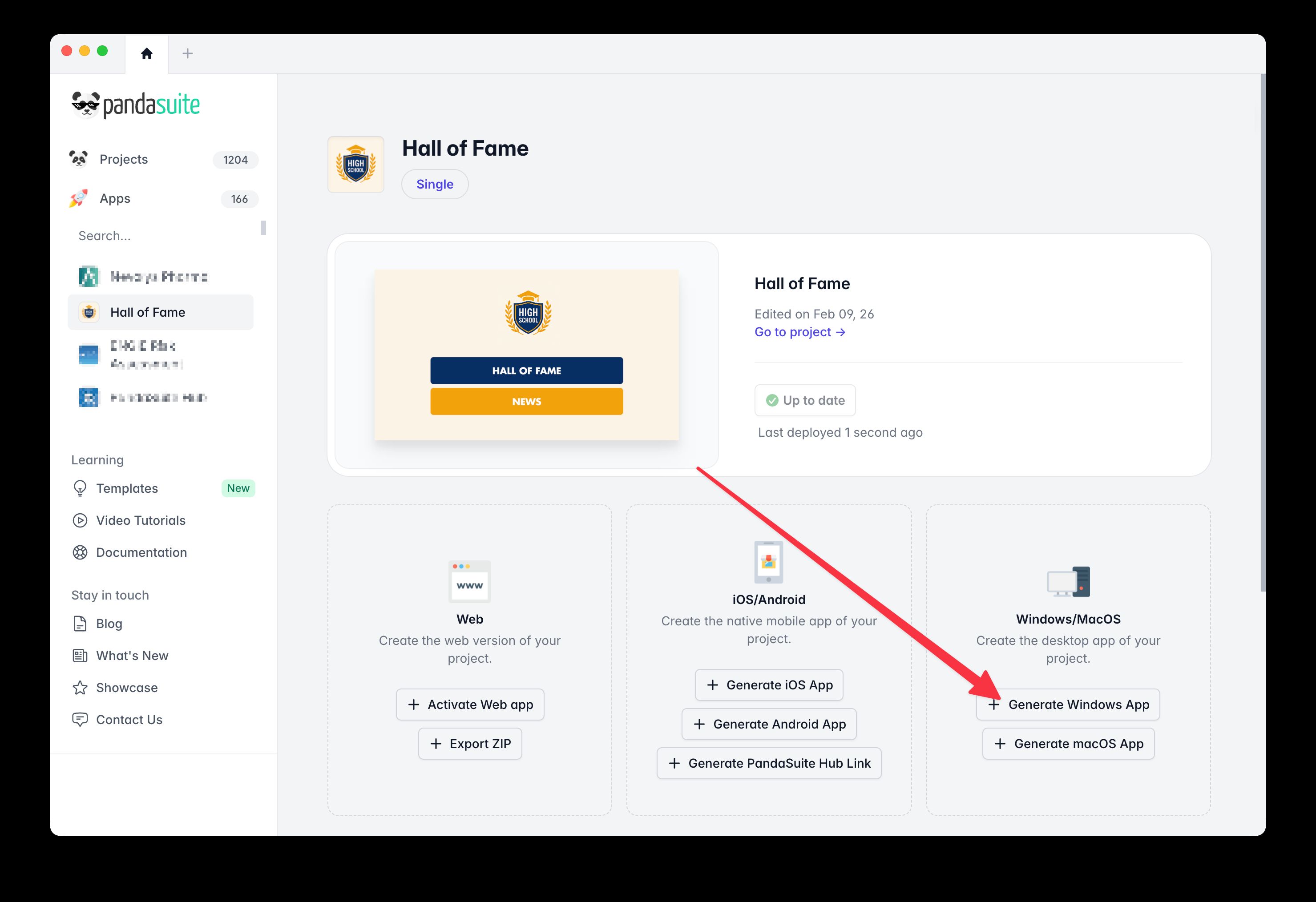
Access the dashboard
- Log in to your PandaSuite dashboard.
- In Apps, create or select the relevant application.
- Go to the Windows / macOS / Linux section.
- Click Generate Windows App.
Fill out the form
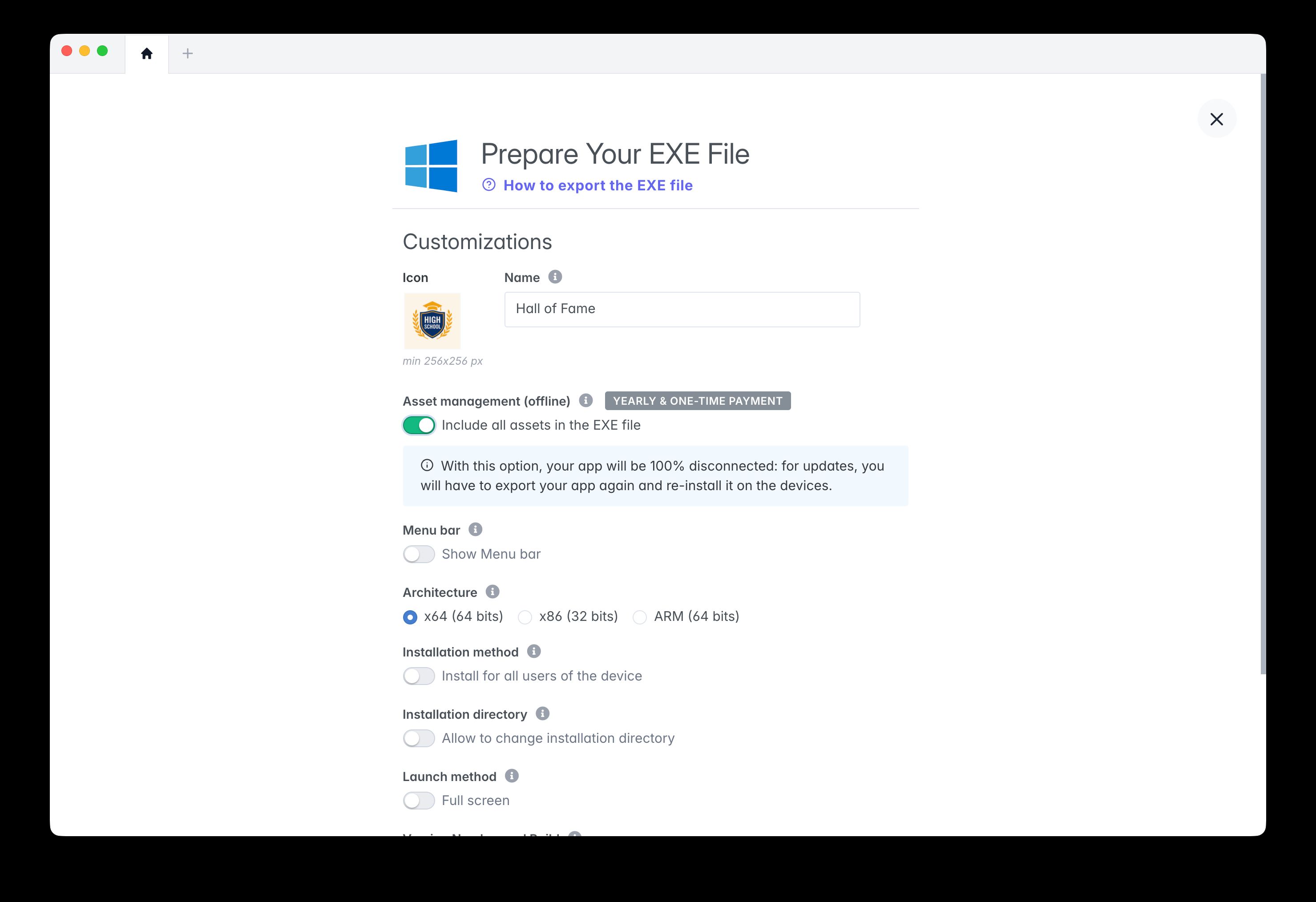
| Field | Description |
|---|---|
| Icon | Minimum 256 × 256 px. This is the icon Windows users will see in the installer, shortcuts, and application listings. |
| Name | The application name displayed to users on Windows. Use the final user-facing name that should appear in installation and launch contexts. |
| Asset management (offline) | Bundles all assets inside the EXE for a fully standalone offline app. This is recommended for disconnected environments, but content updates then require exporting and reinstalling a new EXE. Requires a Yearly or One-Time Payment plan. |
| Menu bar | Lets you show or hide the menu bar in a regular window. With full-screen launch, the Windows application may hide the menu bar. |
| Architecture | Choose between x64, x86, or ARM depending on the target devices. Selecting the wrong architecture can prevent installation on the target machine. |
| Installation method | Decide whether to install the app for all users of the device or only for the current user, depending on your rollout context. |
| Installation directory | Decide whether users can change the installation folder during setup. Keep this restricted if you want a more controlled IT deployment flow. |
| Launch method | Enables Full screen launch, meaning PandaSuite-side Kiosk Mode, for kiosks, tablets, or interactive displays. This option launches the app directly in full screen. On Windows it also adds a Kiosk admin menu, reached with keyboard shortcuts, to lock down the device: see Kiosk Mode on Windows. |
| Version / Build | We recommend starting with 1.0.0 and 1, then incrementing both with each release. The version is the visible release number, while the build tracks technical revisions. |
Before validating, double-check Architecture, Asset management (offline), Launch method, and Version / Build. These fields most often affect rollout and update behavior.
Start the generation
Click Validate.
The process takes place on our servers and can last from a few minutes to several hours depending on the load.
You will receive:
- A confirmation email;
- The download link in the Windows / macOS / Linux tab of your dashboard.
If you don’t receive the email, check your spam folder or visit the Windows / MacOS tab in your dashboard to check the generation status. Contact support if the issue persists.
To install the generated file on a Windows device, follow Install your EXE File. For large-scale rollouts, see Silent installation of your EXE. For a locked-down experience, see Kiosk mode for Windows.
FAQ
Which architecture should I choose?
Choose x64 for most modern Windows devices, x86 for older 32-bit machines, and ARM only for compatible ARM-based devices.
Can my Windows app work fully offline?
Yes. Enable Asset management (offline) to bundle the assets inside the EXE. In that case, content updates require exporting and reinstalling a new EXE.
Do I need to export a new EXE after a code or feature update?
Yes. Any code-level update requires generating a new desktop binary and reinstalling it on the target devices.
Where can I find old Windows builds?
In the Windows / macOS / Linux tab of your dashboard, you can download the versions previously generated for your app.