
SCORM CMI5
Track learner progress, completion, and score from your interactive module to an LMS platform.
The SCORM CMI5 component is PandaSuite Studio’s LMS tracking component. Add it to your project to report learner progress, session status, and score, then choose the LMS package format that matches your platform when you export.
How SCORM CMI5 works with LMS platforms
Use this component to report learner actions such as progress, time spent, completion status, and score to an LMS.
Use SCORM CMI5 whenever you prepare a web package for LMS delivery with SCORM or CMI5.
In SCORM environments, the component can communicate with LMS APIs exposed in SCORM 1.2 or SCORM 2004.
If your module is launched outside an LMS, you can still keep progress on the device with the Persistence option.
Configure the SCORM CMI5 component in PandaSuite Studio, then export your project as a web package for delivery to your LMS.
Insert the SCORM CMI5 component
Prepare your interactive module. Create your screens and set up the different scenarios based on user responses.
To insert your SCORM CMI5 component:
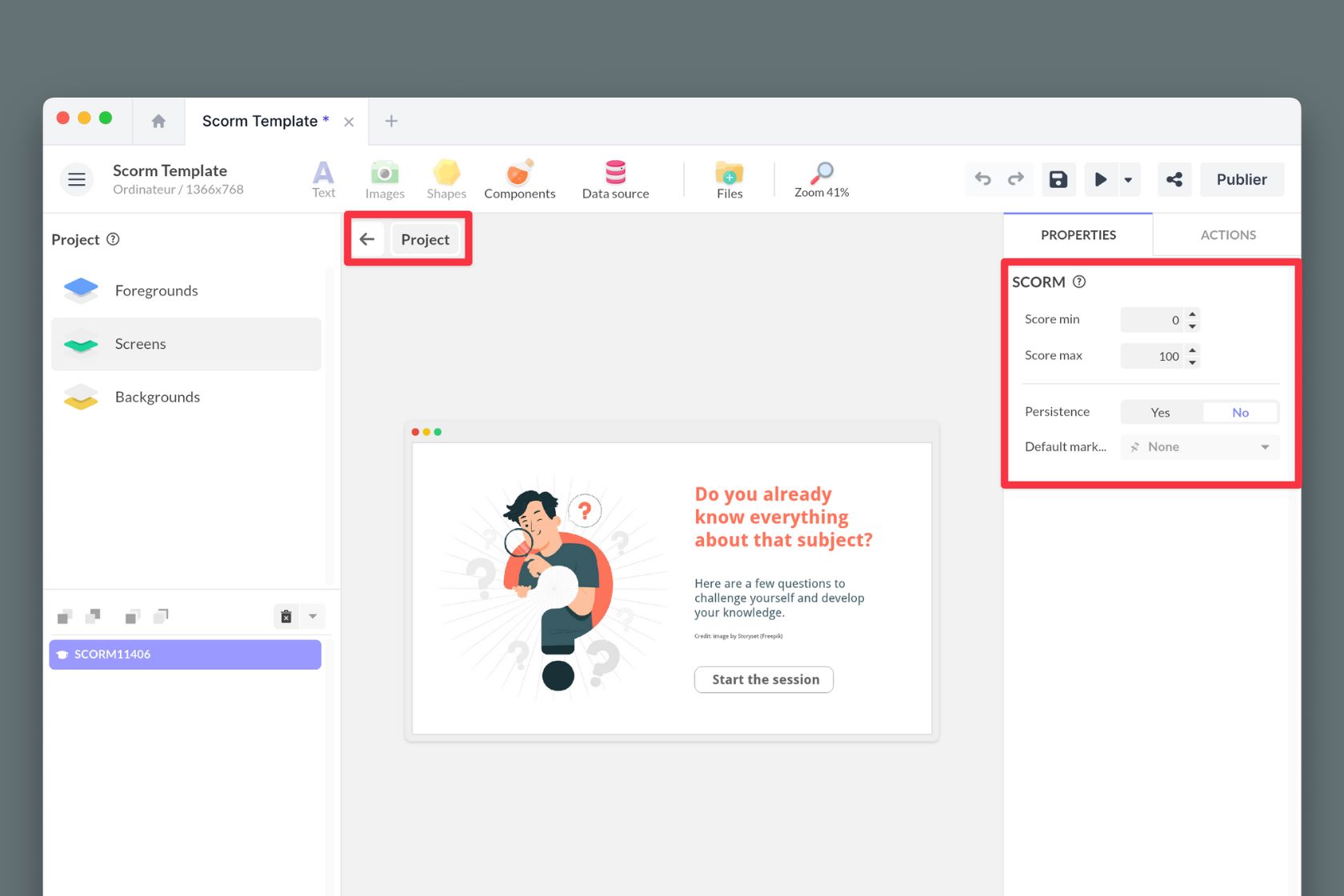
- Go to the level of your project. By inserting it at the project level, you ensure that it is present on all screens.
- Click on Components and insert the SCORM CMI5 component.
- In the properties, choose the minimum and maximum score of this module.
The Persistence option allows you to keep the user’s progress on the device.
Initialize / End the session
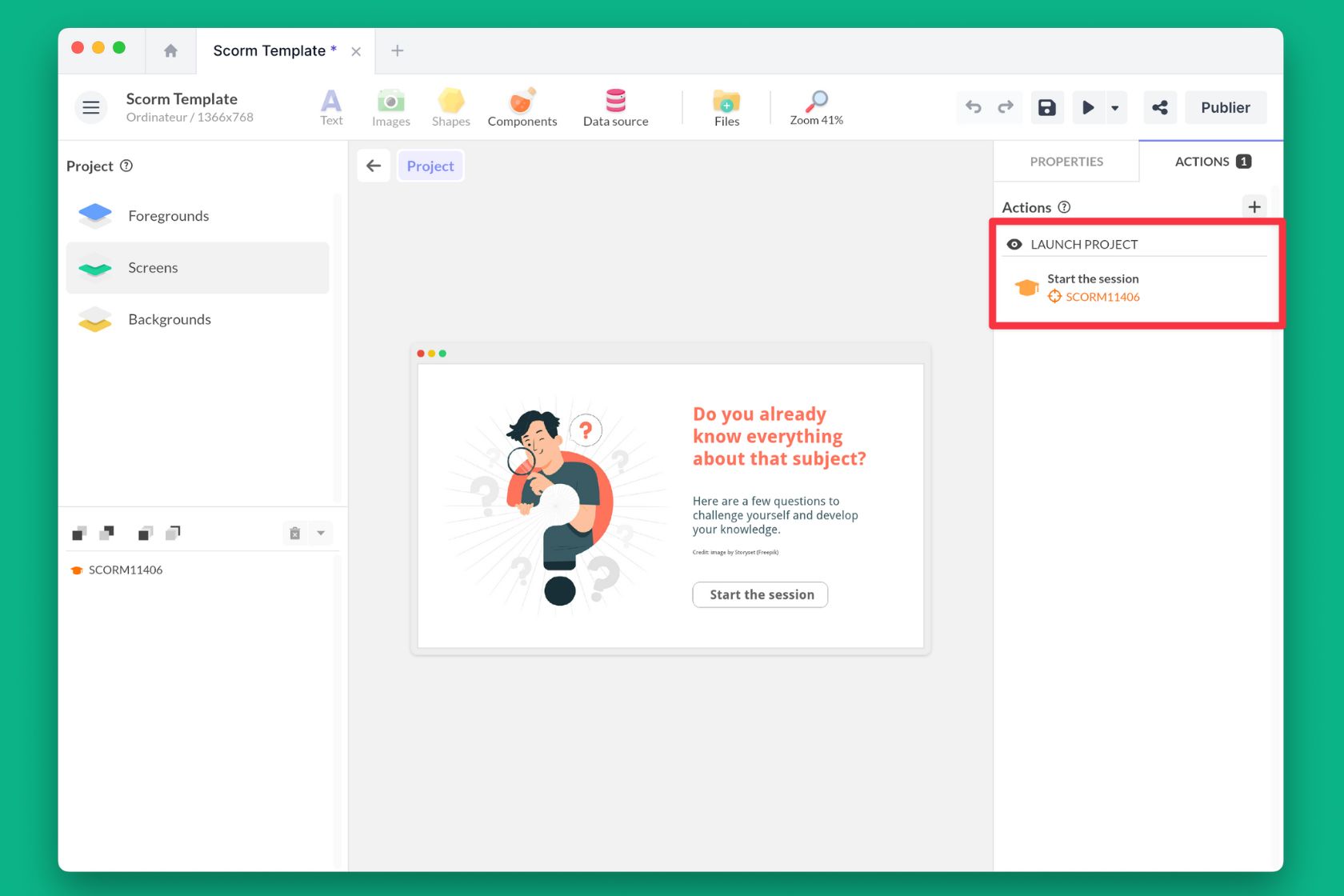
At the beginning of the module, remember to start the session. Choose a trigger (for example, launching the project) and add the action Interact with a component > SCORM CMI5 > Start the session.
Similarly, at the end of the session, remember to end the session. Choose a trigger (for example, displaying the last screen) and add the action Interact with a component > SCORM CMI5 > Set session as complete.
You can define other statuses using the other available actions:
- Set session as incomplete
- Set session as timed out
Update the learner score
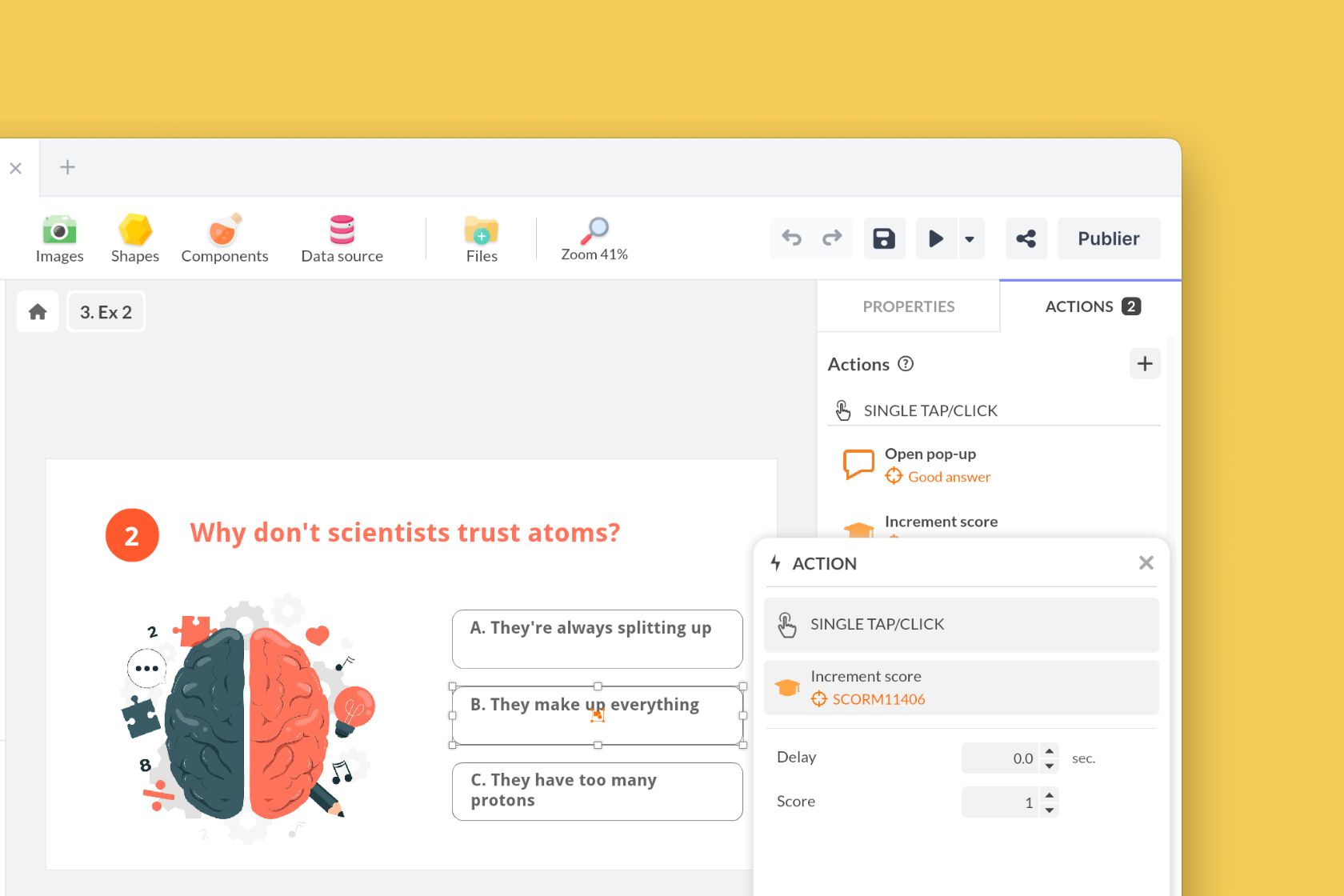
As soon as the user clicks on a correct answer, update the learner score.
To increment the score:
- Select the correct answer.
- Click on Actions, select Single Tap/Click and the action Interact with a component > SCORM CMI5 > Increment score.
Choose the LMS package at export
Is your module ready? Go to your dashboard. Create a new distribution (if not already done) and export it in Web format (annual plan).
In the Web tab, click Export web package, then choose the package format that matches your LMS:
- Choose CMI5 package when your LMS supports or requires CMI5.
- Choose SCORM package when your LMS requires a SCORM-compatible archive.
The SCORM CMI5 component handles LMS tracking for both package formats.
A SCORM package adds imsmanifest.xml at the root of the archive. A
CMI5 package adds cmi5.xml.
For step-by-step export instructions, see Export a web package.
What to expect in your LMS
PandaSuite sends learner progress, completion, time spent, and score from the SCORM CMI5 component, but the way these values appear can vary depending on the LMS and the protocol it supports.