
Transform
The Transform component lets you transform a data source, whether internal (PandaSuite database) or external (REST API, JSON), to adapt it to the expected format of another service or component – all without writing a single line of code.
It’s a true bridge between the PandaSuite world (collections, references, multi-references) and external formats (JSON tables, third-party services).
This component automatically detects elements compatible with Panda types and uses functions when PandaSuite types are detected (e.g., parseCord)
to process GPS strings separated by ;.
Before this component, you had to combine several advanced functions to reformat data. Transform simplifies and centralizes this task in a visual and intuitive interface.
Use cases
-
You already have a PandaSuite collection and need to send this data to an external service (Airtable, REST API, Firebase…) that expects a specific table format.
-
You call an external API (via the HTTP component); the response is an array of objects that PandaSuite doesn’t yet recognize as an exploitable
collection. -
You want to normalize or enrich your data: remove unnecessary fields, add calculated values, rename keys, convert GPS coordinates, etc.
Setting up the component
Inserting into your project
- Open your project in PandaSuite Studio.
- In the Components menu, search for Transform.
- Drag and drop the component onto your scene.
Component features
Properties
| Property | Description | Notes |
|---|---|---|
| Source | Link to an array or a collection. | Required |
| Mode | Type of transformation. Currently fixed to Map (disabled in the UI, reserved for future modes). | Read-only |
| Format | Output format choice: Array or Collection. | Controls how PandaSuite exposes the result |
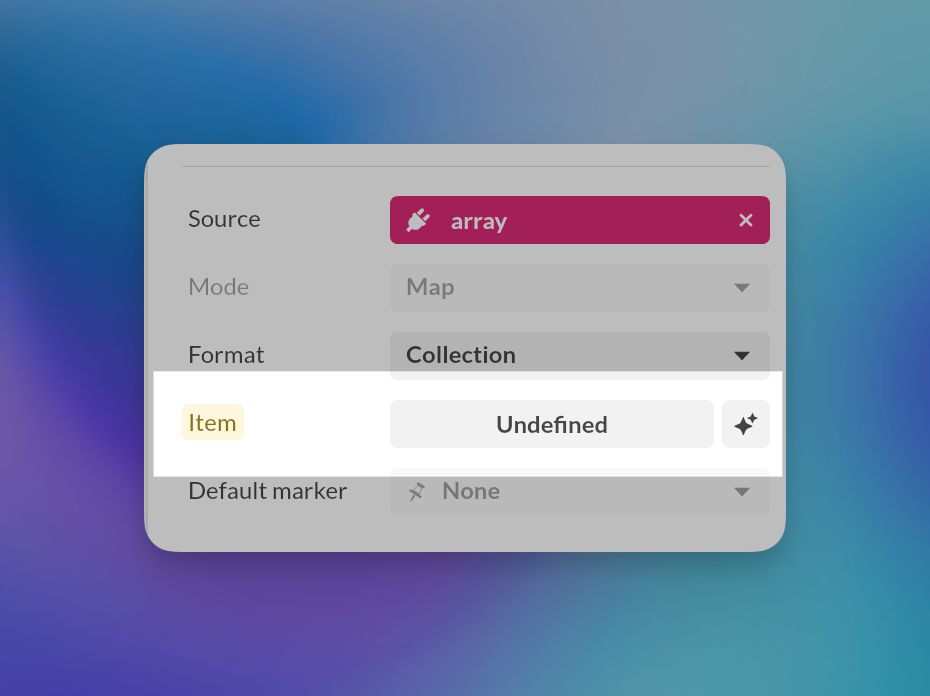
| Item | JSON template describing how each source element is transformed. In Collection format, it is generated from the current source. | Editable. In Collection format, use the auto-configuration button to generate or rebuild it |
Generate or regenerate the Item mapping
When Format is set to Collection, the Item field is based on the current source structure.
If you change Source, PandaSuite clears the current Item mapping so the component does not keep an outdated schema.
If Item is empty, click the auto-configuration button next to Item to generate the mapping from the current source.
If you already have a mapping and the source changes, use the same button to regenerate it, then review the result in the JSON or Table preview.
Real-Time preview
Double-click the Transform component to enter its context. You have two views:
- JSON: shows the raw response as it will be provided to other components.
- Table: a grid view of the data, easier to quickly validate your mapping.
Practical examples
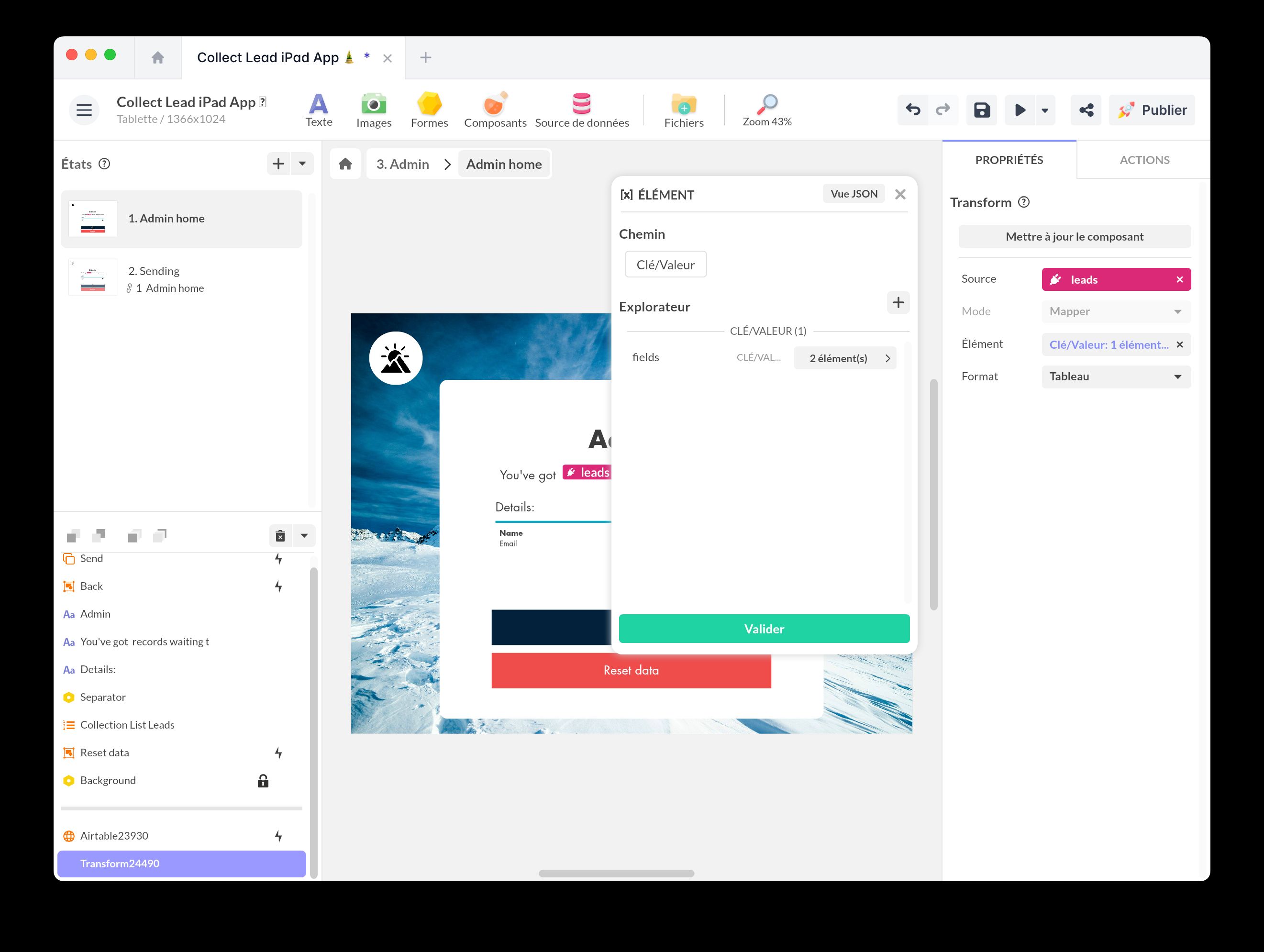
Preparing to send a PandaSuite Collection to Airtable
Goal: update the “Records” table in Airtable from a PandaSuite collection.
- Source: select your PandaSuite collection (e.g., leads).
- Format: choose Array (Airtable expects an array of objects).
- Item (Auto-generated): Transform pre-fills the JSON with all fields from leads.
- Remove unnecessary keys.
- Wrap everything in the fields node.
- Add static fields or bindings if needed (e.g., current date).
- Sending: use this Transform as the Body of the PATCH or POST request in the HTTP component.
Lead Collection Form
Add this template to your account in just a few clicks. Edit and customize it freely.
→ Add this template to your accountConverting an API response into a PandaSuite Collection
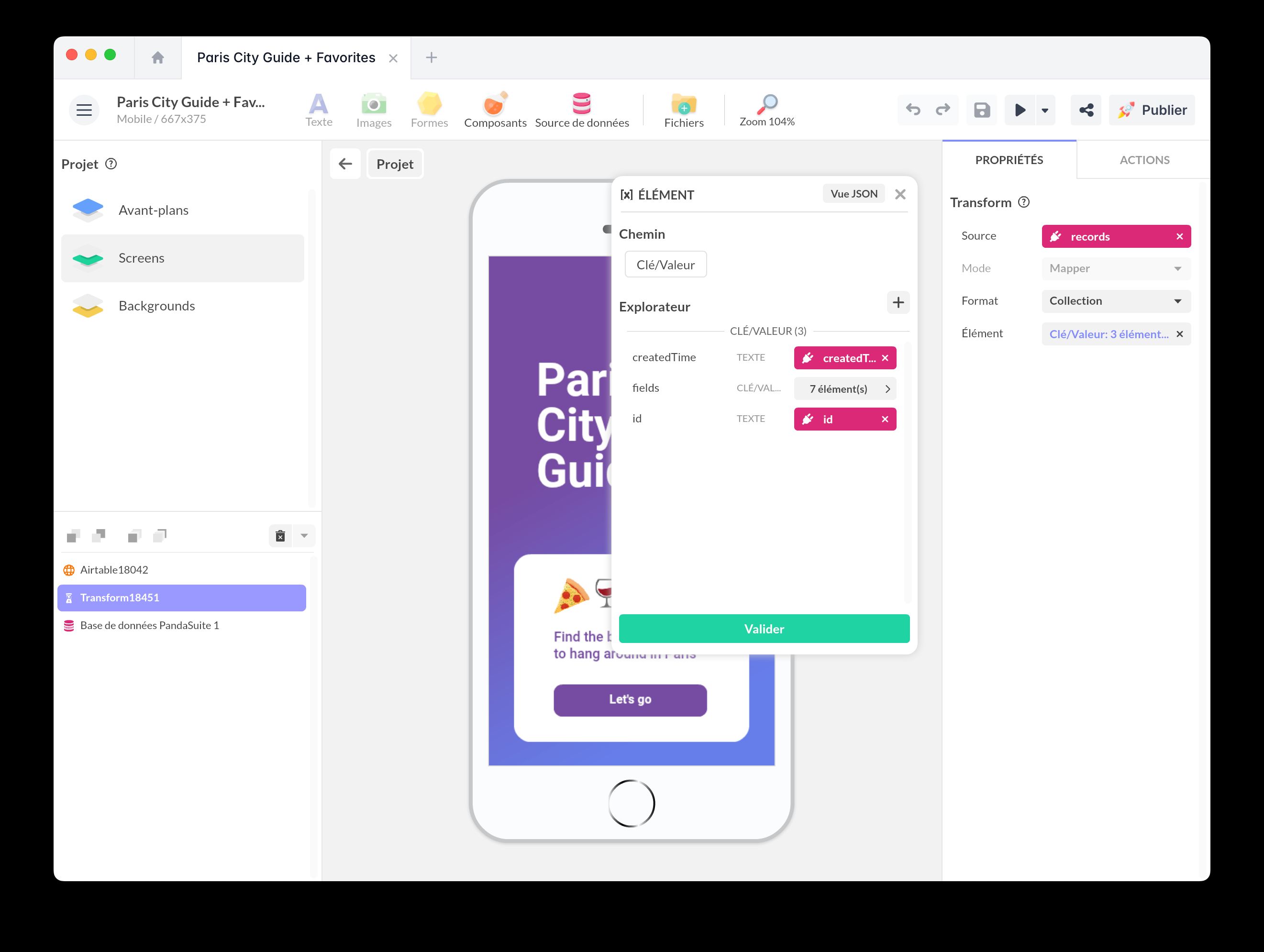
Goal: display Airtable records (native API format) in a Collection / List.
- Source:
- Configure the GET request to Airtable via the HTTP component.
- The response contains a
recordsarray. - Select
records(the array) as the Source of Transform.
-
Format: choose Collection.
-
Item (Auto-generated): Transform detects the structure and suggests keys such as
fields.Name,fields.Image, etc. If you later change the source array, click the auto-configuration button to regenerate Item before reusing the output. -
The output of Transform becomes the Source of a Collection / List component; you can then use references, multi-references, filters, dynamic pages…
Paris City Guide
Add this template to your account in just a few clicks. Edit and customize it freely.
→ Add this template to your accountBest practices
- Always test the transformation in the preview panel before connecting other components.
- Clearly name your Transform (e.g.,
Transform to AirtableorAPI → Collection) to keep logic readable. - Centralize transformations: one Transform can be used as a source for several components (HTTP, Condition, etc.).
- Keep the Item light; the simpler it is, the easier it is to maintain.
FAQ
The output JSON looks correct but my API returns an error; what should I do?
Check headers and format (array vs. object). Use the JSON preview to confirm.
Can I chain multiple Transforms?
Yes. The output of one Transform can be the source of a second Transform for more complex transformations.
Does Transform affect my original collection?
No. It only reads the source and creates a new output object; your data remains intact.