
Update your application
Discover the different ways to update your application.
Updates for an application are divided into two main categories: content updates and code or feature updates. Content updates allow for instant updating of the displayed content within the application, while code updates require generating and exporting a new binary file (for mobile or desktop apps).
Understanding the concept
Content updates are managed instantly through PandaSuite: the application connects to a remote server to obtain the data and content to display. When a content update is available, the server sends the new data to the application, which retrieves and immediately displays it to the user (via an internet connection). This can include updates to text, images, videos, or other multimedia elements present in the application.
On the other hand, code or feature updates require modifying the application’s source code. These updates can include adding new features, fixing bugs, improving performance, or any other modification that requires changing the application’s logic. To benefit from these updates, it is necessary to export a new binary file of the application.
Updating the content
To update the project:
- Make your modifications in PandaSuite Studio and save the project.
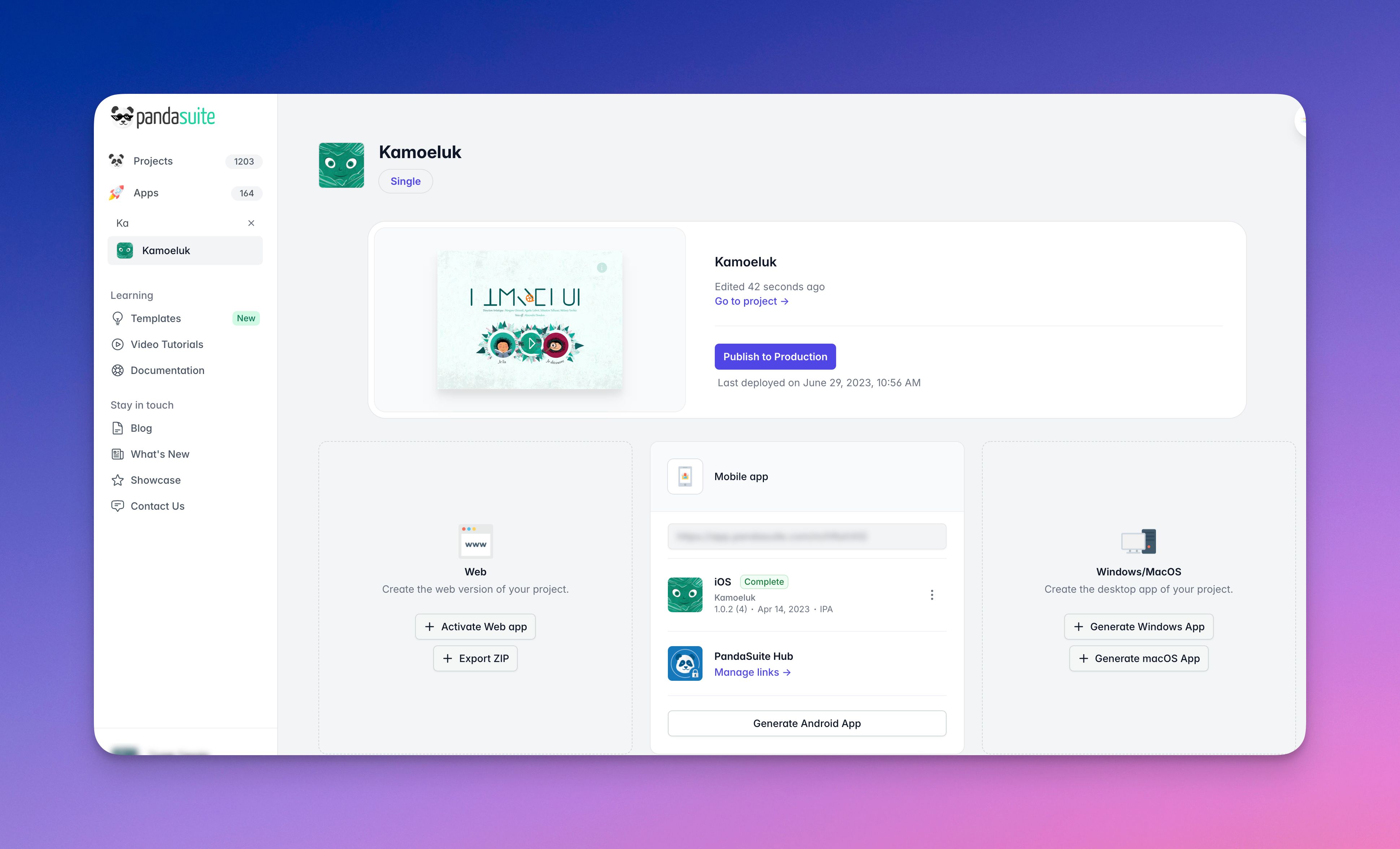
- Go to your dashboard and select your app under Apps.
- The Edited on date indicates when your project was last modified. The Last deployed on date shows when the current production version was published.
- Click the Publish to Production button and confirm the release.
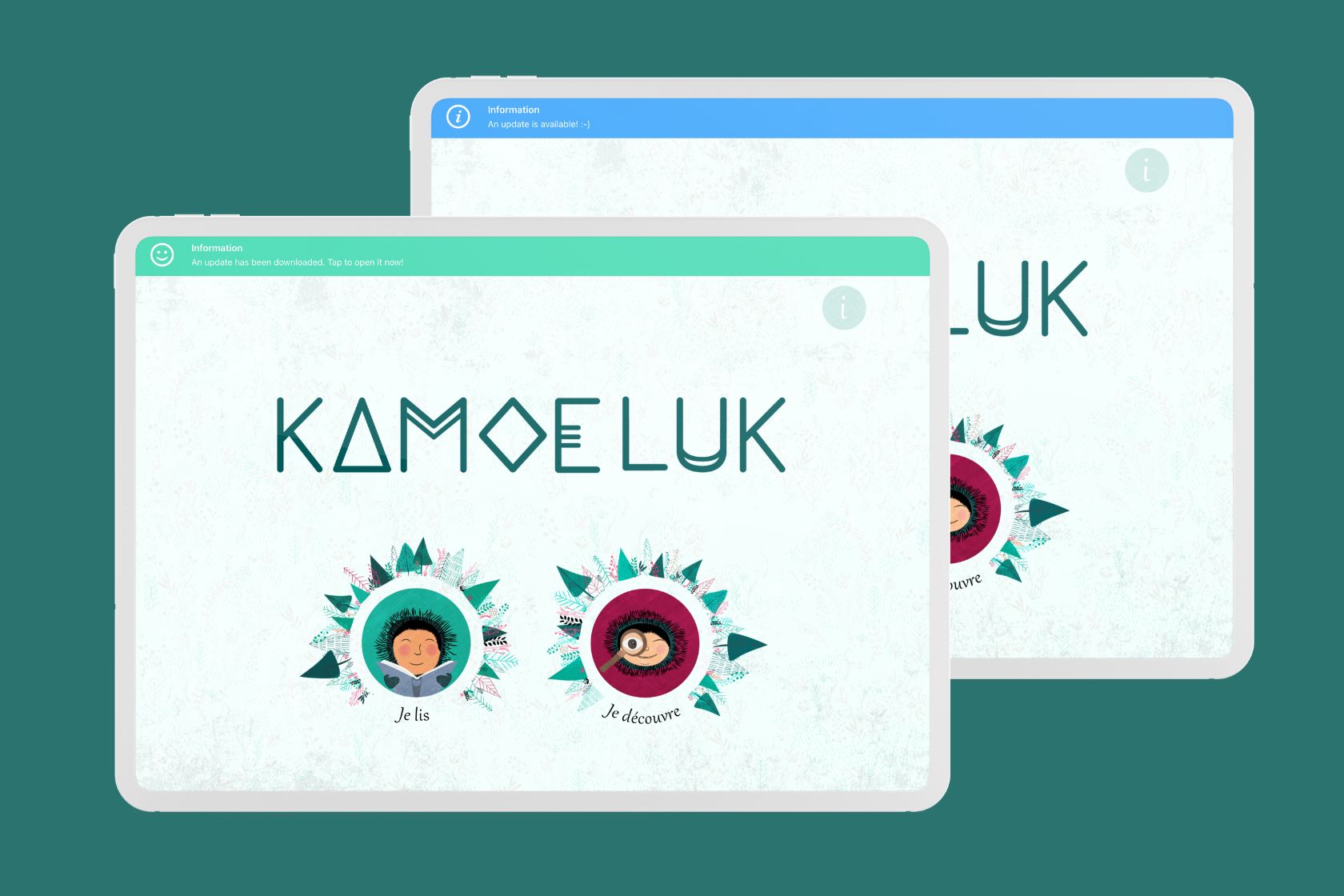
The update is instantly deployed. If the application is already installed on a device, the following update banner appears as soon as the device is connected to the internet:
If you have created a new project for these updates, here is how to replace the project linked to your app:
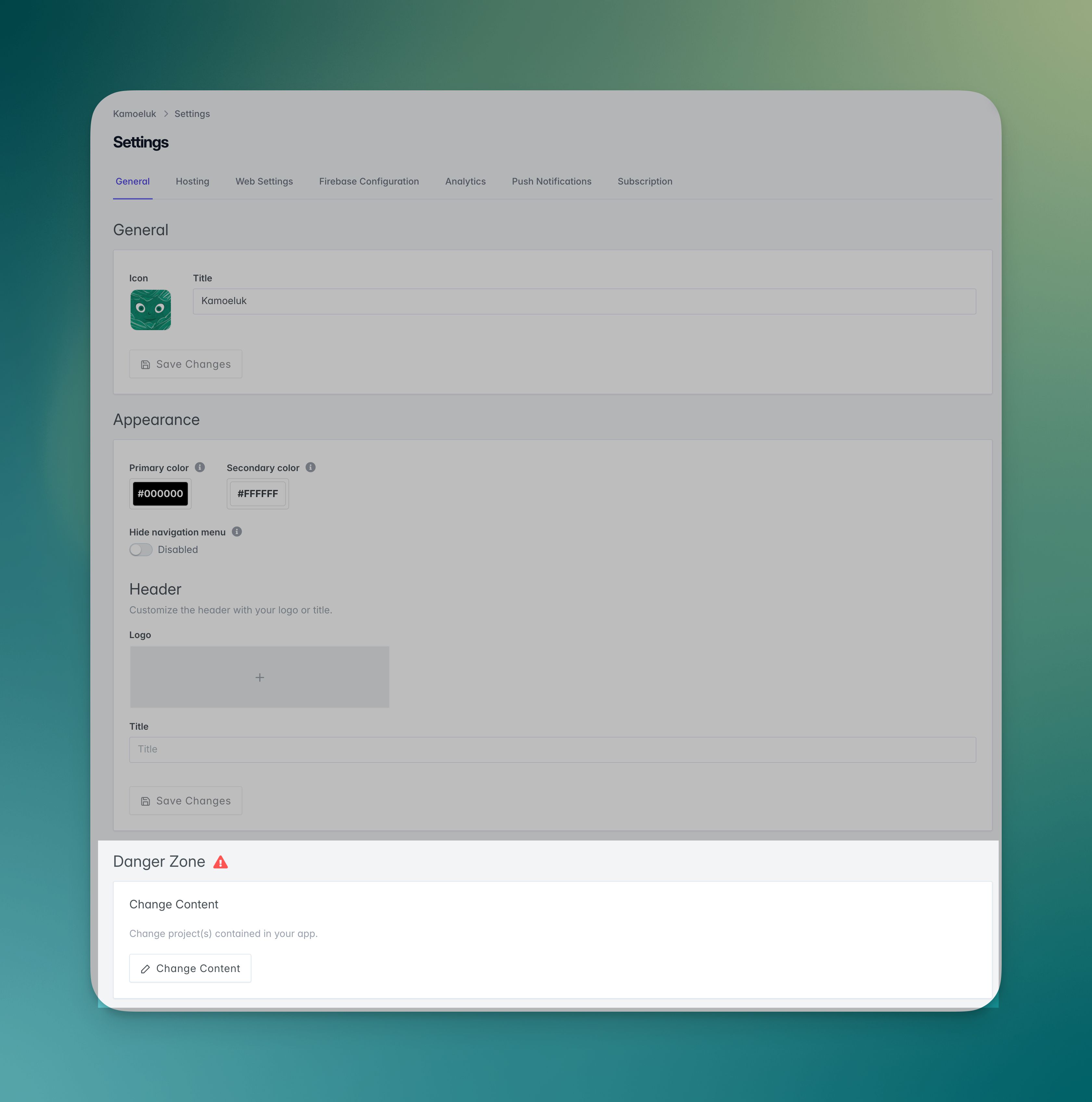
- Scroll down to the Settings section at the bottom of your app page.
- In the Danger Zone, click the Change Content button.
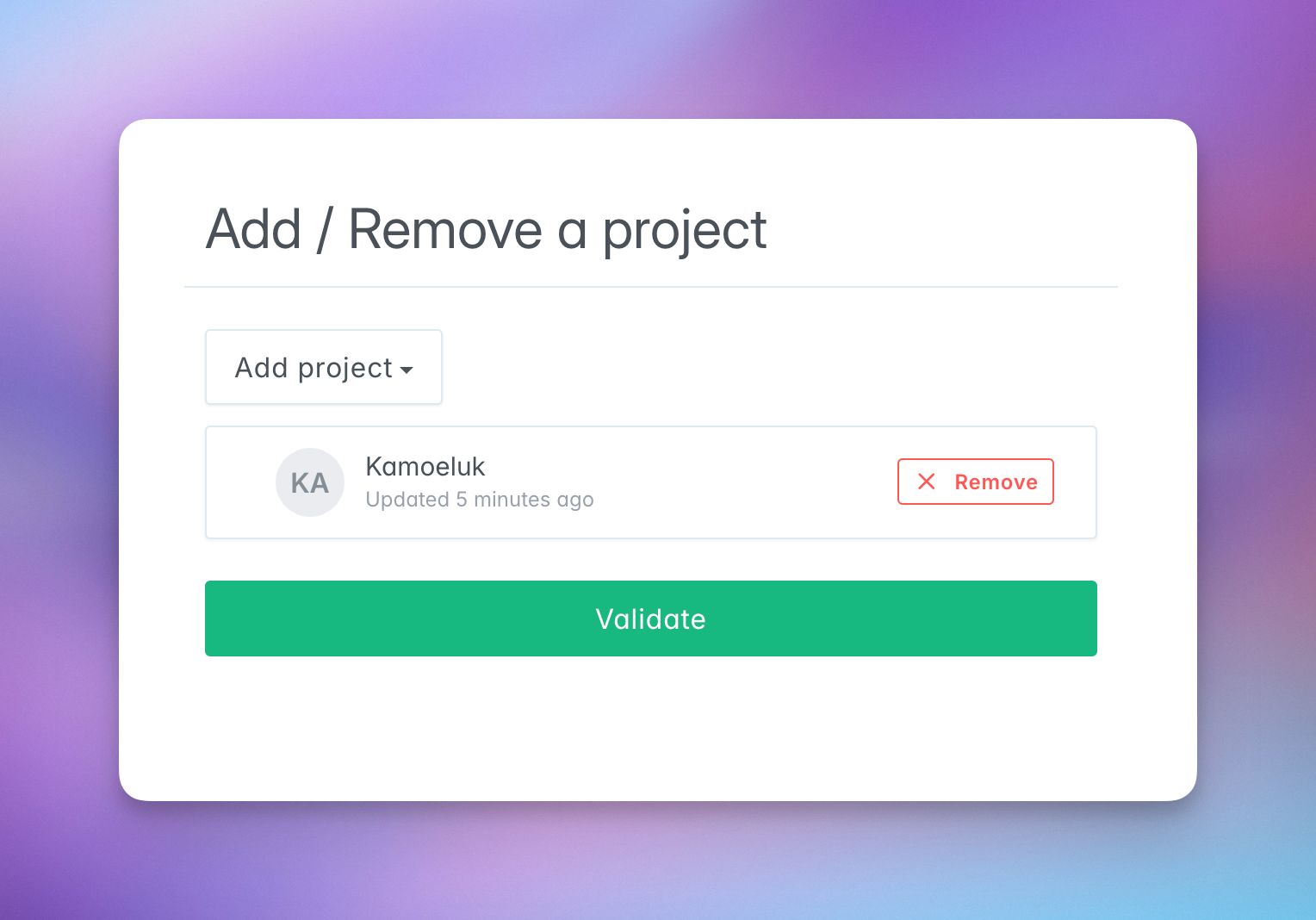
- In the dialog that opens, click Remove next to the old project, then use the Add project dropdown to select the new one.
- Click Validate to confirm the change.
- Back on the app page, click Publish to Production to deploy the new content.
Exporting a new file for redistribution
If you need a code or engine update, you must export a new file for the distribution method you use. This applies to mobile applications (.ipa, .apk, .aab), desktop applications (.exe, .dmg), and exported web deliverables (Standard ZIP, SCORM, or CMI5 packages).
From your app page in the dashboard, launch the export action that matches your target platform: Export web package, Generate iOS App, Generate Android App, Generate Windows App, or Generate macOS App.
For mobile and desktop binaries, the fields are usually pre-filled. Make sure to increment the version and build number before generating the next release.
Use the dedicated guide for your target format:
- Web or LMS package: Export a web package
- iOS: Export an IPA file
- Android: Export an APK / AAB file
- Windows: Export an EXE File • Install your EXE File • Standalone EXE for offline installation
- macOS: Export a DMG file • Install your DMG File • Standalone DMG for offline installation
If you distribute a self-hosted web package or an LMS package, replace the previously deployed archive in the target environment after exporting the new one.
If you distribute desktop binaries in offline mode, exporting a new EXE or DMG also means redistributing and reinstalling the updated file on the target devices.
If your application is published on the App Store and Play Store, you need to submit and publish a new version of your application: