
Dynamic page from collection item
Create a dynamic page from an item in a collection.
Create a detailed page
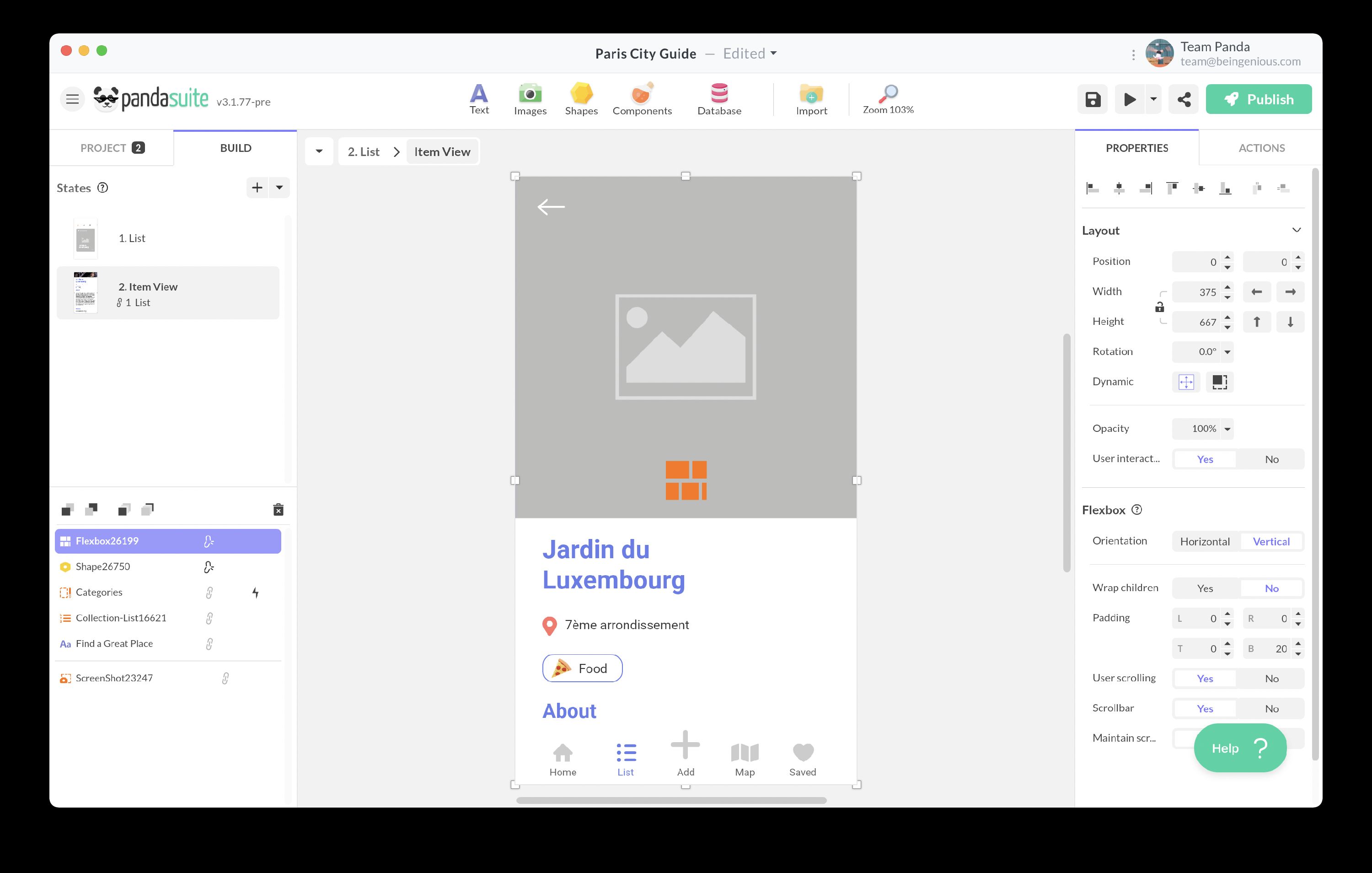
Create the page to present your item in more details. You can create it wherever you want: on a new screen, in a linked state, in a Pop-up…
To create the content of the view, we recommend using the Flexbox component. This component automatically adapts its layout according to its content and can display a scroll bar if needed.
Save the selected item reference
To display the right data in the detail view, store a reference to the selected item in a variable.
Go to the Datastore.
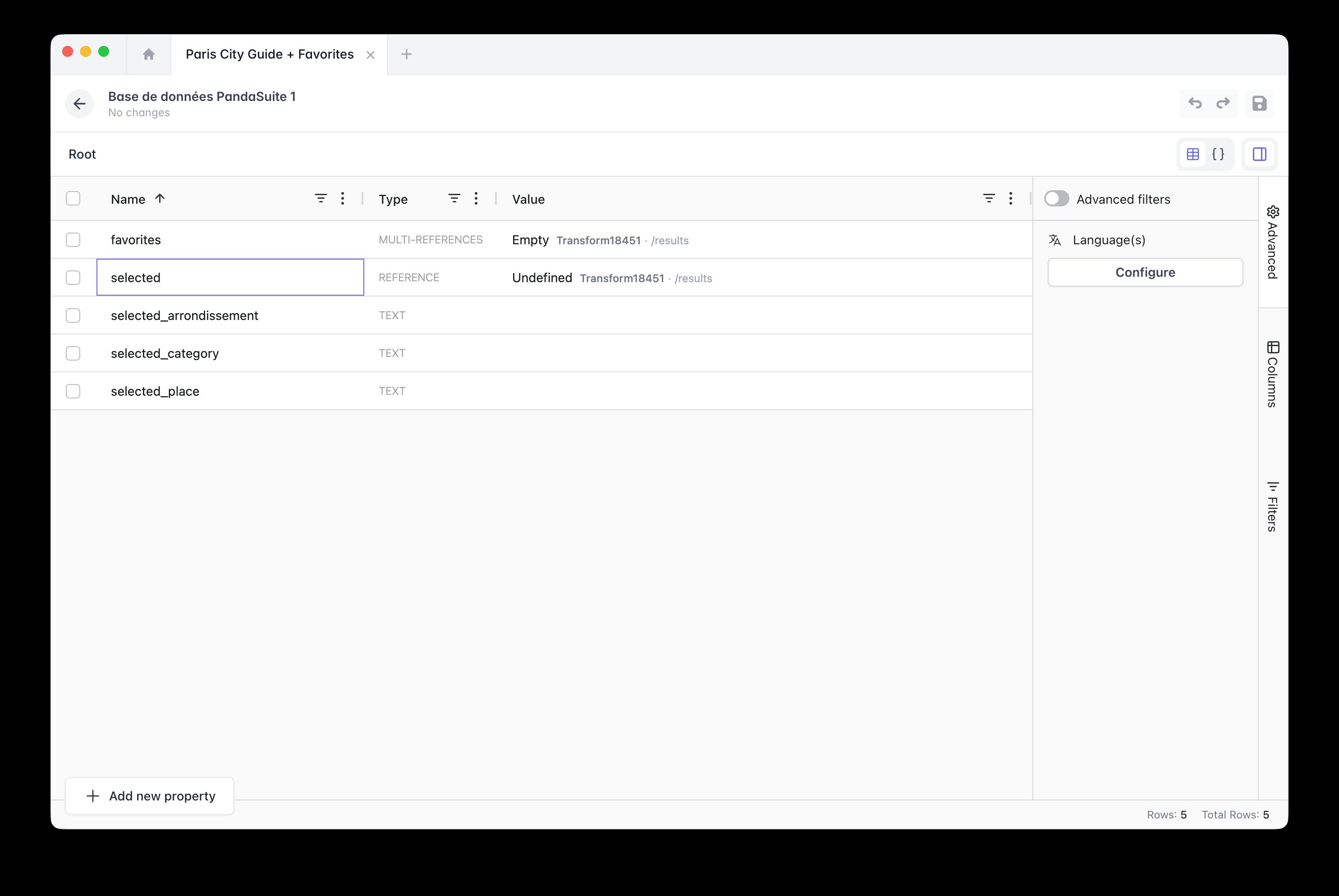
Create a new Reference property pointing to your collection. In our example, it has been named: selected. A reference stores a pointer to a specific item in the collection, giving you direct access to all its data — rather than storing a plain text identifier.
In this example, the reference points to a Transform component that normalizes data from Airtable before exposing it to the app. If you are using the Datastore or another source directly, the reference will point to your corresponding collection.
Click on Save and Go to Production
Select your list item within your collection and add an action: On Click > Interact with a data source > Datastore > Create/Update Data (Local).
Display data from the selected item
Because the variable stores a Reference, you can bind directly to the fields of the selected item in your detail view.
Select the text block and click on the Content data binding.
Do the same with all the objects in the view.