
Puzzle
Create a puzzle with PandaSuite using the Drag-and-Drop component and conditions to verify the assembly.
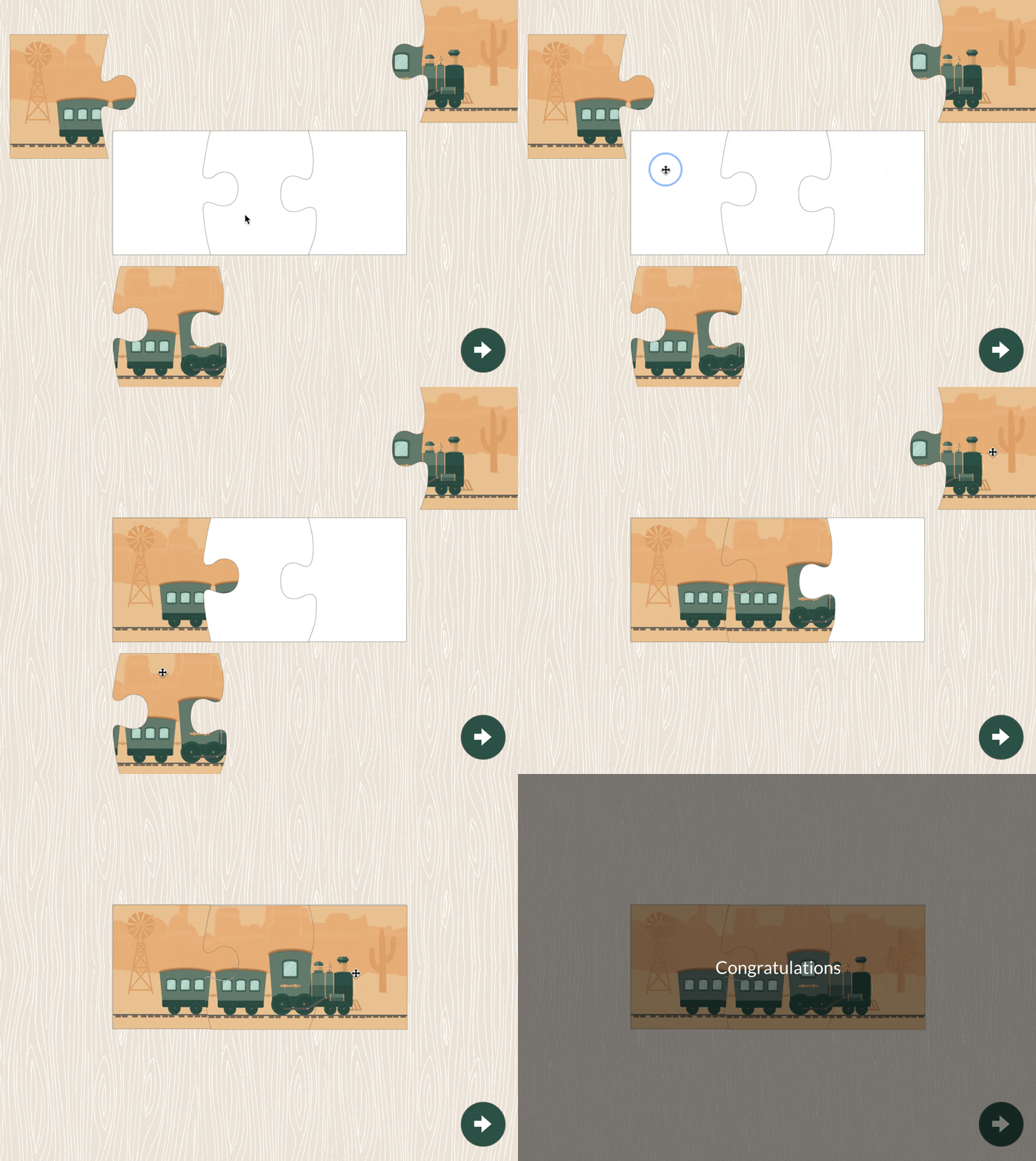
Puzzle with pop-up
Add this template to your account in just a few clicks. Edit and customize it freely.
→ Add this template to your accountPreparing the pieces
Ahead of time, select and prepare an image to be cut into puzzle pieces. You can use image editing software to pre-cut your image if necessary. Import the images individually.
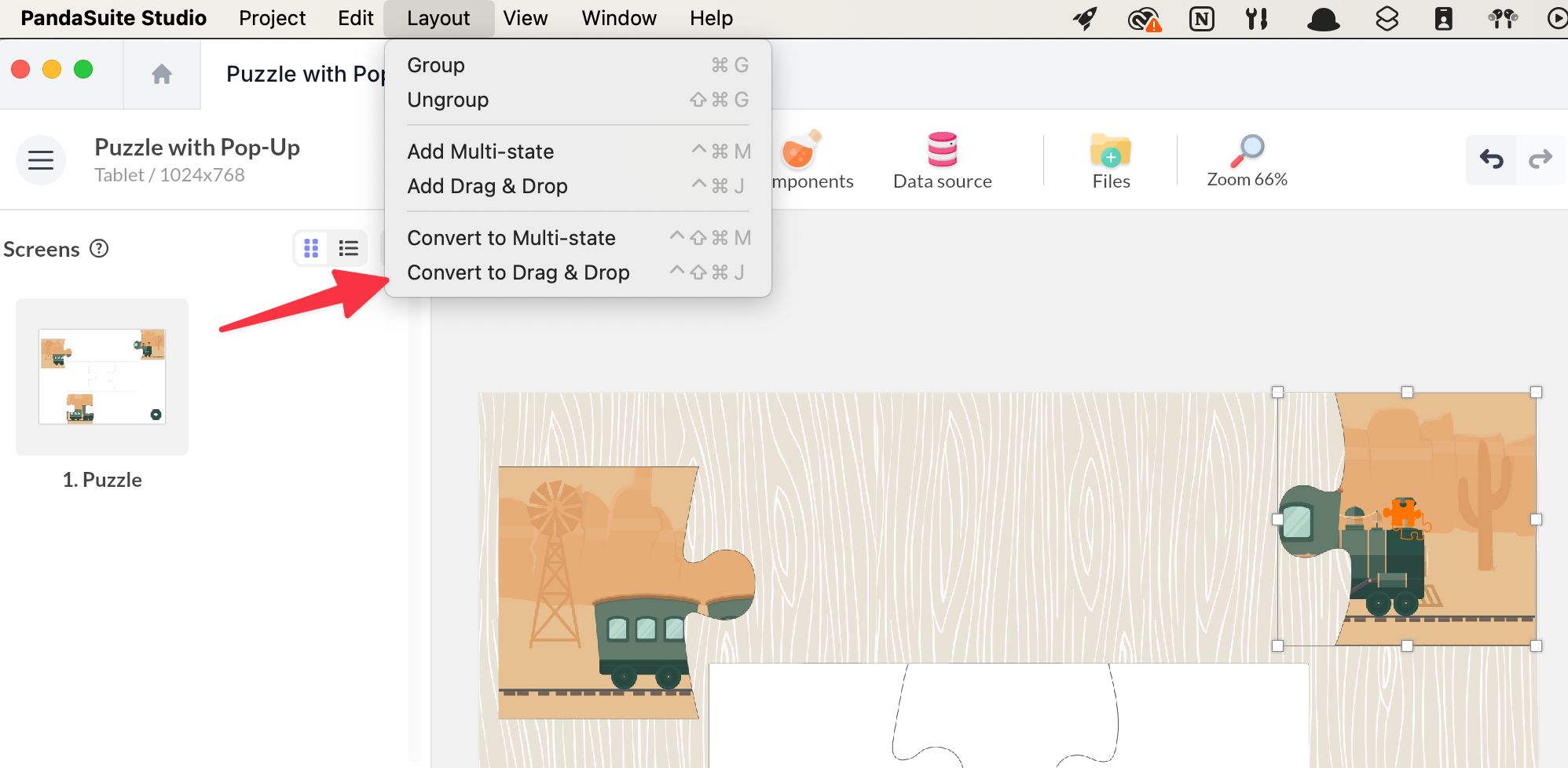
Import the Drag-and-Drop component into your screen. Use one distinct Drag-and-Drop component for each piece. Inside each component, import a puzzle piece. You can also use the Layout > Convert to Drag-and-Drop shortcut to transform your image into a Drag-and-Drop component.
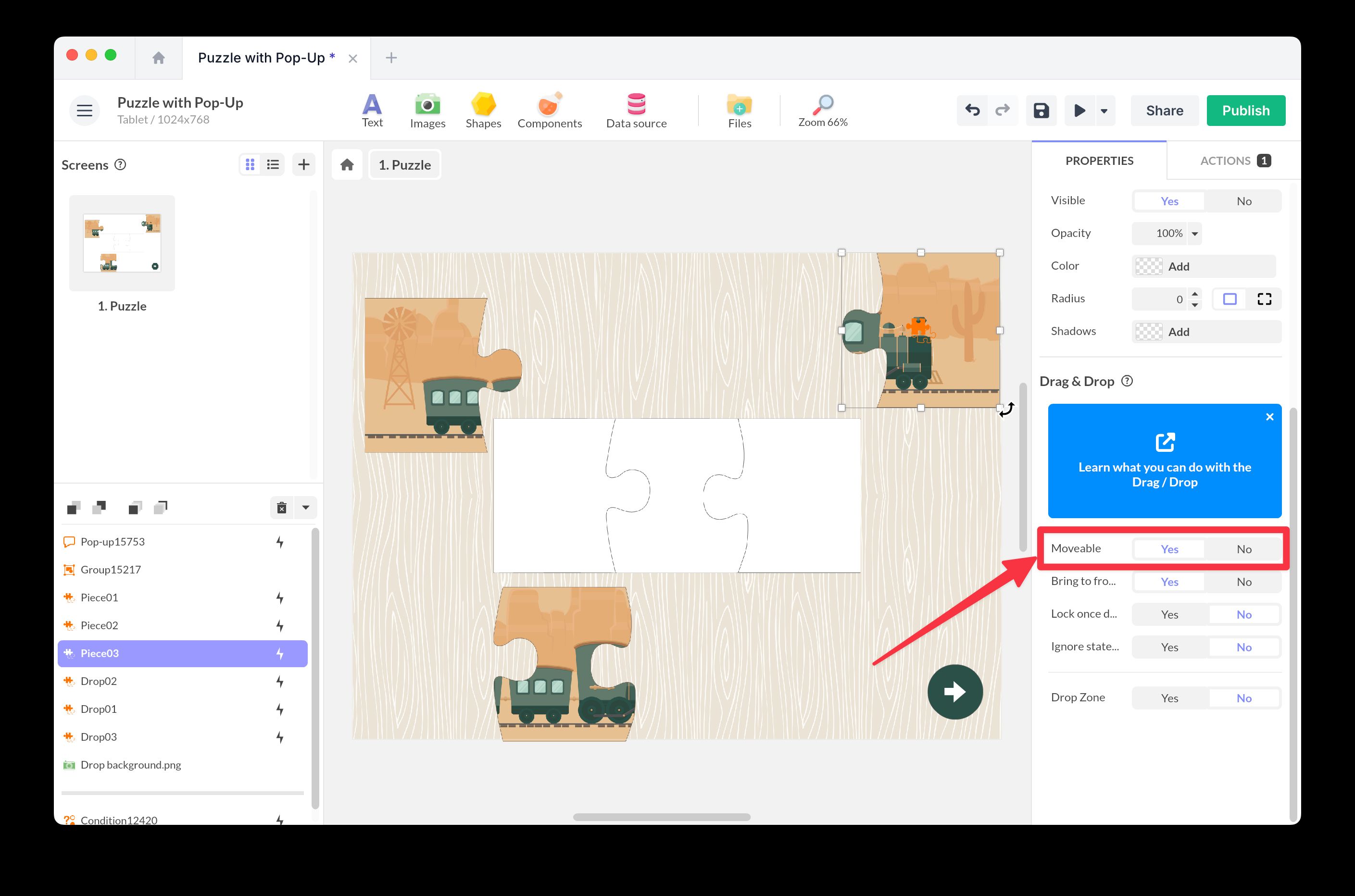
In the properties, activate Movement to allow free movement on the scene.
Associating with drop zones
Use the Drag-and-Drop component for the drop zones as well. Use one distinct Drag-and-Drop component for each zone.
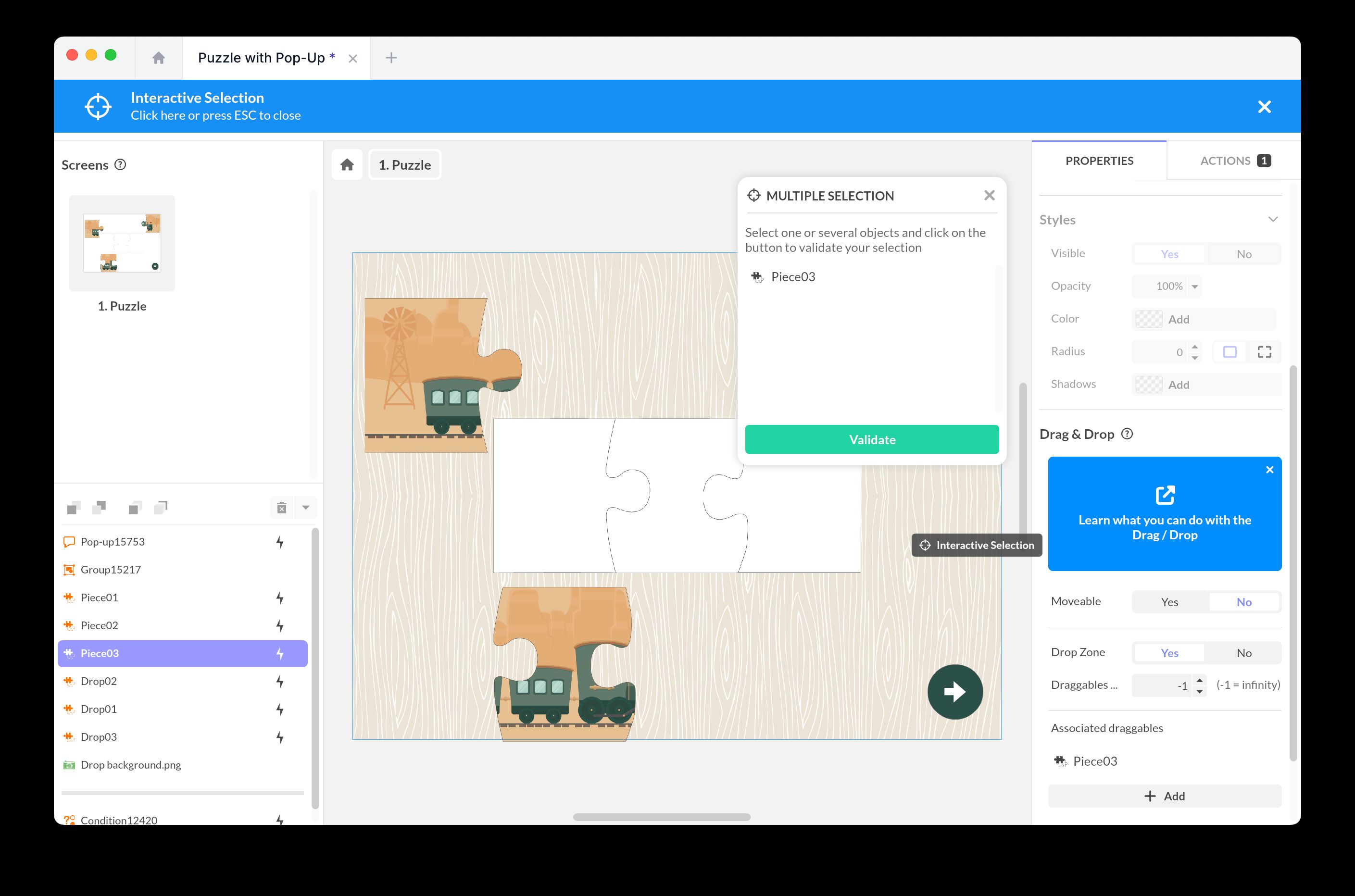
In the properties, activate the Drop Zone option, add an association, and select the matching piece.
Setting up conditions
Thanks to conditions, you can check whether the puzzle pieces are correctly assembled and trigger an action accordingly.
Create the score variable
In the Datastore, create a new property of type Number and rename it: score.
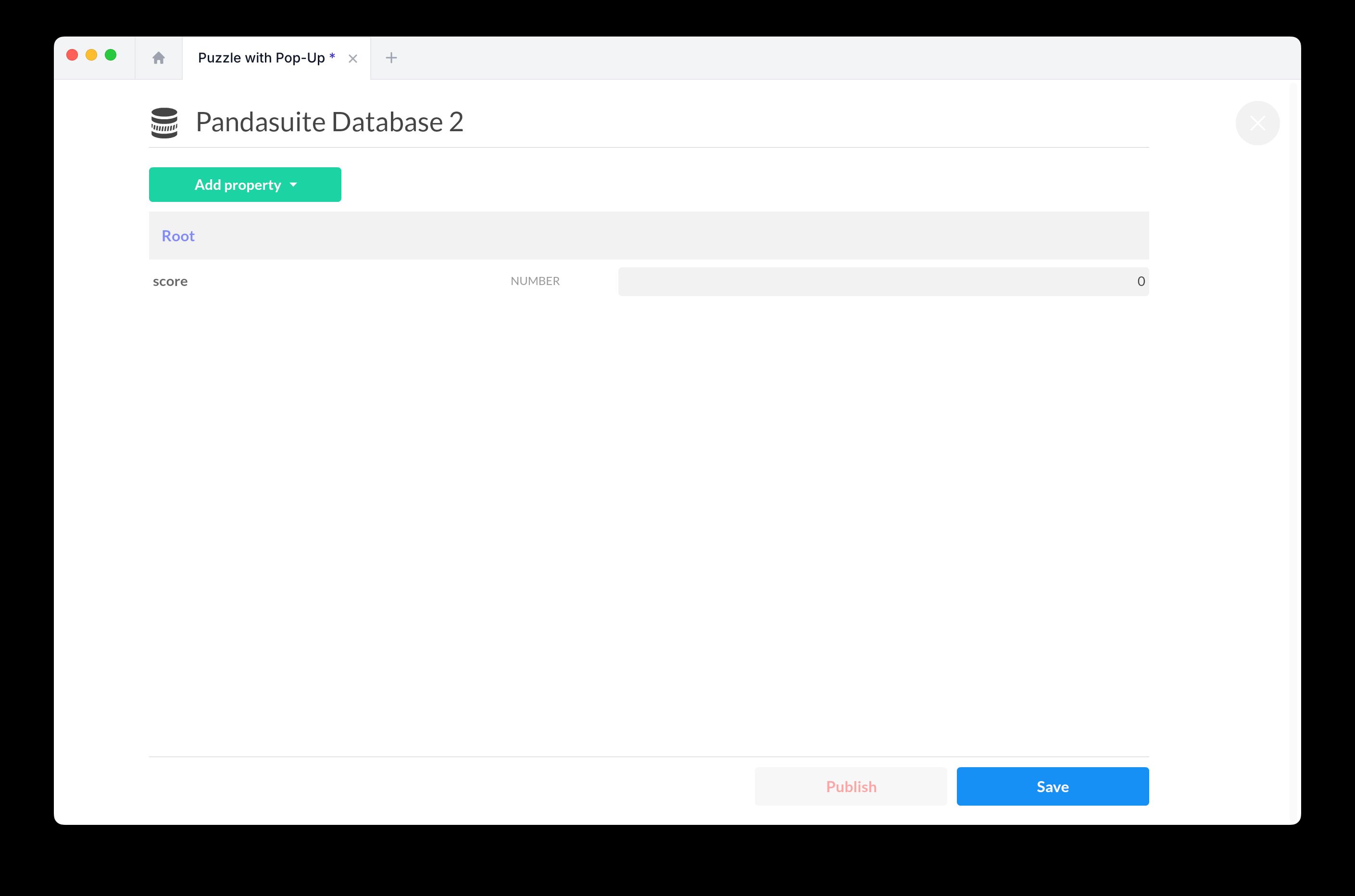
Increment the score on each drop
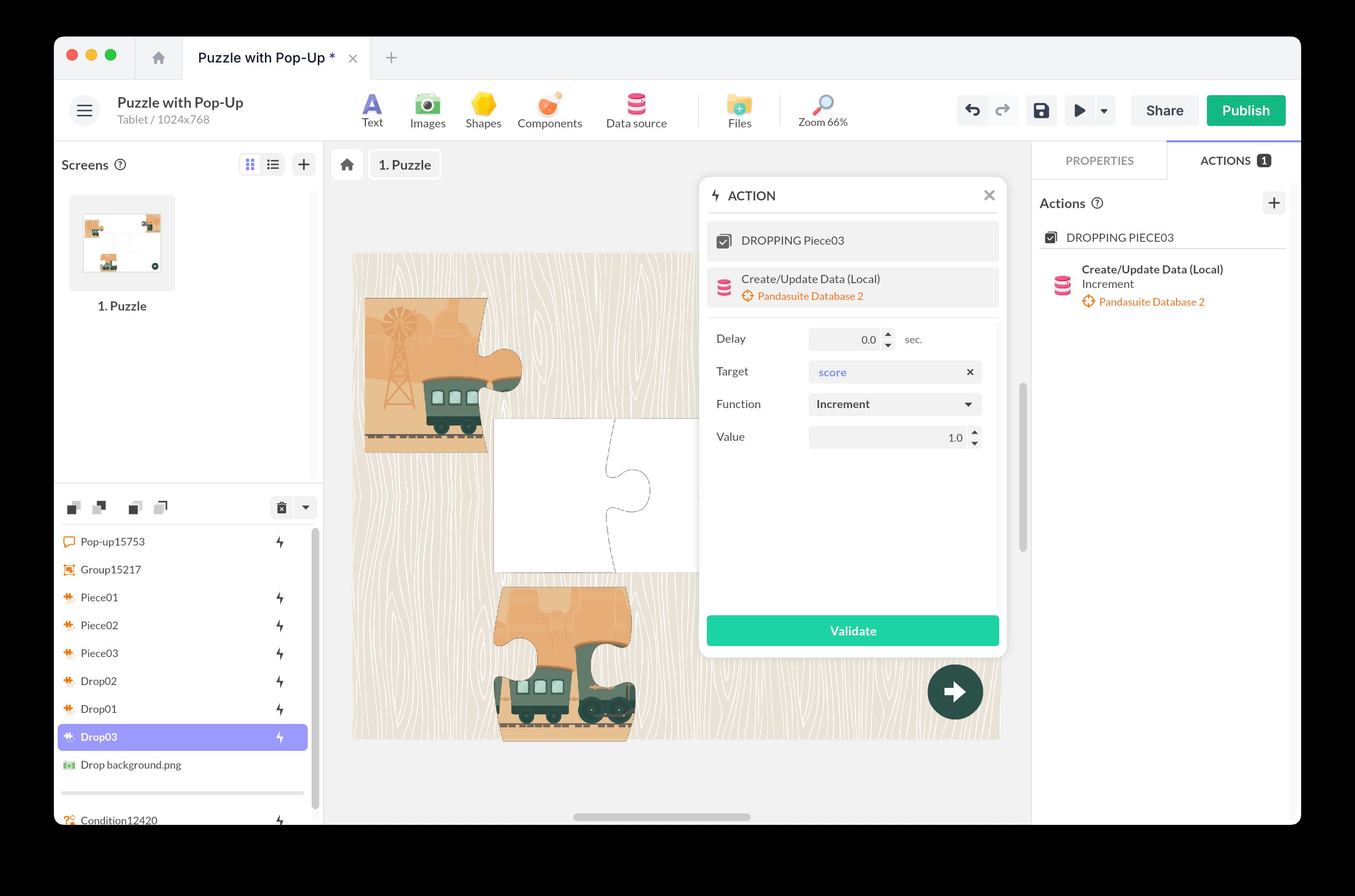
On each drop zone, add an action with the trigger Drop [object]:
Interact with a data source > Datastore > Create/Update Data (Local). As the target, choose score and the function Increment with a Value of 1.
Evaluate the success condition
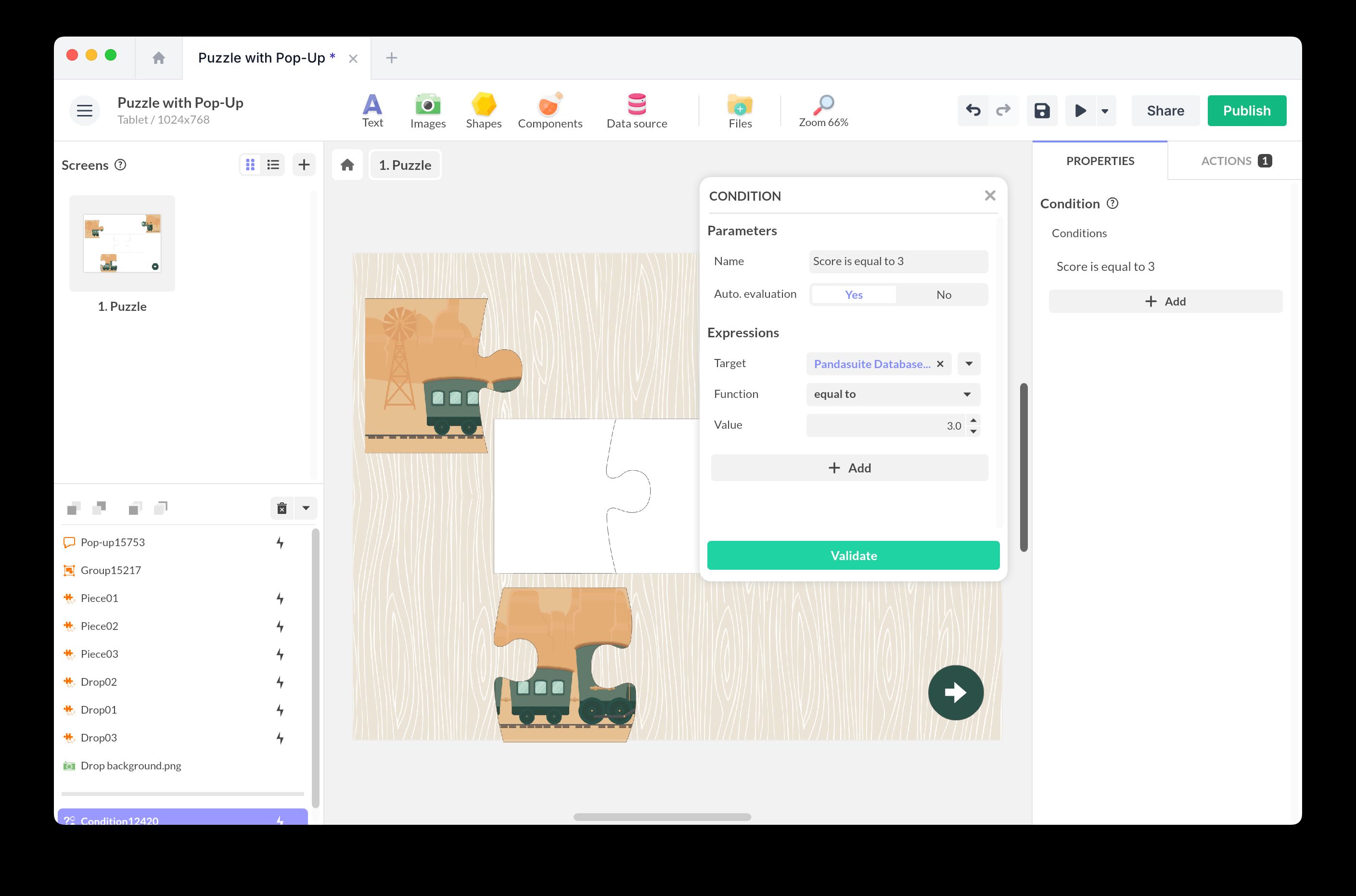
Add a Condition component and create the condition where the score equals the total number of pieces, with Automatic Evaluation.
Add the action to trigger when the condition is met — here, opening a pop-up.
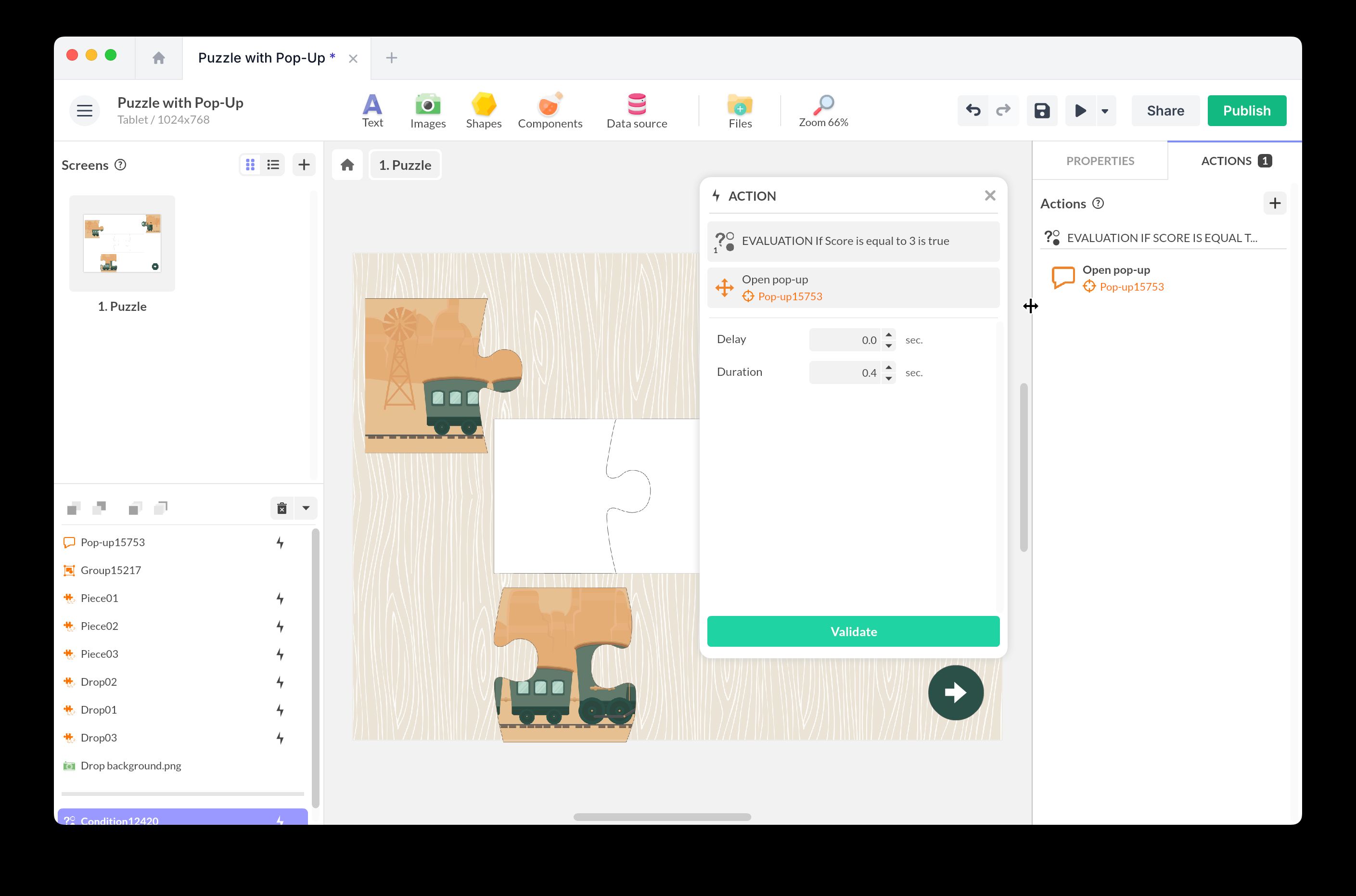
When all pieces are correctly placed, the pop-up opens automatically.