
Interactive actions
Actions are the engine of your workflows: they connect components, screens, and data to build smooth, interactive user journeys.
An action can take many forms: navigating to another screen, opening a pop-up, acting on data, changing the project language, creating a transition, and much more. By combining multiple actions, you define logical sequences that guide the user through your application.
When you create an action, you select a triggering event and an action from a list of options. You can add multiple actions to the same trigger — they execute in the order they were created.
Navigate to another screen
Add a link to another screen.
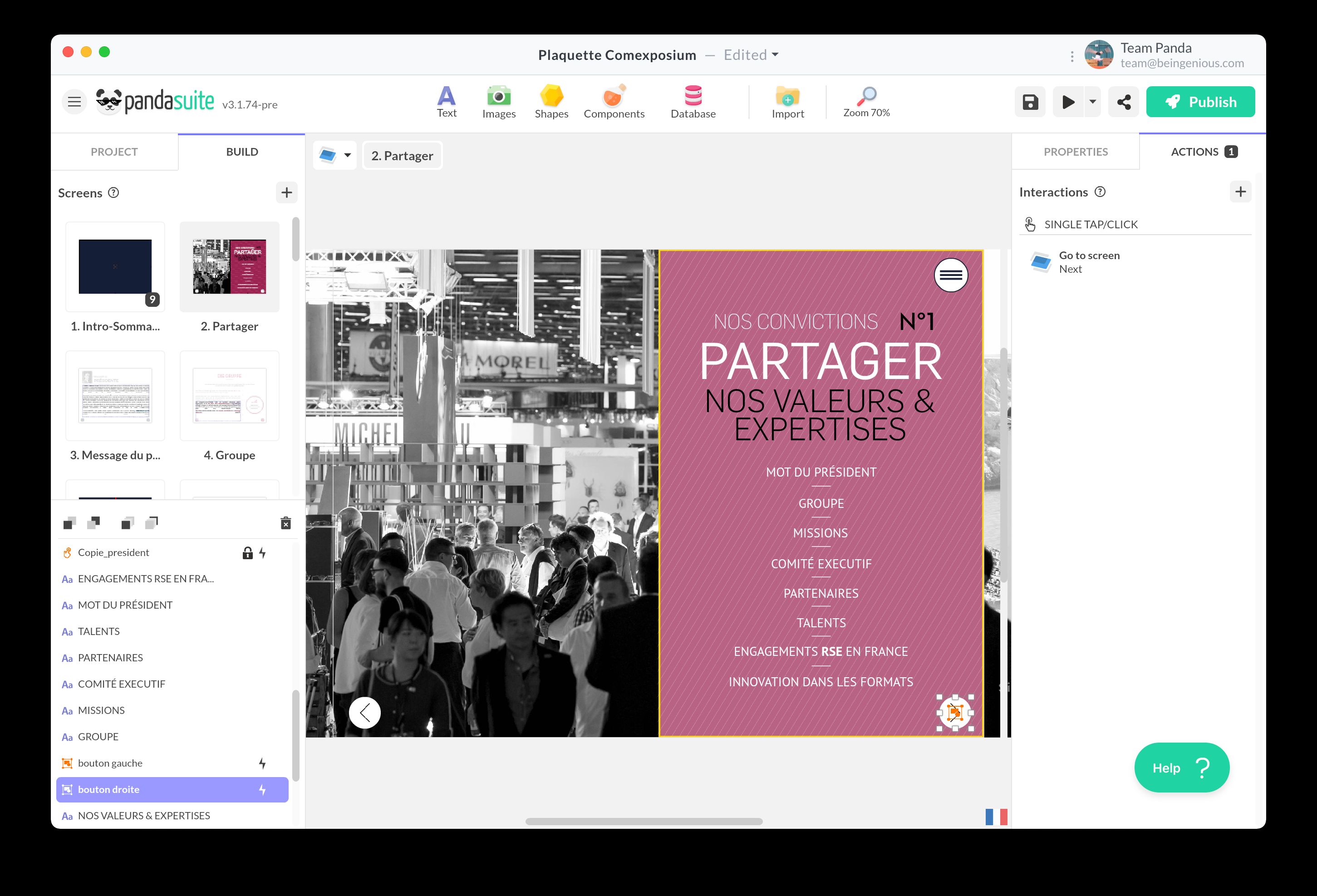
You can choose to navigate to a specific screen, the previous screen, or the next screen.
If you choose a specific screen, you can specify its state. If you choose to navigate to the previous or next screen, the order corresponds to the position of screens in the list. You can add an interval (e.g., skip every second screen) and enable loop mode.
Change screen state
Add a link to another state on the same screen. States allow you to animate screens and create transitions.
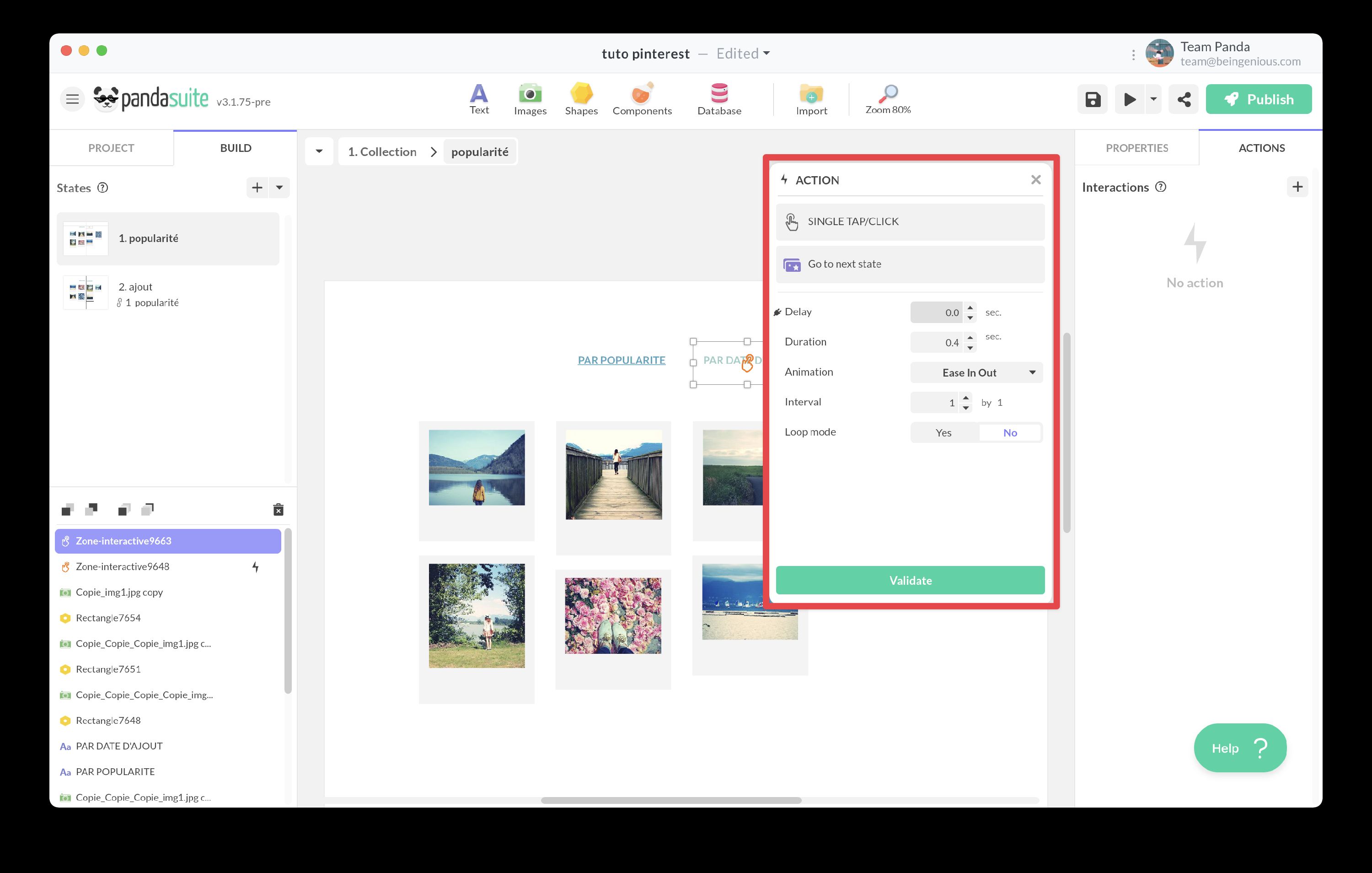
You can choose to navigate to a specific state, the previous state, or the next state. You can also select a random state.
If navigating to the previous or next state, the order corresponds to the position of states in the list. You can add an interval (e.g., skip every second state) and enable loop mode.
You can also add a delay, transition duration, and a type of animation (easing curves, spring animations, etc.).
Interact with a component
Create an action with any component based on its characteristics.
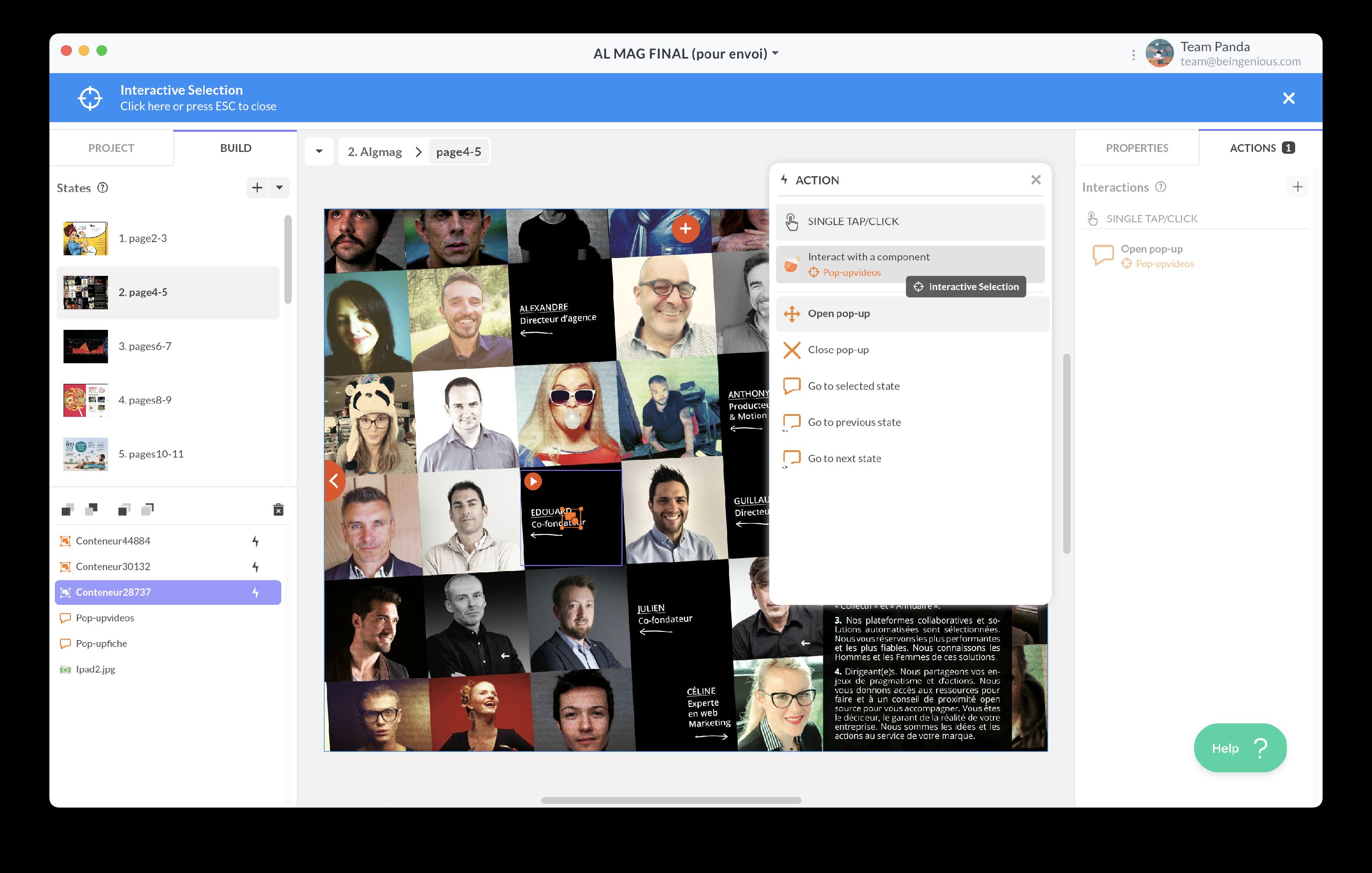
When you choose this action, the next step is to visually select the target component. A blue banner will appear, inviting you to navigate through your project to select the component. It can be located anywhere in your app; use the breadcrumb navigation to explore your project.
Once the component is selected, choose from the proposed actions.
For each component, there are different actions available. For more details, refer to the corresponding article for each component.
Interact with a data source
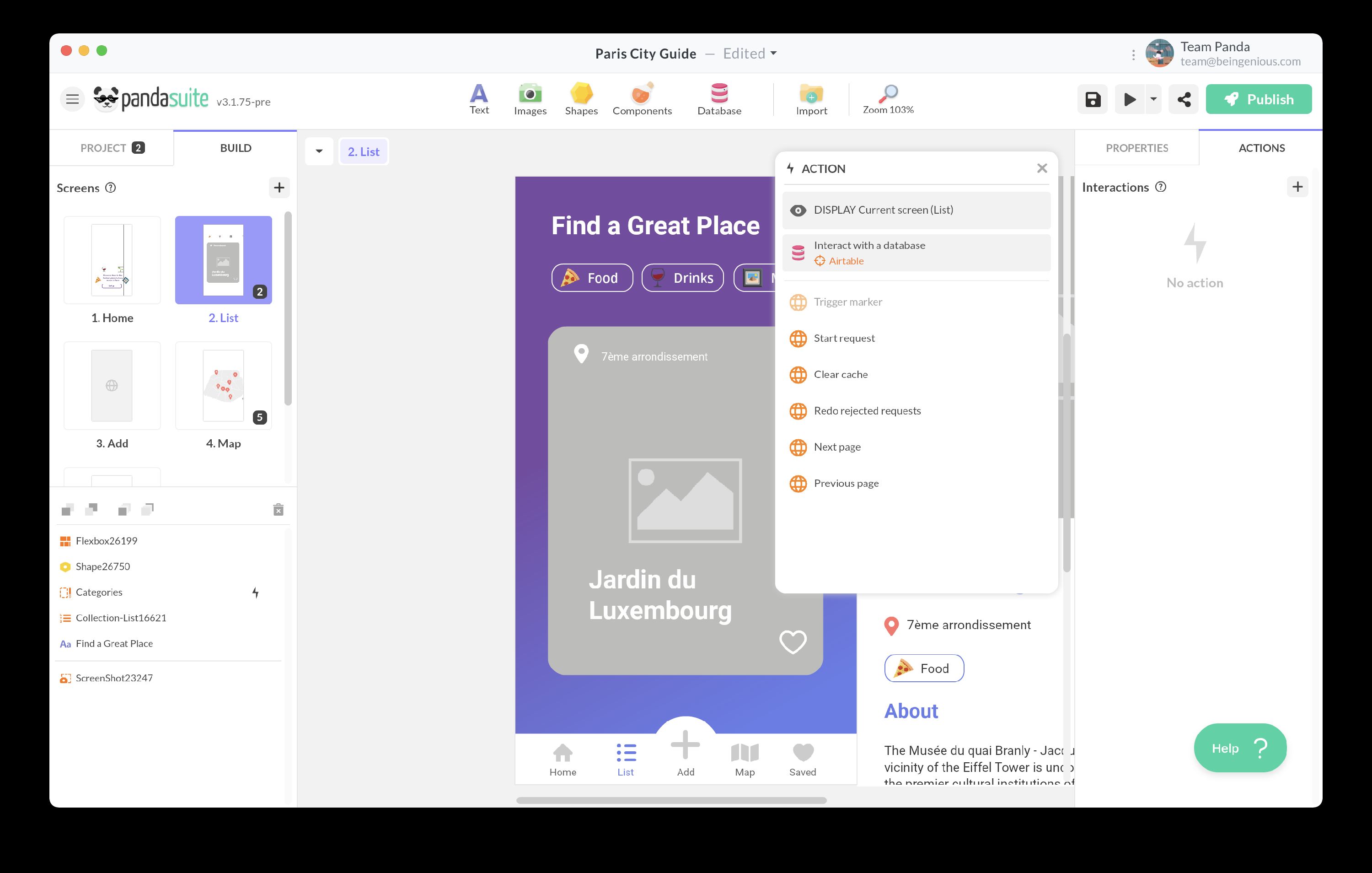
Create an action on a project data source: the Datastore for variable management, the Firebase Session component for user-associated data, or an external database (e.g., Airtable) through the HTTP component. For detailed actions available, refer to the corresponding articles.
Open a URL
Add a link to a website, display a PDF hosted on an external server, or open the default email app. This action allows you to open a URL from your app in an external window.
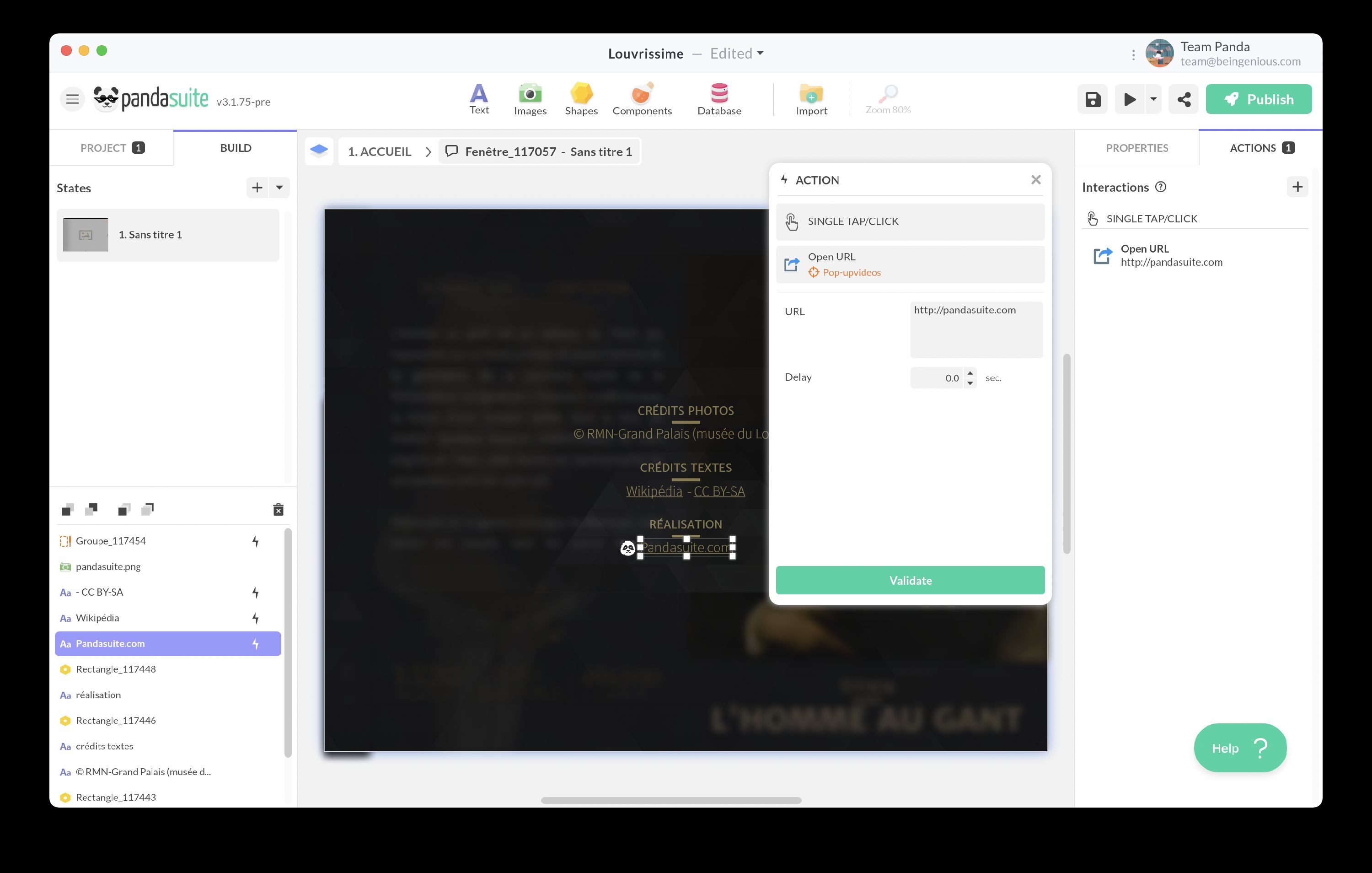
Specify the URL in the action settings.
This action opens an external window. If you want to integrate a web page directly into your app, you can embed it using the Web component (iframe) within a screen. Note: Not all websites allow such integration.
Share
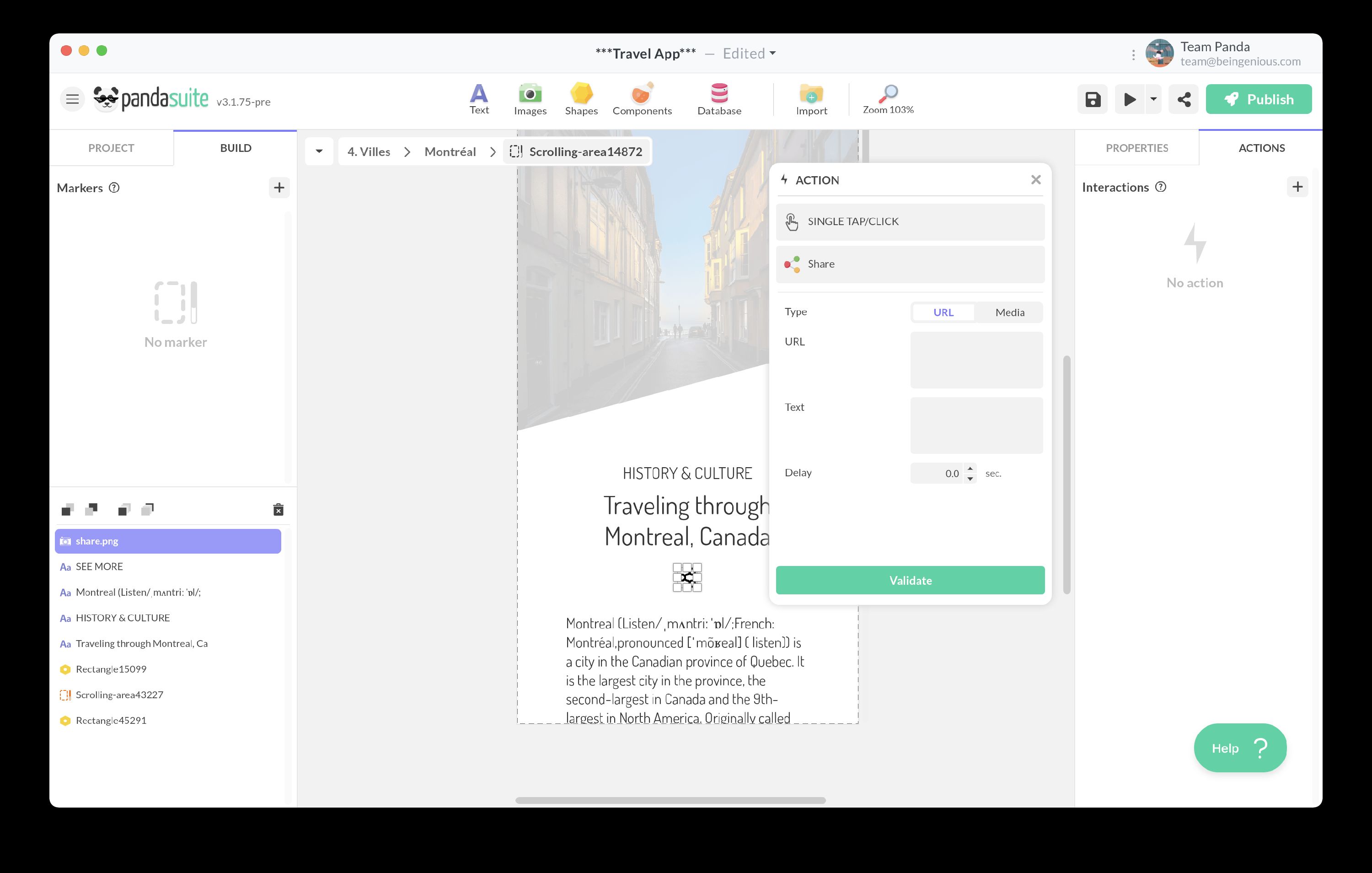
Share content (a URL, video, text, image, or PDF) using the native sharing action of iOS and Android devices or Safari and Chrome mobile browsers.
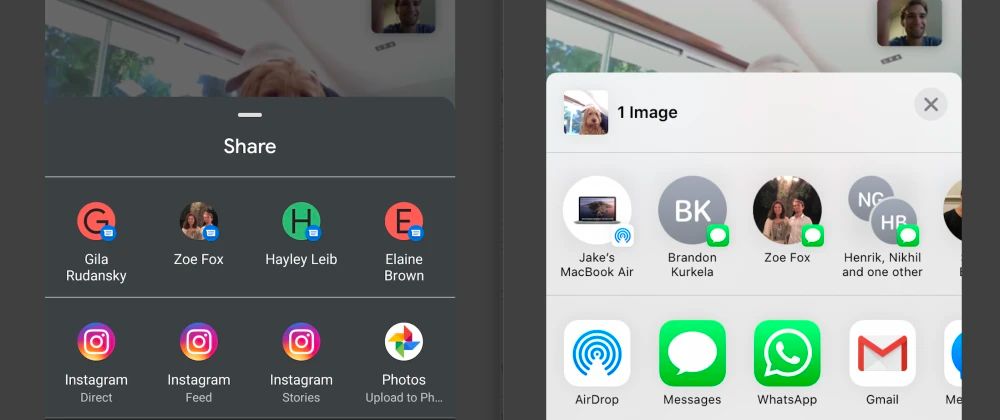
Choose to share a URL or media. Add custom text if desired.
Note: The Text + URL option is not supported by all apps. Some will display only the URL.
Trigger a tracking event
Collect specific data on user interactions and screen loads when your app is connected to an analytics tool.
Learn more: Custom tracking plan
Trigger haptic feedback
Activate a vibration on the user’s device to enhance tactile feedback. This feature is compatible with iOS, Android, and mobile web (excluding Safari).
Learn more: Haptic feedback
Copy to clipboard
This action allows the user to copy the selected content (text or media) to their clipboard.
Save
The user can save media to their device. On mobile, the media is saved to the gallery; on desktop, it is saved to the Downloads folder.
Switch foreground/background
Add a link to another foreground/background. This is particularly useful for configuring menus and navigation elements.
You can choose to navigate to a specific foreground/background, the previous one, or the next one. You can also select a random foreground/background.
If navigating to the previous or next foreground/background, the order corresponds to their position in the list. You can add an interval (e.g., skip every second one) and enable loop mode.
You can also add a delay, transition duration, and a type of animation (easing curves, spring animations, etc.).
Change language
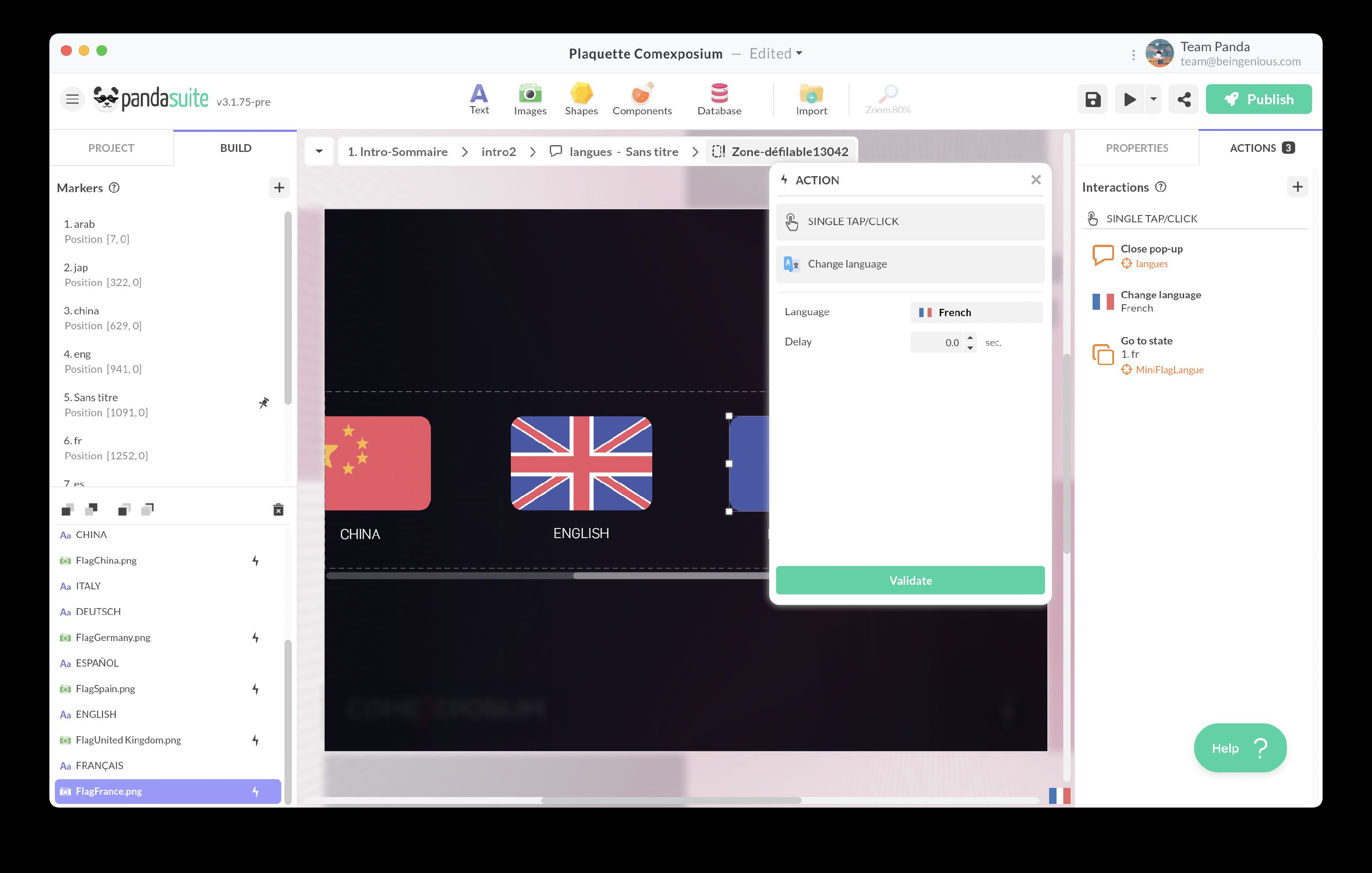
This action lets users switch the app’s language among those you have defined. Learn more: Language management
Mute/Unmute sound
This action allows users to mute or unmute the app’s sound. It is a global command, applying to all sounds in your project. Ensure sounds are already integrated into your project before using this action.
Return to the previous screen or state
Add a link to navigate to the previous screen or state, regardless of the user’s current position.
By enabling the Ignore states option, users return to the previous screen even if their current screen has multiple states.
Exit the application (Windows & MacOS)
This action creates a button to close the application. It is compatible only with Windows and MacOS apps.
About conditional actions
You can create conditional actions using the Condition component. Define your condition and trigger actions based on whether the condition is met.
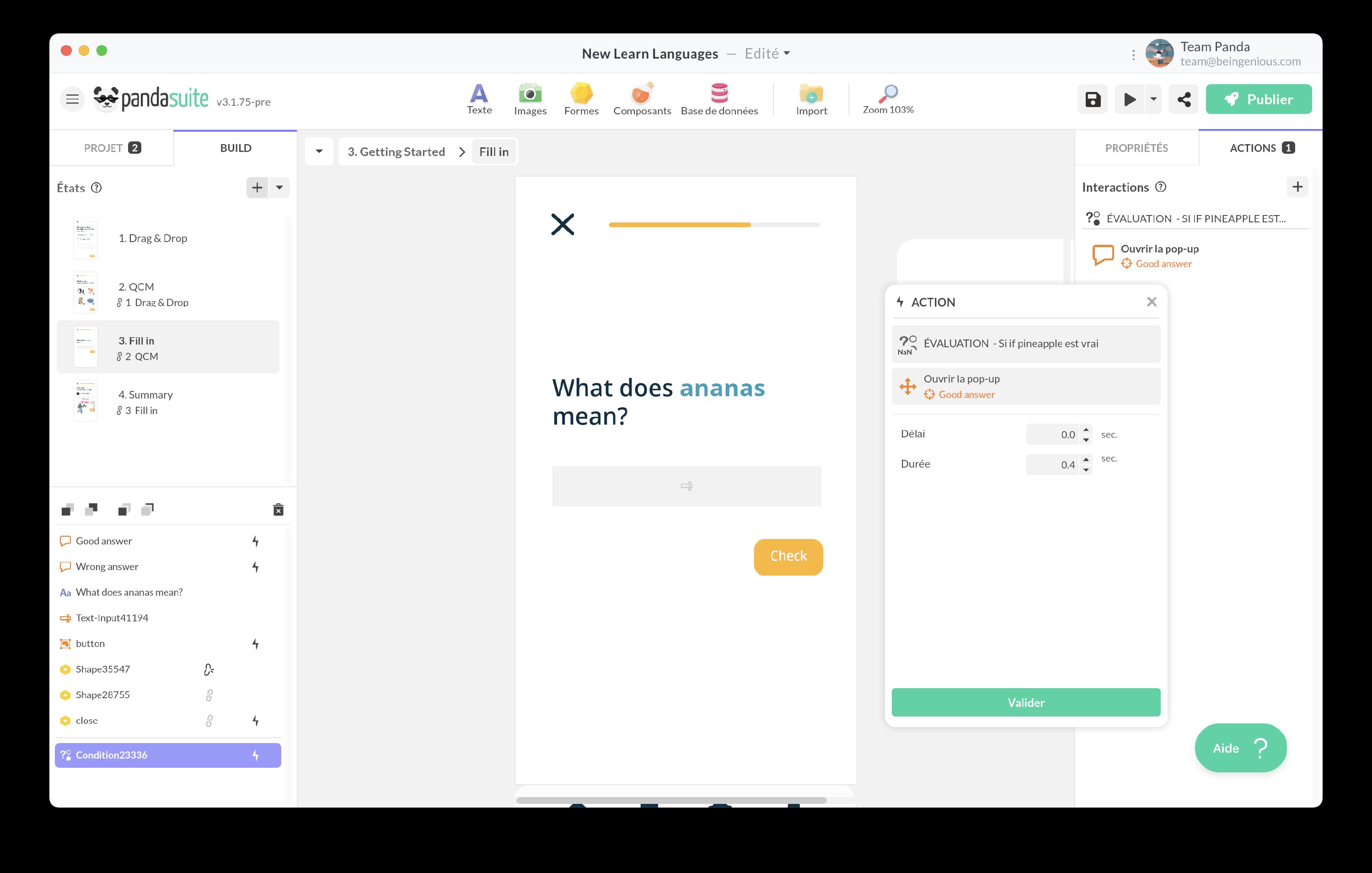
You must configure your condition, evaluate it, or select an action.