
Using PandaSuite Viewer
Test your projects on real devices with PandaSuite Viewer, before exporting or publishing.
- PandaSuite Viewer installed on your device (installation guide)
- Logged in with the same PandaSuite account as in Studio
- Project Saved in PandaSuite Studio: the Save button pushes the latest version to the cloud
Open a Project
Log in with your PandaSuite account email and password.
The list of all your active projects appears. Tap the Search icon to display filter options (Downloaded / Not downloaded / My projects / Shared with me) and search by project name.
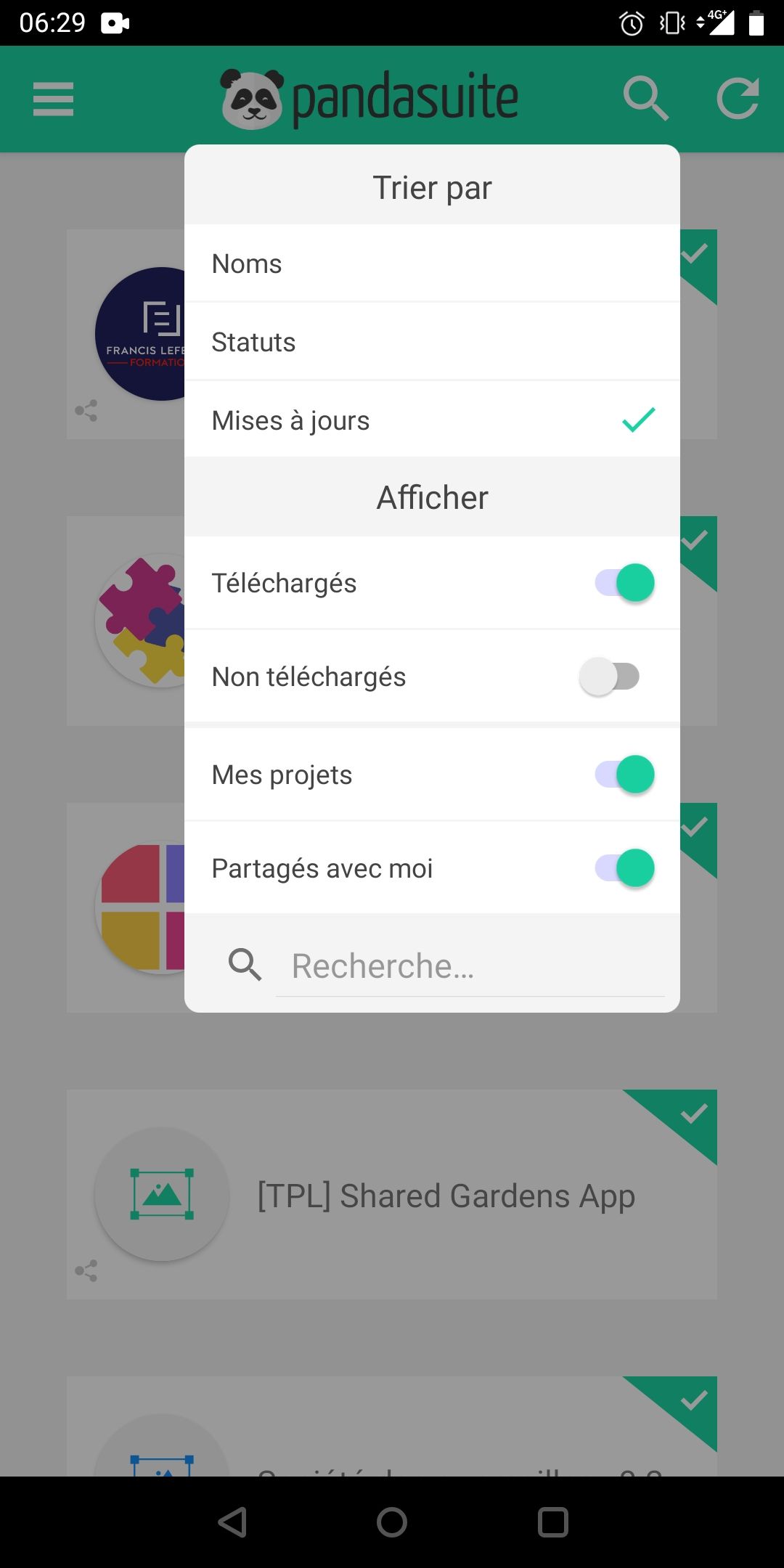
Tap the cloud icon to download a project. Tap again to open it once downloaded.

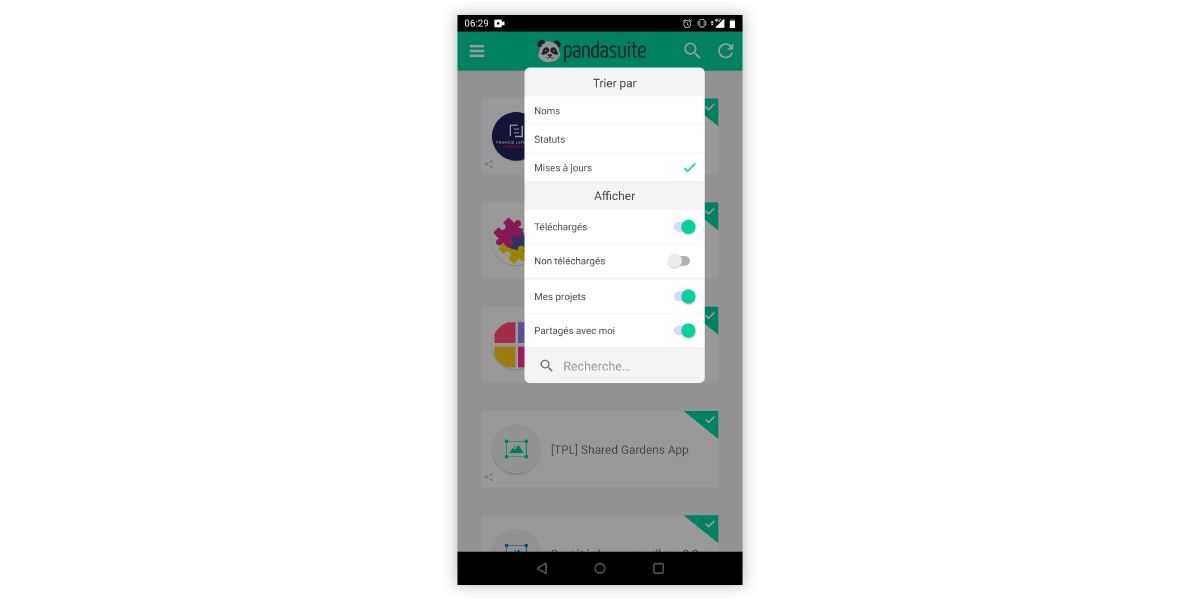
Once a project is downloaded, it remains accessible without an internet connection. Useful for testing in environments with limited connectivity, such as trade shows or underground commutes.
Navigate Between Screens
While previewing a project, slide your finger from the left edge of the screen toward the center to open the navigation menu. From this menu you can:
- Jump directly to any screen in the project
- Tap Update to reload the latest saved version
This navigation menu exists only in PandaSuite Viewer. It will not appear in your exported or published app — it is a testing tool to help you move freely between screens during review.
View Project Information and Switch Layout
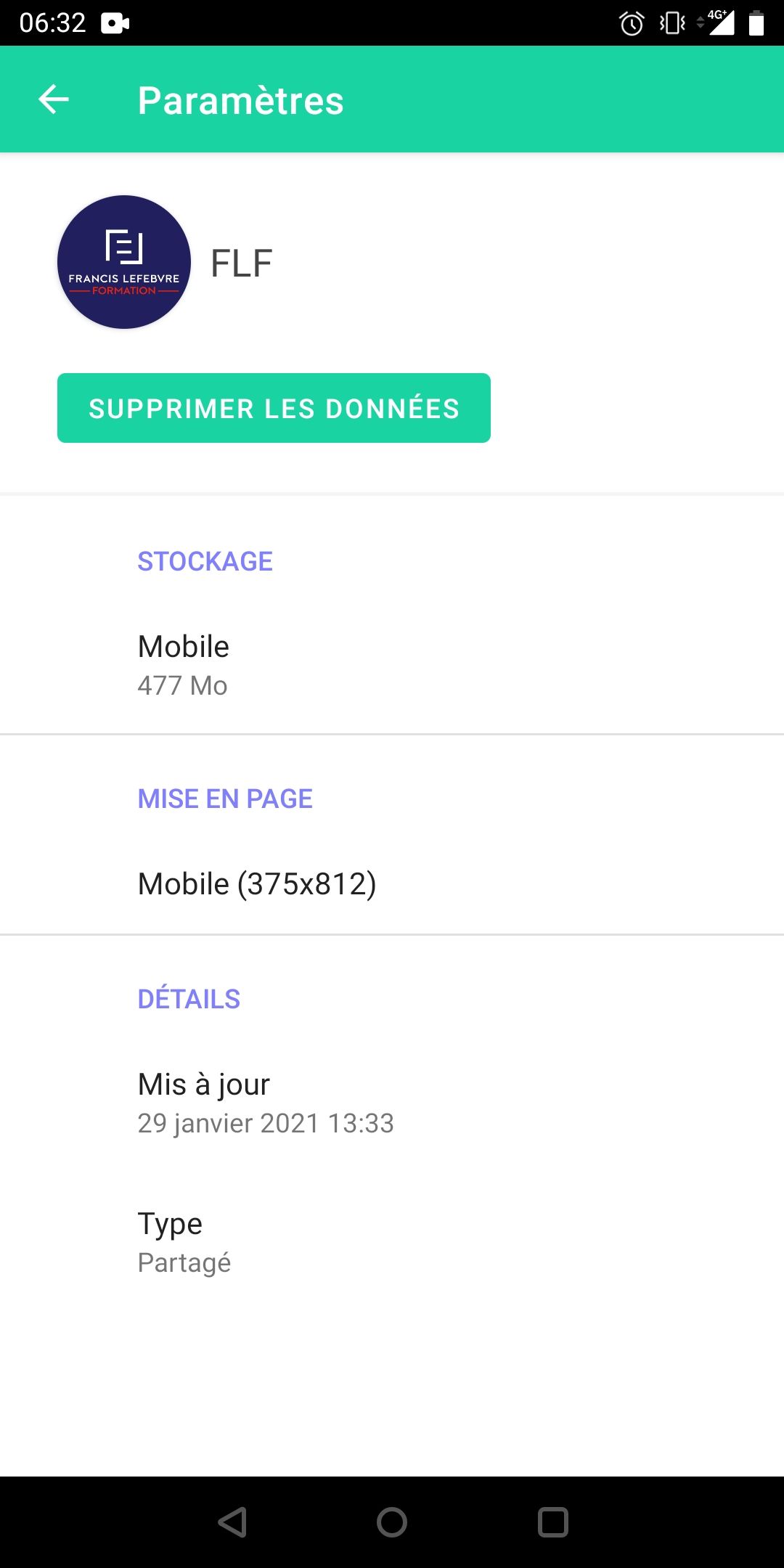
Tap and hold the project icon in the list to display its settings. You can access:
- The size of the project on this device
- Layout information, and the ability to switch between layouts
- The date of the last modification
Delete Local Data
In the project settings panel (tap and hold the project icon), tap Delete Data to erase all locally stored data for that project on this device. This is useful to reset the app state during testing and verify first-launch behavior.
View an Update
Your updates are instantly viewable in PandaSuite Viewer.
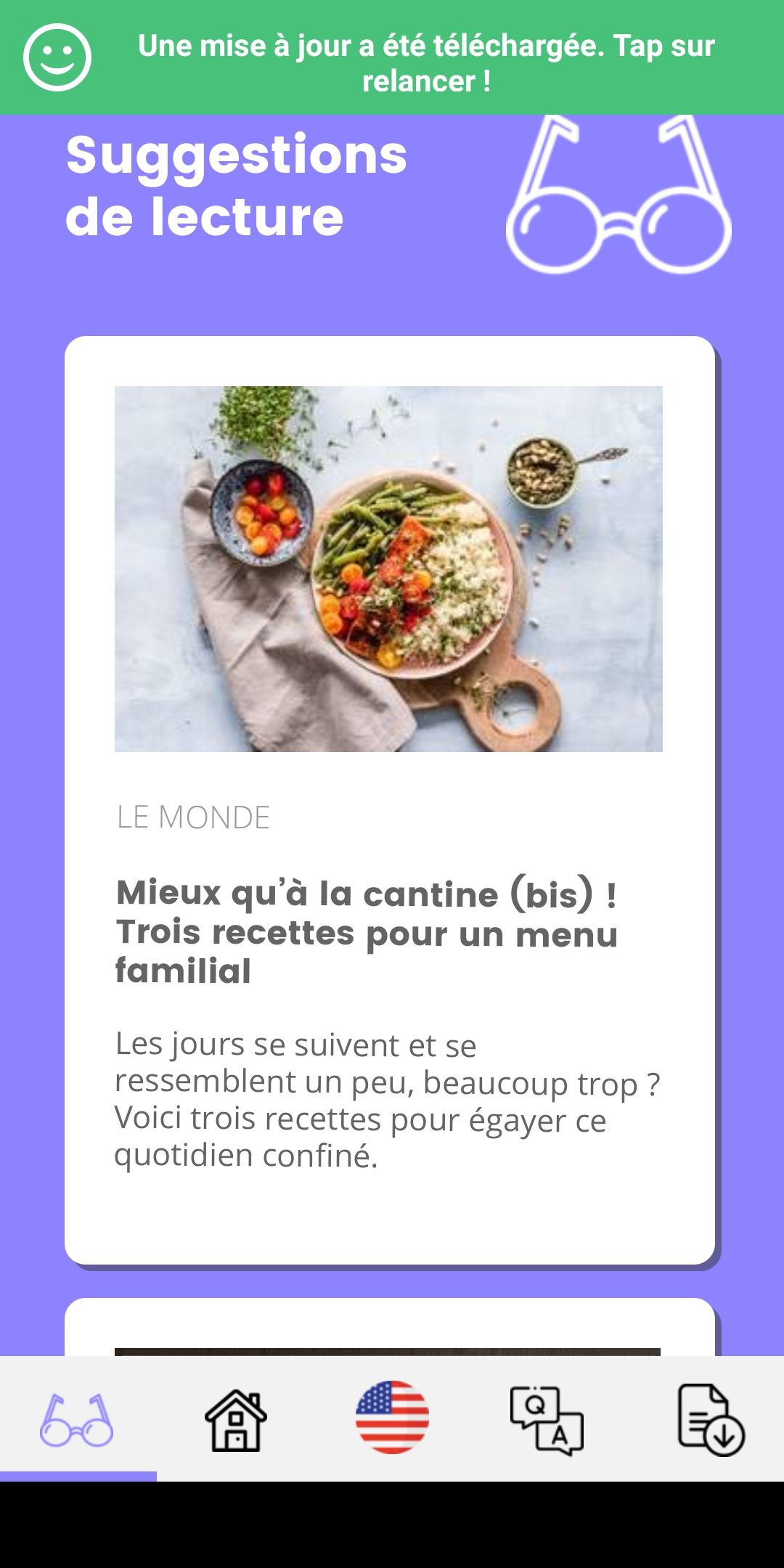
- If the project is open when you save in Studio: a green notification banner appears at the top of the screen. Tap it to load the latest version — or open the left menu and tap Update.
- If the project is closed: an Update button appears next to the project in the list. Tap it to download the latest version.
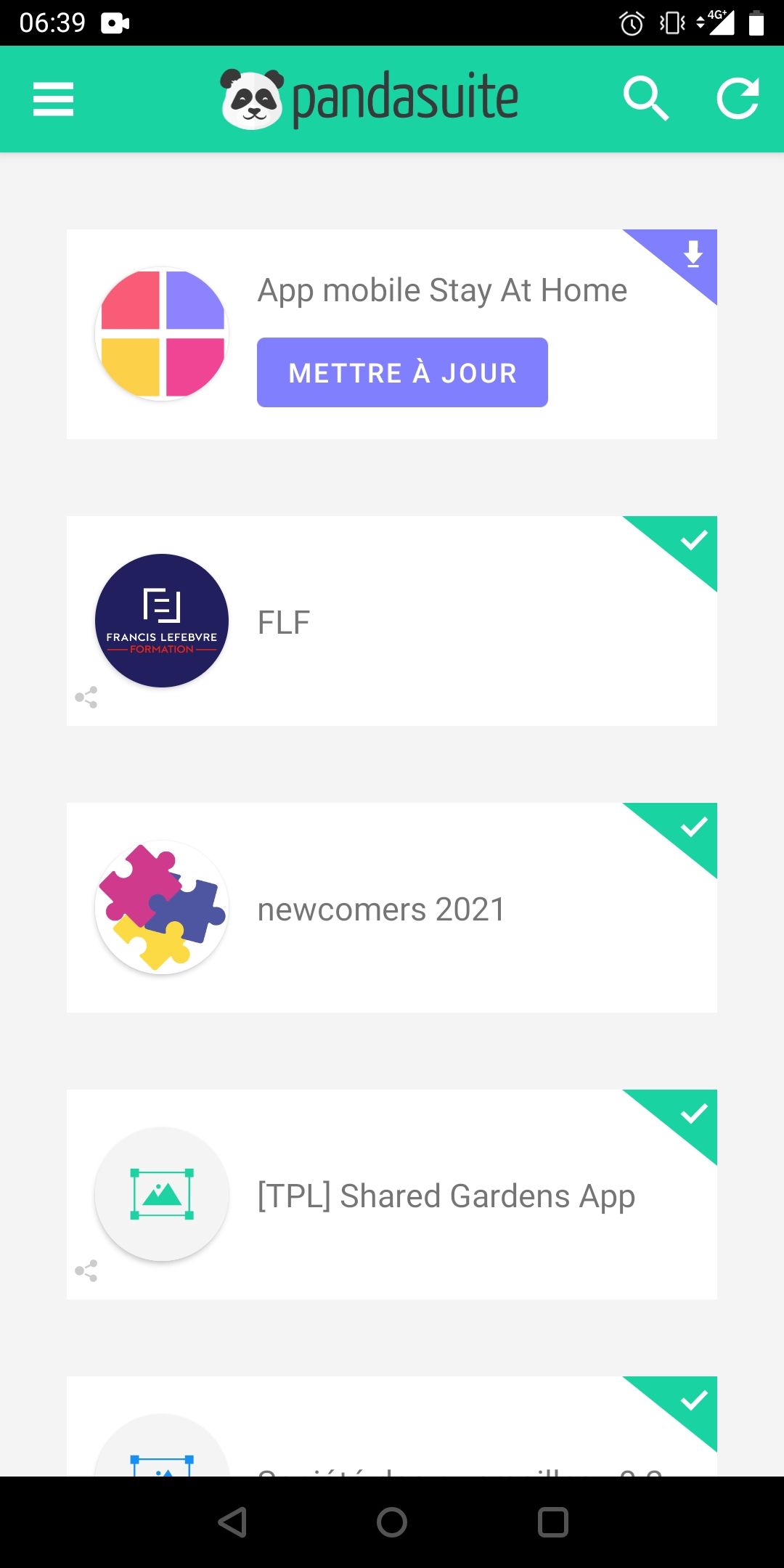
If needed, tap the refresh icon to reload the full project list.
Test on Multiple Devices
PandaSuite Viewer runs on any iPhone, iPad, or Android device. To validate your project across screen sizes and platforms:
- Install PandaSuite Viewer on each device you want to test on.
- Log in with the same PandaSuite account on each device.
- Download and open the project: each device receives the same saved version.
Check gestures, text readability, layout adaptation, and offline behavior on each device before moving to production.
From Testing to Deployment
PandaSuite Viewer is a testing tool: it is not the final delivery format for your users.
When your project is ready to go live, you need to export or publish it:
| Target | What to do |
|---|---|
| Web app / PWA | Publish from the PandaSuite dashboard (custom domain, no PandaSuite branding) |
| iOS app | Export an IPA file, then distribute via the App Store, TestFlight, or Ad Hoc |
| Android app | Export an APK or AAB file, then distribute via Google Play or directly |
| Windows app | Export an .exe file from the dashboard |
In PandaSuite Viewer, your project runs in a PandaSuite-branded environment (PandaSuite icon, splash screen, and interface). Exporting or publishing your app removes PandaSuite branding and gives you your own icon, splash screen, and URL.
See Publish and export your project for the full overview of deployment options.