
Languages & localization
Discover how to add multiple languages to your project.
PandaSuite does not automatically translate your content, but the tool greatly facilitates the integration of your content in multiple languages.
PandaSuite manages languages at two complementary levels:
- Static interface — texts, images, and videos placed directly in screens. You edit each element language by language from the editor.
- Dynamic data (Datastore) — content driven by collections (catalog, articles, points of interest…). The Datastore automatically generates a version per language for each text property.
Depending on your project, you will use one, the other, or both combined.
Prerequisite: add a language
By default, your project is built in a single language. Before editing content in another language, it is necessary to add this language to your project.
Here are the steps to add the new language:
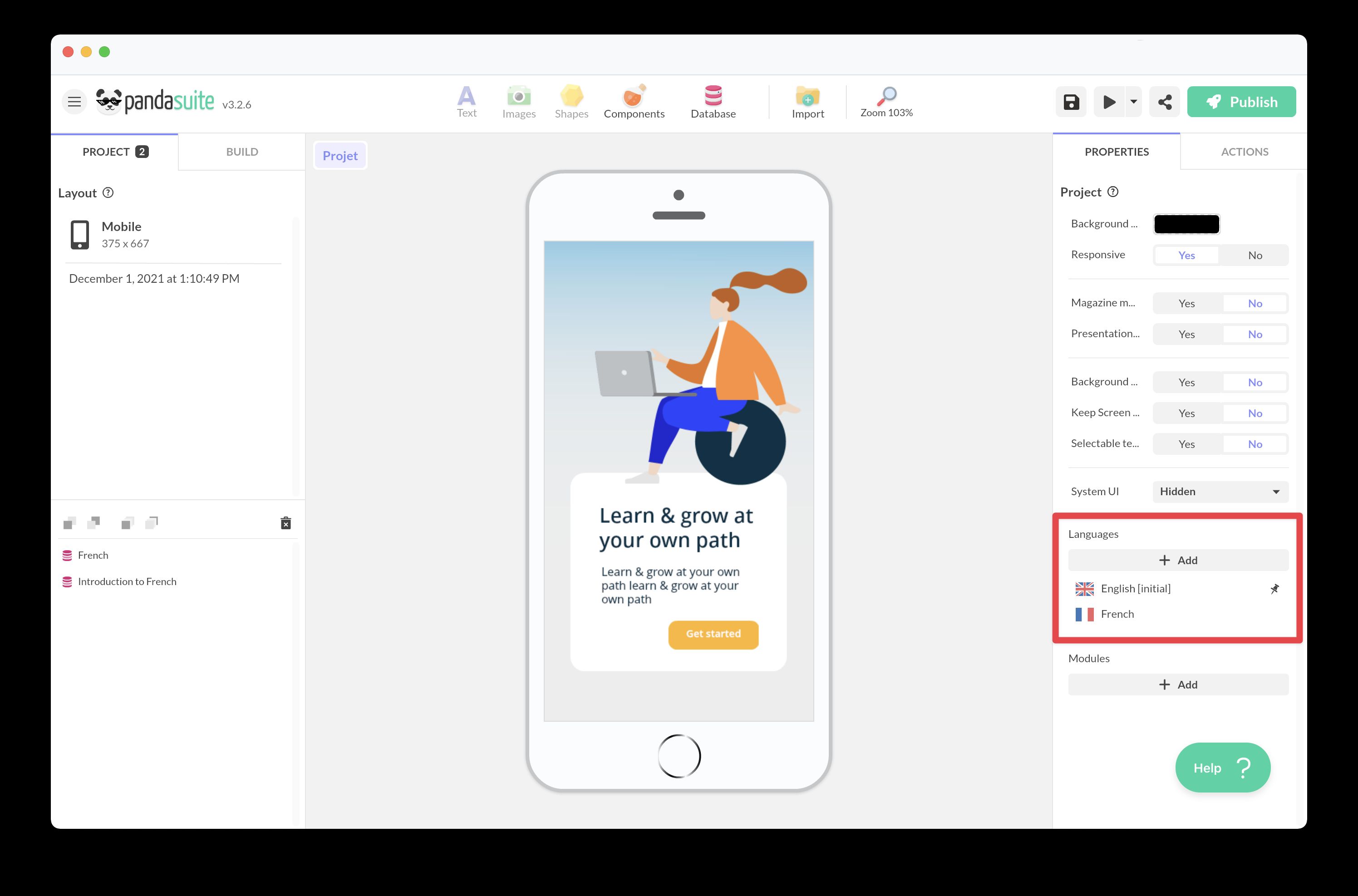
- Go to the Project properties.
- In the Languages section, click on + Add.
- Declare the initial language of the project, the one in which you have worked until now.
It is essential to select this initial language correctly, as it serves as a reference for all others. All layout changes in this language will be automatically applied to other languages. Once defined, the initial language cannot be modified without deleting all associated content.
The languages indicated in PandaSuite Studio are only for reference to assist in your configuration. If the language of your choice is not present in PandaSuite Studio, contact our team or use another language as a reference.
- Add one or more other languages. You can add as many languages as necessary.
- Use the pin icon to set the default language, which will automatically apply when the project is opened.
Approach 1: Static interface (manual elements)
This approach covers all content placed directly in your screens: manually entered texts, images, videos, and component properties.
Edit a language
When you want to edit a specific language:
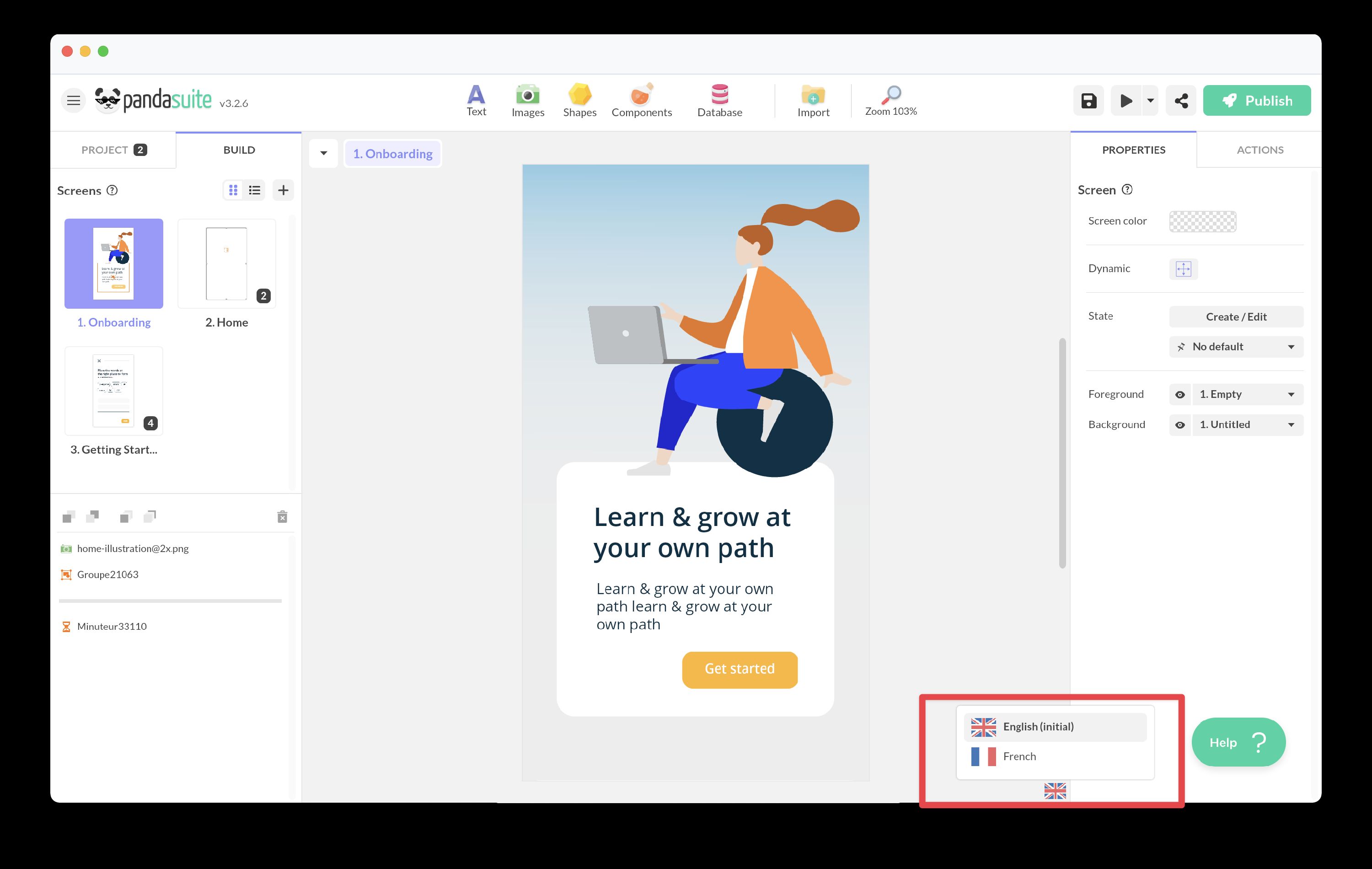
- Click on the flag located at the bottom right of your workspace.
- Select the flag corresponding to the desired language.
You can modify:
- Texts, images, audio/video content (Video Player and Fullscreen Video). Ensure that images maintain the same ratio to avoid distortion.
- Specific properties of certain components, such as the URL Media Player or the Web component (e.g., modify a URL per language). It is not yet possible to change actions (e.g., Open an external URL) by language, but you can add a data binding on this URL to a variable per language.
- Dynamic display using the Flexbox component, which adjusts the size of a block according to the language.
Limits: The reference layout is that of the initial language. Therefore, it is not possible to modify the layout for a specific language. Changing the size of a block for a specific language affects all other versions.
Create a language switch menu
You can customize the language switch menu:
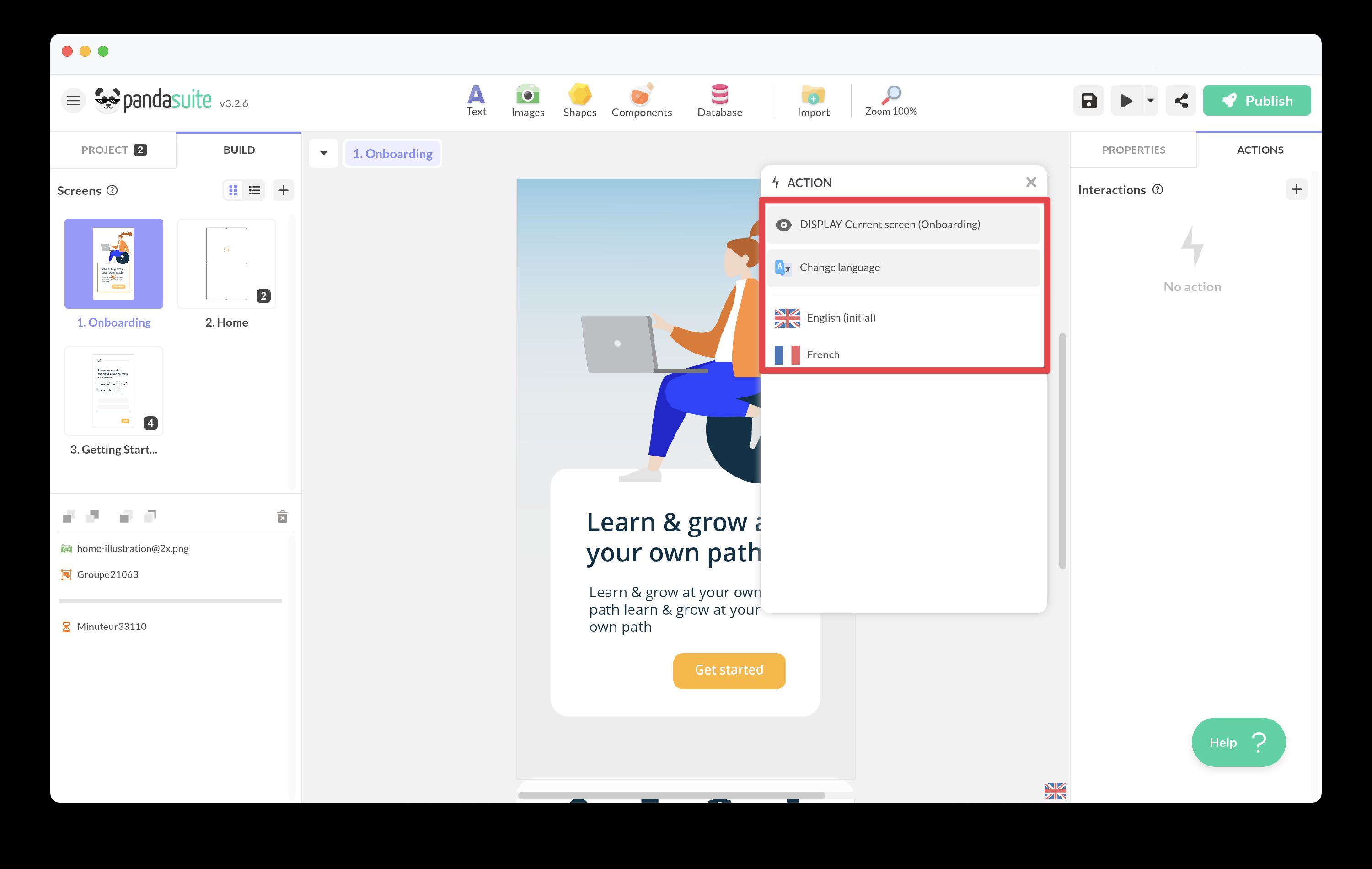
- Select the trigger element (flags, FR/EN, etc.).
- Add a new action.
- Select the action Change language and define the desired language.
Your application will automatically adapt.
Automatic localization based on device language
You can synchronize your application with the user’s device language.
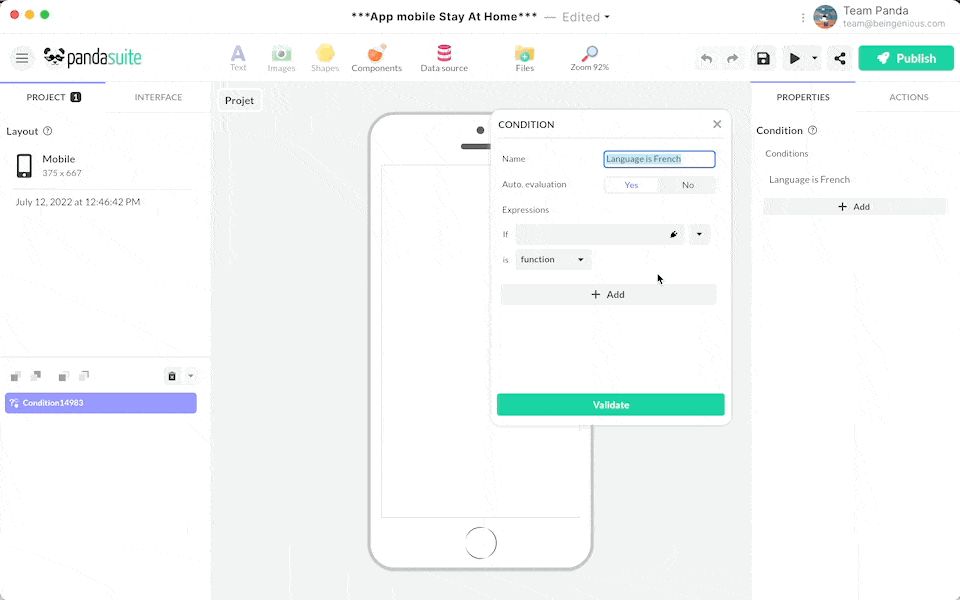
- Add a Condition component and create a condition per language.
- Activate the Automatic evaluation option so that the condition is automatically evaluated.
- In the If field, choose the data Project > Context > locale, then use the Starts with function.
- Define the desired language value (e.g., “fr” for French, “en” for English, etc.). To find the corresponding language code, refer to: Language designators with region.
- Define an action: if the condition is met (i.e., if the device language matches the defined value), use the Change language action and select the appropriate language.
- Repeat these steps for each integrated language.
Automatic localization based on a URL parameter
It is possible to define the application language via a URL parameter.
This method allows for dynamic customization and better integration with external links.
Add a parameter for the language in the project properties
- Go to your Project properties and add a custom parameter named
lang. - Set a default value (e.g.,
frfor French).
Create a condition to evaluate the lang parameter
- Add a Condition component at the project level.
- Configure a condition to check the value of the
langparameter.
Configure the language change action
- In the If field, select the data Project > Context > Launch > Parameter(s) > lang.
- Add a rule to evaluate the parameter value (e.g.,
lang = enfor English). - Define the Change language action.
Repeat for each supported language
Repeat the previous steps for each language in your project by adding a specific condition for each.
Approach 2: Dynamic data (Datastore)
For content driven by collections — catalogs, articles, points of interest, product pages — the Datastore provides built-in CMS translation management.
How it works
Datastore languages are independent from interface languages: they must be added separately, directly inside the Datastore.
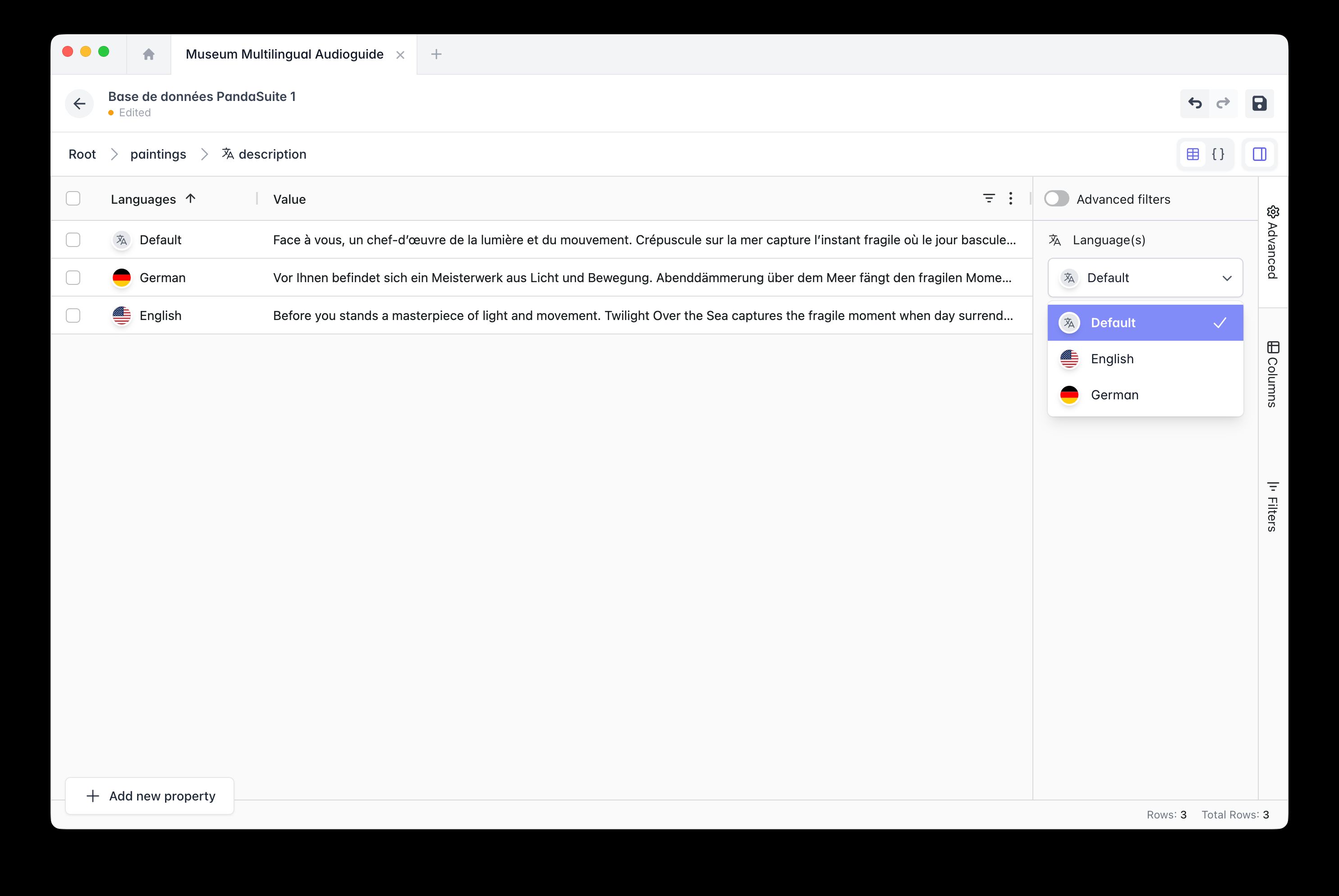
In your Datastore, add the desired languages. For each Text property, an entry per language then becomes available. For example, a title property can be filled in French, English, German, etc.
Enter the translations for each item in the collection. When the user switches languages in the application, Collection / List components and data bindings automatically display the corresponding version — with no extra work on your part.
When to use this approach
- Your content is structured as a collection (catalog, article database, POIs…).
- Translations are updated regularly.
- You want to centralize all translations in one place, without modifying screens.
With an external source (Airtable, API…)
If your data comes from an external source, manage translations directly at the source (for example title_fr and title_en columns in Airtable). Then use the Transform component to expose the correct value based on the active language, using the Project > Context > locale data.
Museum Multilingual Audioguide
Add this template to your account in just a few clicks. Edit and customize it freely.
→ Add this template to your account