Trigger an action at a specific date or time
Ce contenu n’est pas encore disponible dans votre langue.
Trigger an action automatically in your mobile application on the date of your choice. Let’s take the example of a new “Happy New Year” section of your app that will unlock without any action from you on January 1st, 2021 at midnight GMT.
In your main screen, create a new state and prepare the menu that includes the new section. We will automatically trigger the display of this new status on the chosen date. To set the date, we will use a universal value, the timestamp.
Insert the web date module
Download this web module: date.zip
Insert a Web component in your screen. In its properties, keep the Offline type, open Source and choose date.zip (the + of the list imports it).
Create a timestamp
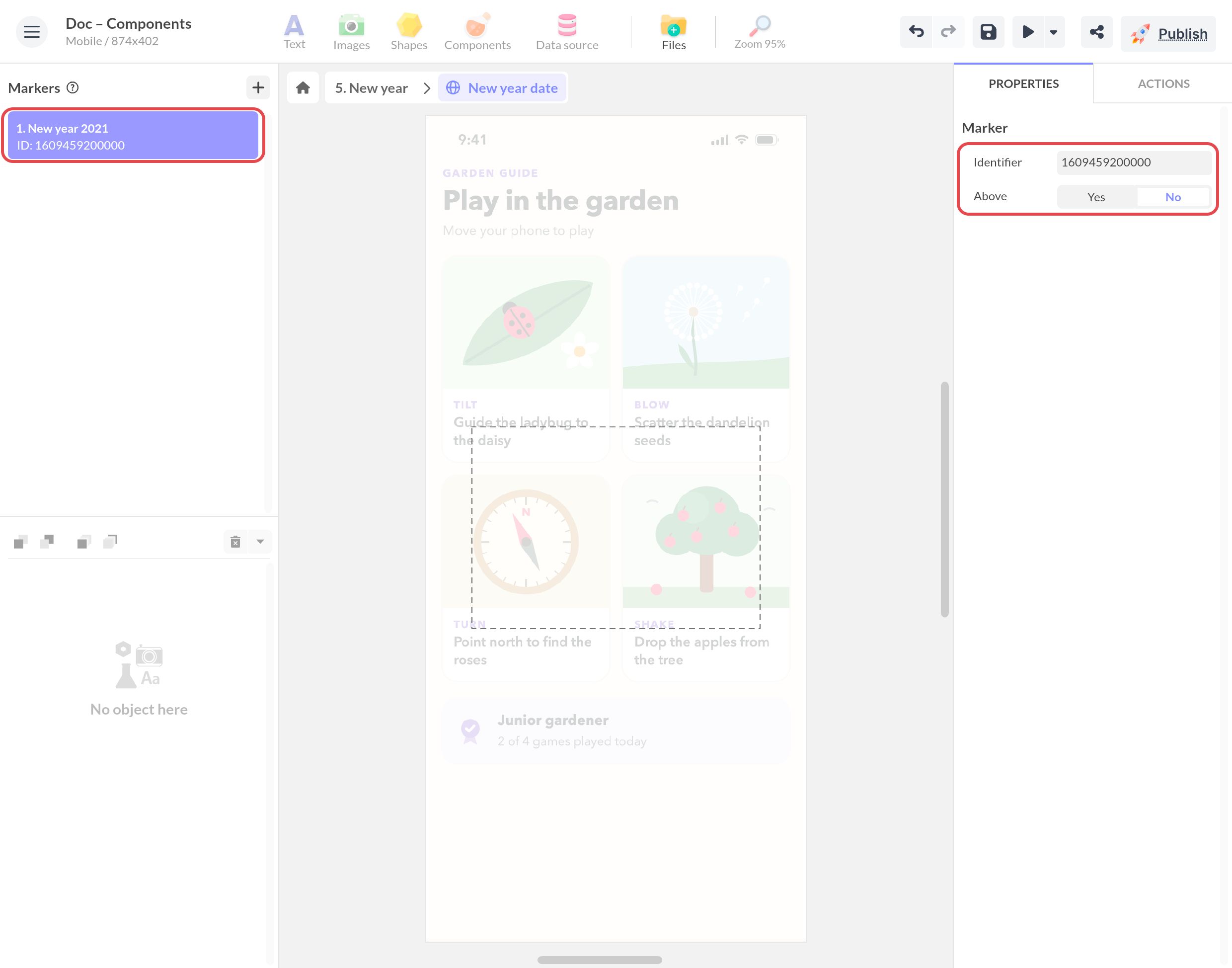
Double-click the component to enter it, then click the + next to Markers.
This date is set using a marker, in the form of a timestamp in milliseconds.
The Unix timestamp (or Unix time or POSIX time) is the number of seconds that have elapsed since January 1, 1970 (midnight UTC/GMT), excluding leap seconds (in ISO 8601: 1970-01-01T00:00:00Z).
For example: 1483228800000 can be converted to Sunday, January 1, 2017 00:00:00:00
To retrieve the timestamp value of a date, go to: https://www.epochconverter.com/
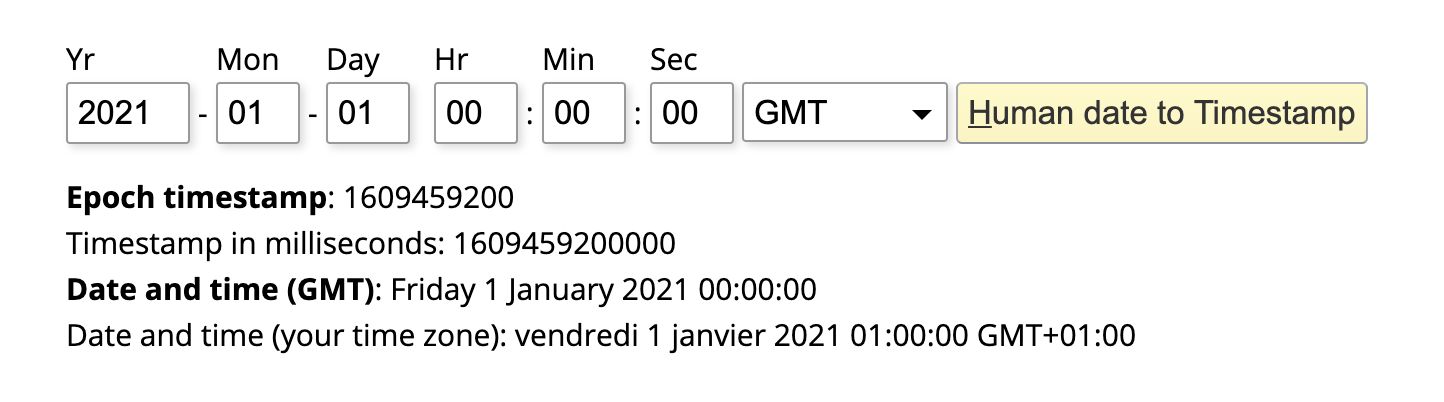
Convert the date and enter it as the marker Identifier, in milliseconds: add three zeros to the timestamp in seconds (1609459200 becomes 1609459200000). A timestamp in seconds reads as a date in 1970, and the marker would trigger at once.
Leave Above on No: the marker triggers once the date has passed. On Yes, it triggers as long as the date has not been reached. The module checks the date when the screen opens, then every 2 seconds.
Trigger the action based on the timestamp
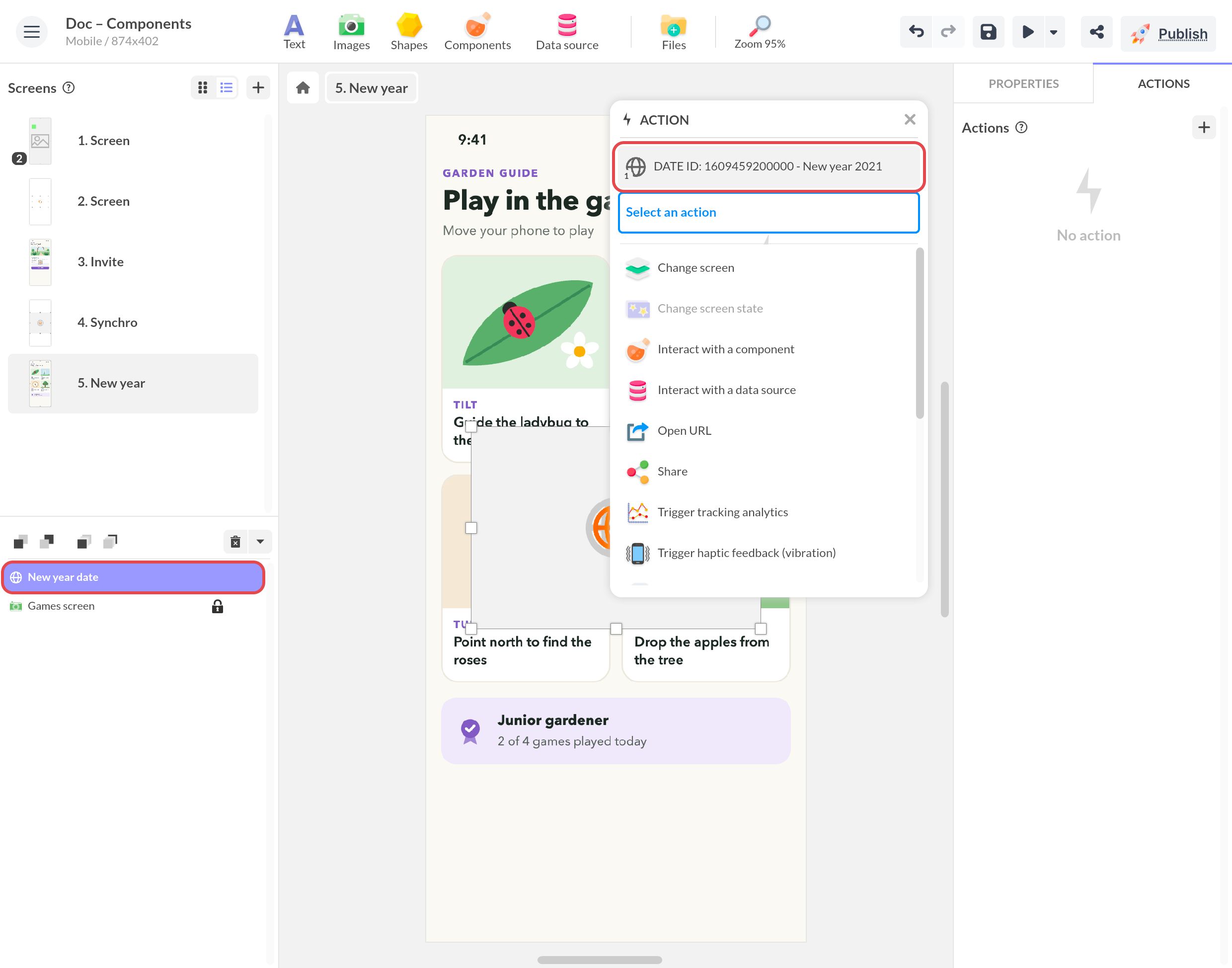
Select your web component and click on Actions.
Choose as trigger the previously defined timestamp/marker and choose the action of your choice.