
Set up two-step authentication
Two-step authentication protects your PandaSuite account even if someone finds your password: each time you sign in, you also confirm with a code from an authenticator app on your phone, or with a security key.
You set it up in your account, from a web browser. In PandaSuite Studio, the Security tab offers Manage in Browser, which opens this page in your browser.
Add an authenticator app
You need a free authenticator app on your phone, which generates a new 6-digit code every 30 seconds.
- In the dashboard, click your name at the bottom left, then Account, and open the Security tab.
- In Two-step authentication, click Add Authentication Step, then Add Authenticator App…
- In your authenticator app, add a new account and scan the QR code shown by PandaSuite. If you cannot scan it, type the code shown under or enter this code. Click Continue.
- Enter the 6-digit code displayed in your authenticator app, then click Activate.
- PandaSuite shows your backup code. Click Copy to clipboard, store the code somewhere safe, then click I have saved my backup code.
Two-step authentication is now on: from your next sign-in, PandaSuite asks for a code.
Add a security key (optional)
A security key is a USB or NFC key, or a passkey stored on your computer or phone. Once your authenticator app is added:
- Click Add Authentication Step, then Add Security Key…
- Enter a name for the key, click Save, then follow the instructions of your browser.
The authenticator app is always required first. Security keys work when you sign in from your browser, which is also where PandaSuite Studio sends you to sign in. When PandaSuite Studio itself asks you to confirm your identity, only a code from your authenticator app works.
Turn two-step authentication on or off
Adding your first method turns two-step authentication on: PandaSuite then requires one of your methods at each sign-in. The Enable two-step authentication switch, above your methods, shows whether the protection is on.
To turn the protection off, turn off the switch. PandaSuite may ask you to confirm your identity first. Your methods stay in the list: turn the switch on again to require them again.
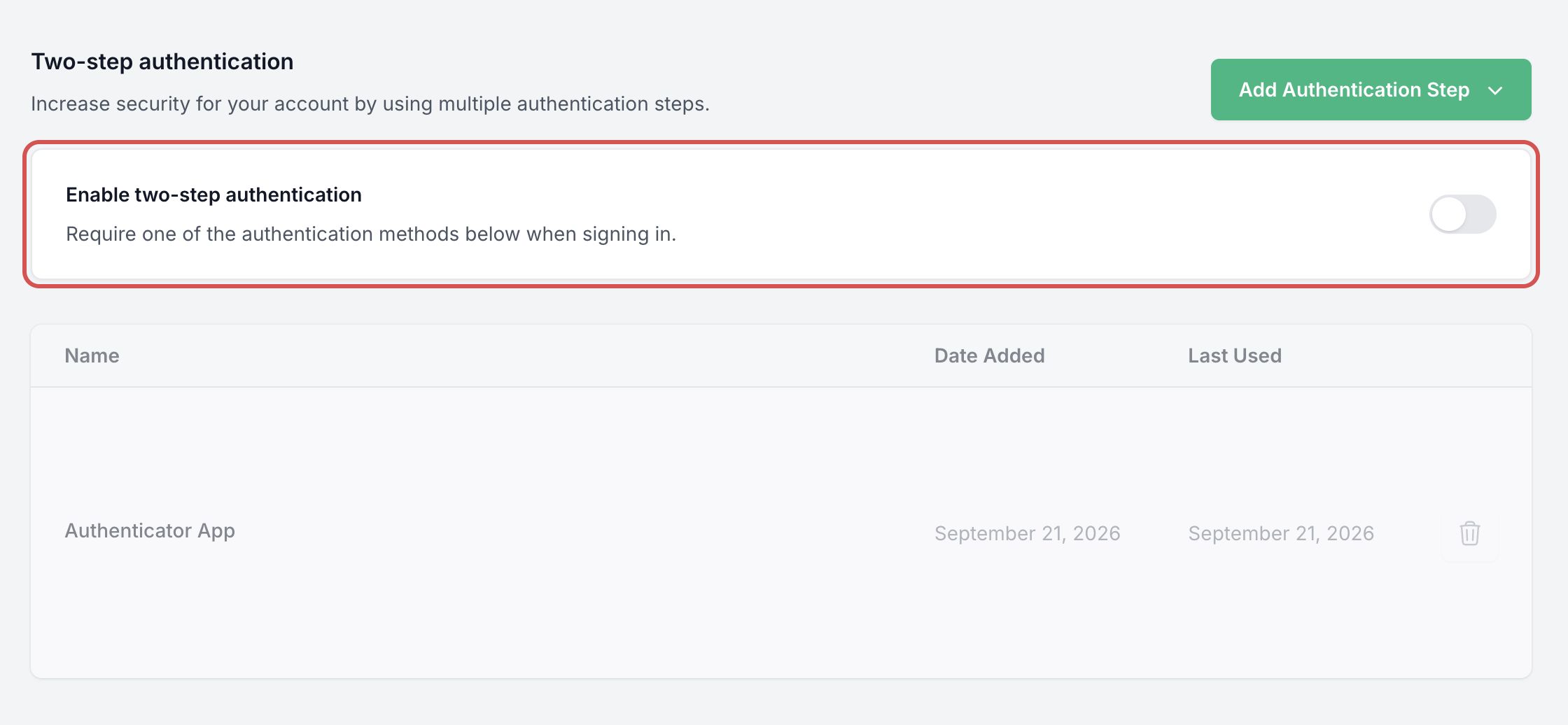
The list below the switch shows your methods, with the date each one was added and last used.
Sign in with two-step authentication
After your email address and password, PandaSuite asks you to choose a method:
- Use your Authenticator App: click Continue, then enter the 6-digit code displayed in your authenticator app.
- Use a security key: click Continue, then follow the instructions of your browser.
Click Choose another method to go back to the list.
While two-step authentication is on, PandaSuite also asks you to verify your identity before sensitive changes, such as managing your API keys or your connected apps. In the Verification required window, choose a method, then click Activate.
If you lose your phone or your security key
Sign in with your backup code:
- On the method choice, click I don’t have any of these.
- Enter your backup code, then click Continue.
Signing in with your backup code turns off two-step authentication and removes your methods. Set it up again as soon as you can.
Lost your backup code? While two-step authentication is on, click generate a backup code under the switch, then Generate code. The new code replaces the previous one.
Remove a method
Click the trash icon on the row of the method, then Delete in the Delete two-step authentication method window. While a security key remains, you cannot delete the authenticator app: delete the key first. Deleting your last method turns two-step authentication off.