
Create access links to your app
An access link is a short link to your app that PandaSuite tracks. It sends each visitor to the right version of your app for their device, counts the clicks, and is the only way in when the hosting of your web app is protected.
Use access links to:
- give access to a web app whose hosting is Protected: the public URL stays locked, and only your links open the app;
- share one link that opens the mobile app on a phone and the web app on a computer;
- follow where your visitors come from, with a click counter and UTM tags;
- control the title, description, and image shown when the link is shared on social media.
Open the Links page
On your app page, click Settings, then open the Hosting tab. In Status, click Create links in the Protected access box. The Links page of the app opens.
Read Control access with the hosting status to protect your web app.
Apps that already had links before the current link system also show a Links card in Services: it opens the same page.
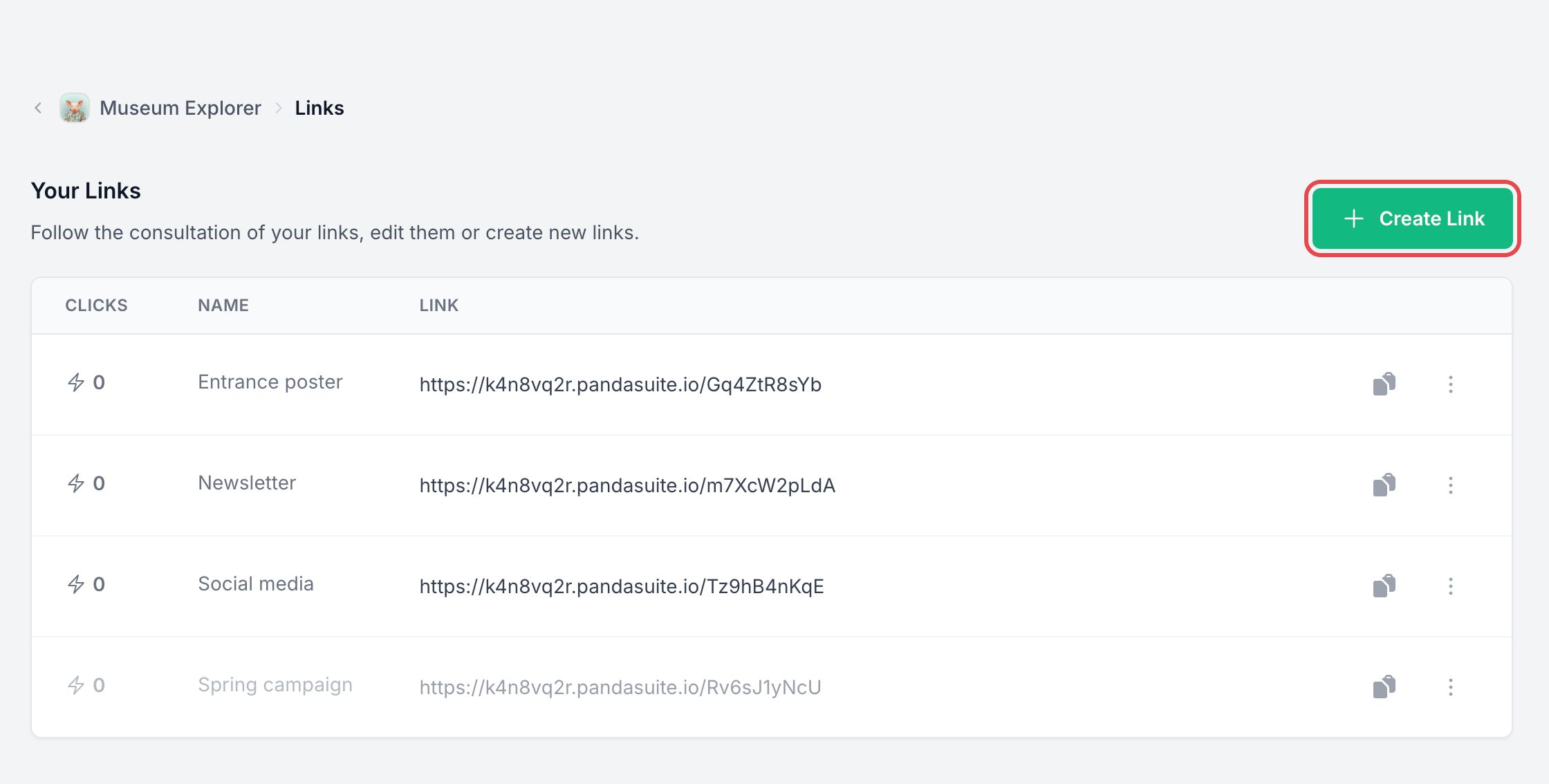
The Your Links list shows, for each link, its number of clicks, its Name, and its address. Hover over the number of clicks to see the Recent activity of the link: for each click, the device, its country, and when it happened.
Create a link
- On the Links page, click Create Link. If your app has no active plan, PandaSuite first asks you to choose one.
- In Link, enter a Name of link that helps you recognize it later, for example the place where you share it.
- In Destination, if your app has channels, choose the content the link opens in Choose Channel.
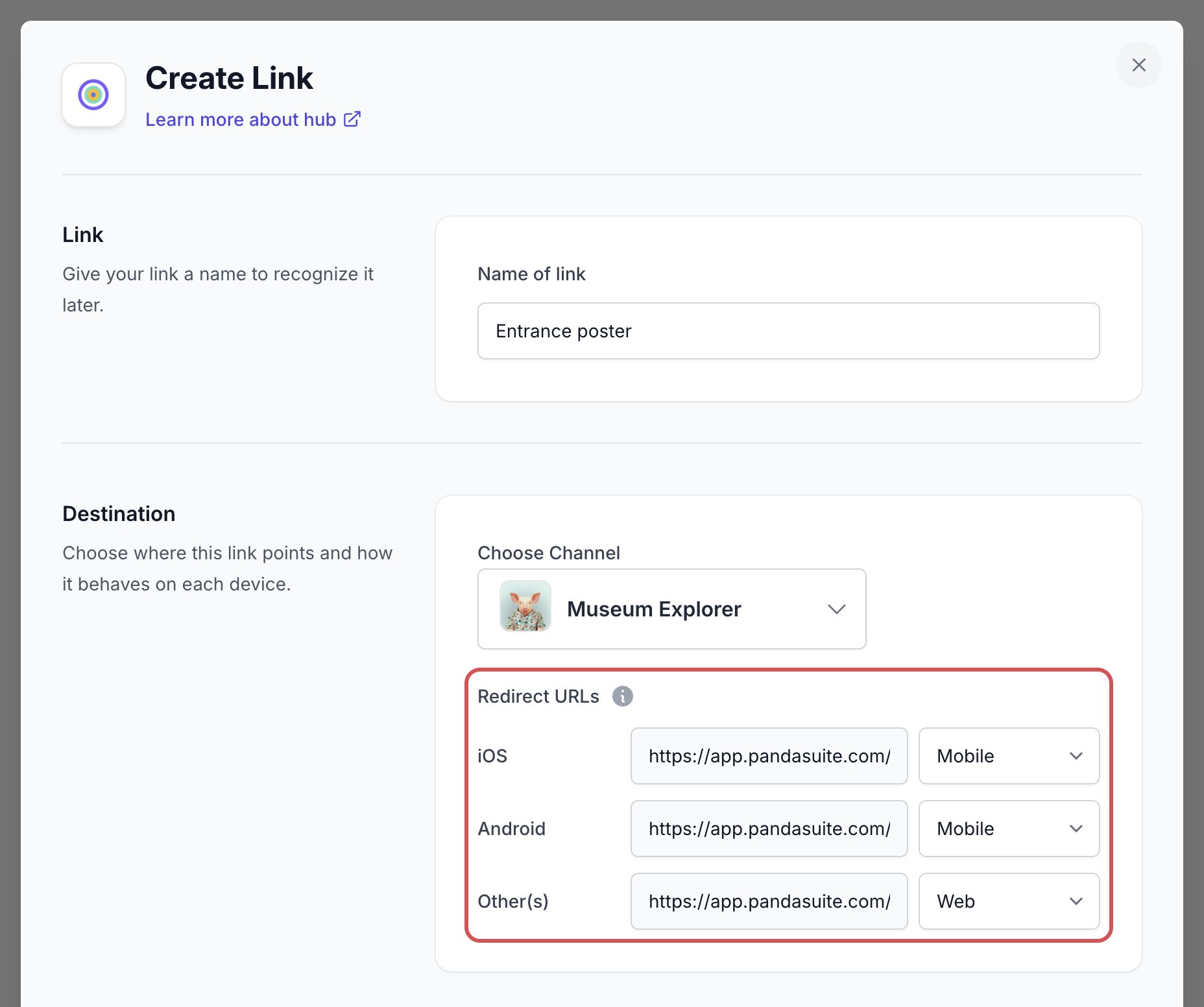
- To choose where each device goes, click Show Redirect URLs. For iOS, Android, and Other(s) (computers and other devices), choose:
- Web, Mobile, or Desktop: an address of your app generated by PandaSuite (the web app, or the download page of your mobile or desktop app), offered when this version of your app is active;
- Custom: any address you type.
- Optionally, fill in Analytics tags: Channel (utm_source), Campaign (utm_campaign), Feature (utm_medium), and Tags. Type each tag, then click + next to the field to add it.
- Optionally, fill in Social media: the Title, Description, and Image URL shown when the link is shared.
- Click Confirm.
The new link appears in the list. Click the copy button next to it to copy its address.
Share, edit, or turn off a link
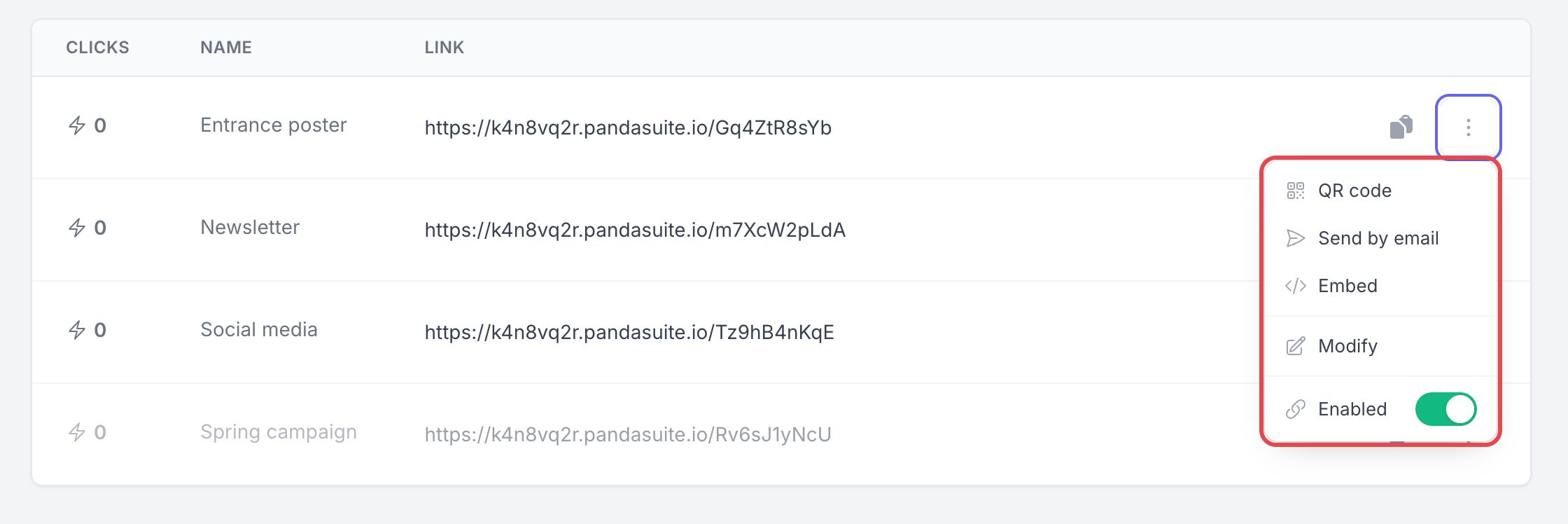
Click ⋮ next to a link to open its options:
- QR code: displays the QR code of the link, to print or share.
- Send by email: sends the link to an email address.
- Embed: gives the code to embed the app in a website.
- Modify: opens the link settings. Click Modify the link to save your changes.
- Enabled: turn off the switch to deactivate the link without deleting it. A deactivated link is dimmed in the list and no longer opens the app. Turn the switch on again to reactivate it.
Links for a PandaSuite hub
To distribute your app through a PandaSuite hub, create a hub link from the Mobile card of your app: click Create Link next to Hub Link. The same window opens, with a Choose Hub section. Read Distribute via PandaSuite Hub.